Configure Your Shopify Search
The "Search Settings" tab of the Site Search 360 Control Panel covers the features your search is equipped with. To open the Control Panel, see Shopify Integration.
Dashboard
The page that opens by default is the "Dashboard", showing how your search is performing.
Initially, this shows only basic data: the number of entries indexed from your site (products and non-commercial pages). As search usage grows, more data becomes available, including query volume, most frequent queries, and queries that returned no results.
Filter this data by timeframe using the two buttons in the top right corner:

"Quick Filter" shows analytics for the current day, the previous day, or the last 7, 30, or 90 days. "Date Range" lets you select any custom period.
Export your Analytics data, filtered or not, with a single button:

Learn more about Analytics data in our article on the topic.
"Dashboard" is also the first section where you'll see a chat icon in the bottom right corner:

You can email support at any time, or use this button to contact them without leaving the project page.
Data Sources
Below "Dashboard" is the "Data Sources" section:
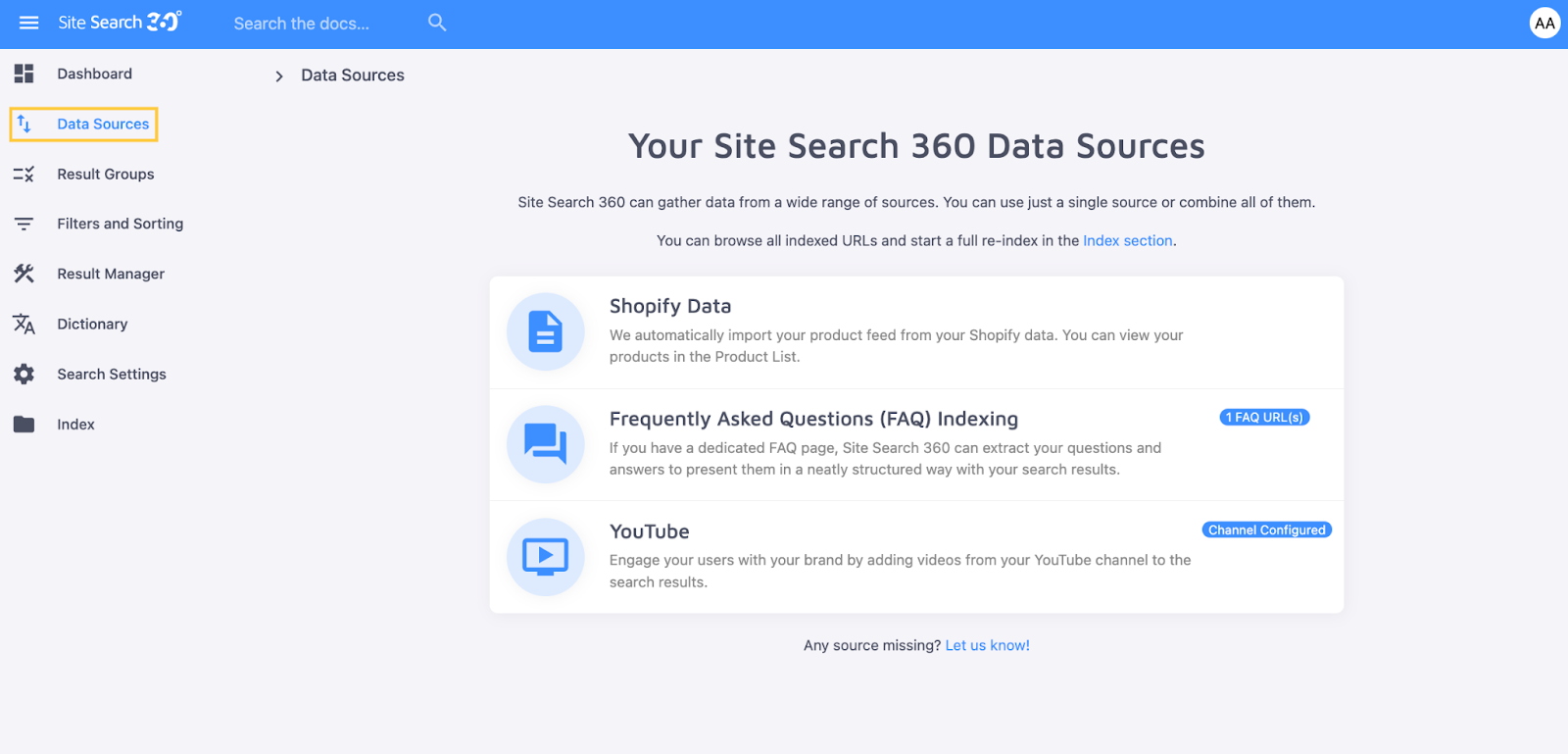
This lists every source the crawler indexes to compile your search results.
Index
Click "Shopify Data" to open the "Index" section, split into two categories - "Product List" and "Content List". Both are pulled from your site automatically when you create your project.
"Product List" shows every product page on your site, along with its unique identifier and name (you can search this list by either):
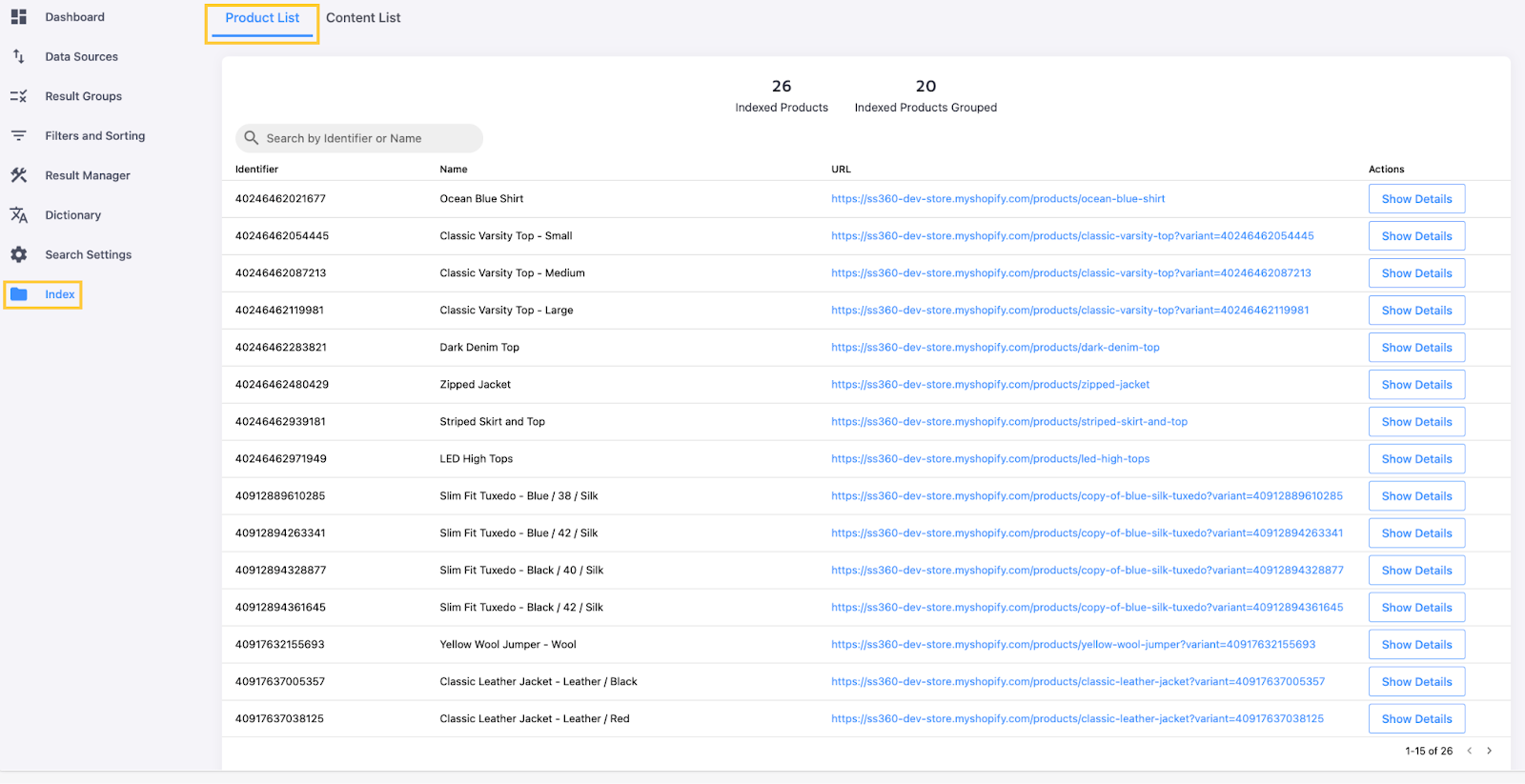
The "Show Details" button shows what content is searchable on each product page:
This includes a list of "Extracted Facts" for the product:
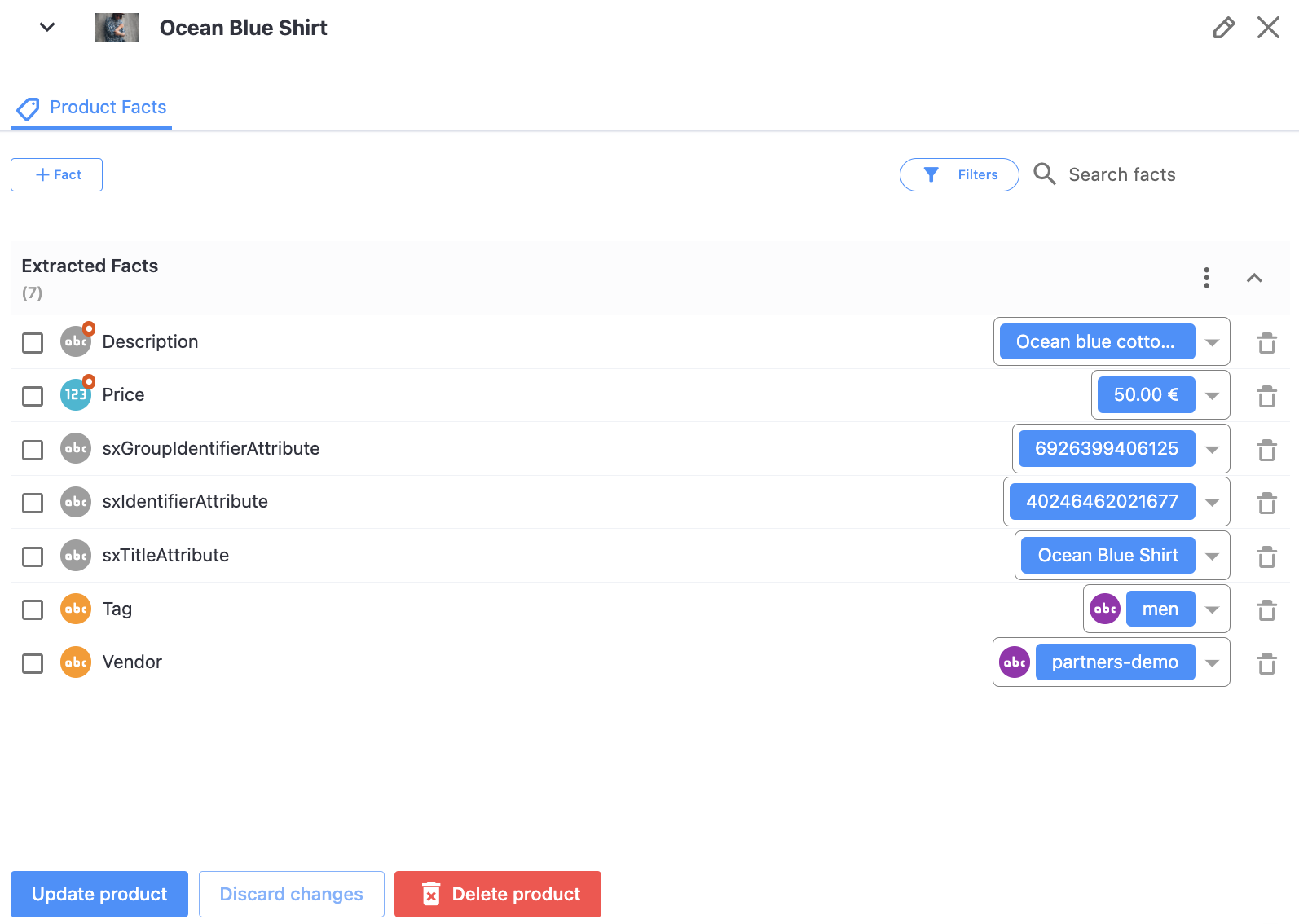
This data is pulled from each page automatically, so you don't need to configure product attributes yourself, though you can if you want to.
Click a Product Fact's value to edit it or add a new one.
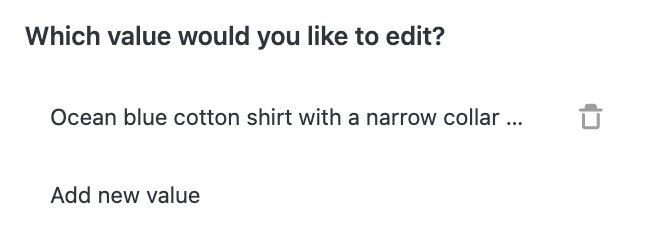
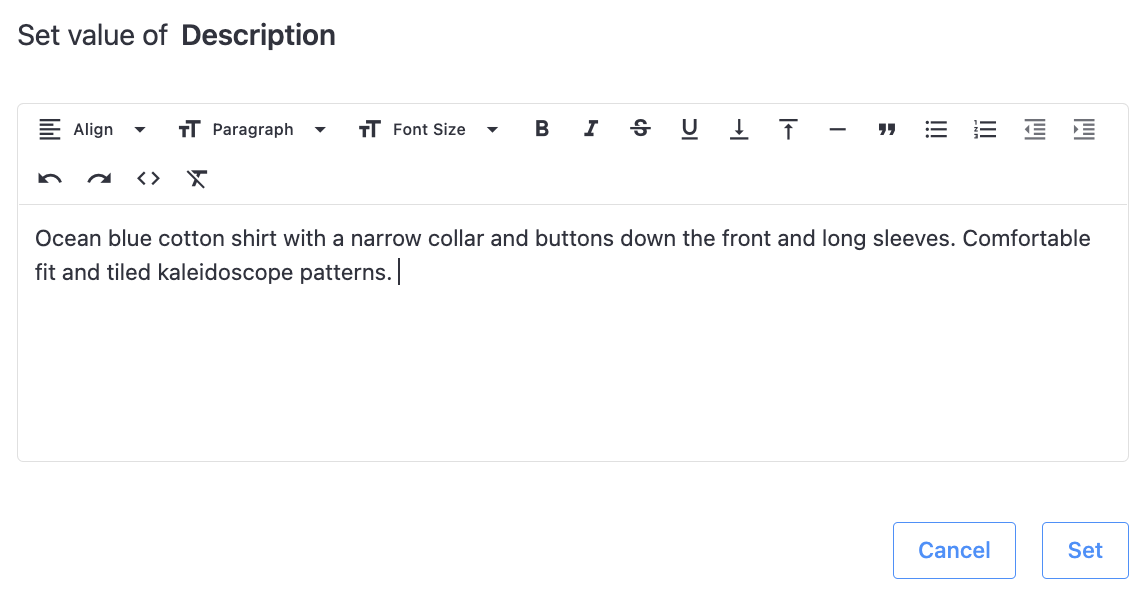
You can also delete any Fact:

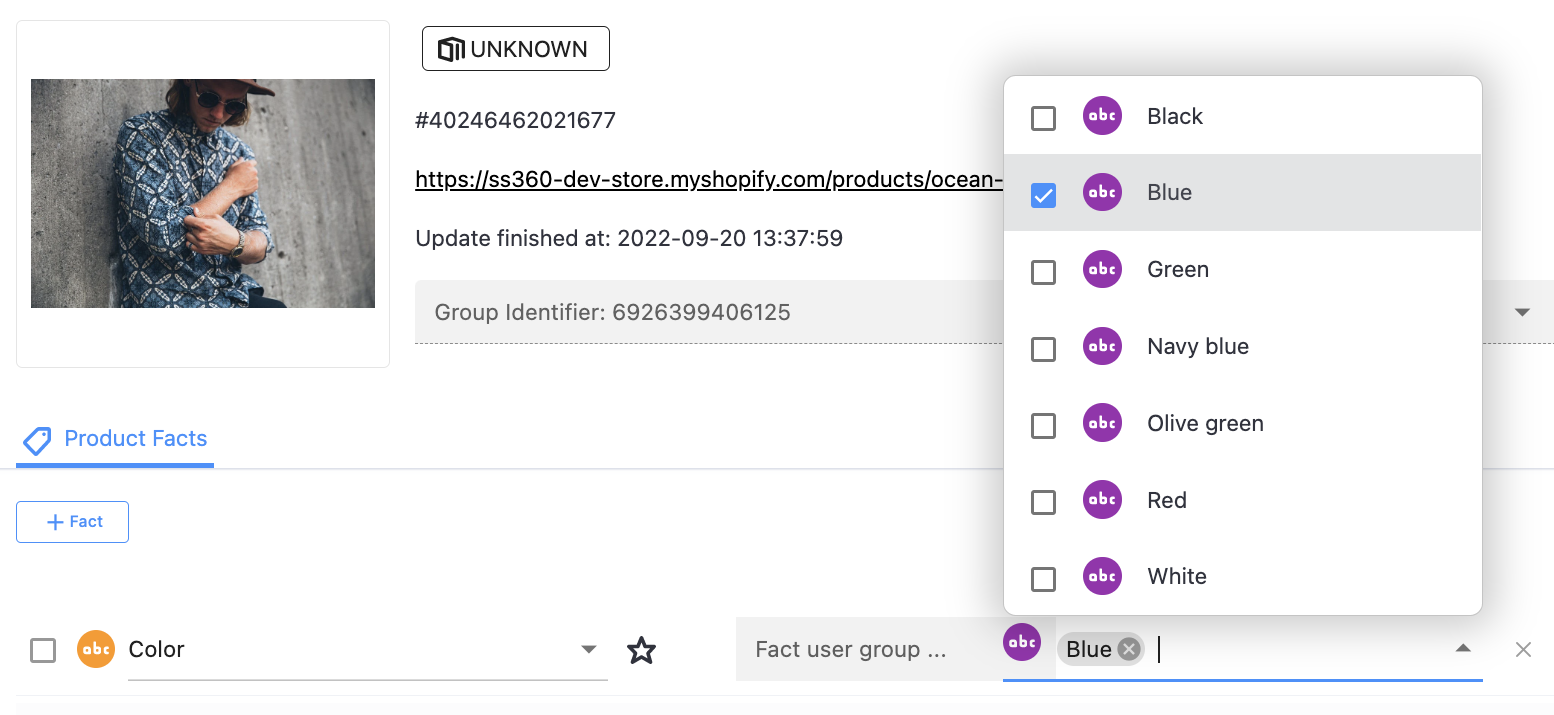
Create a new one using data available on the product's page by selecting a Fact and the attributes you need:

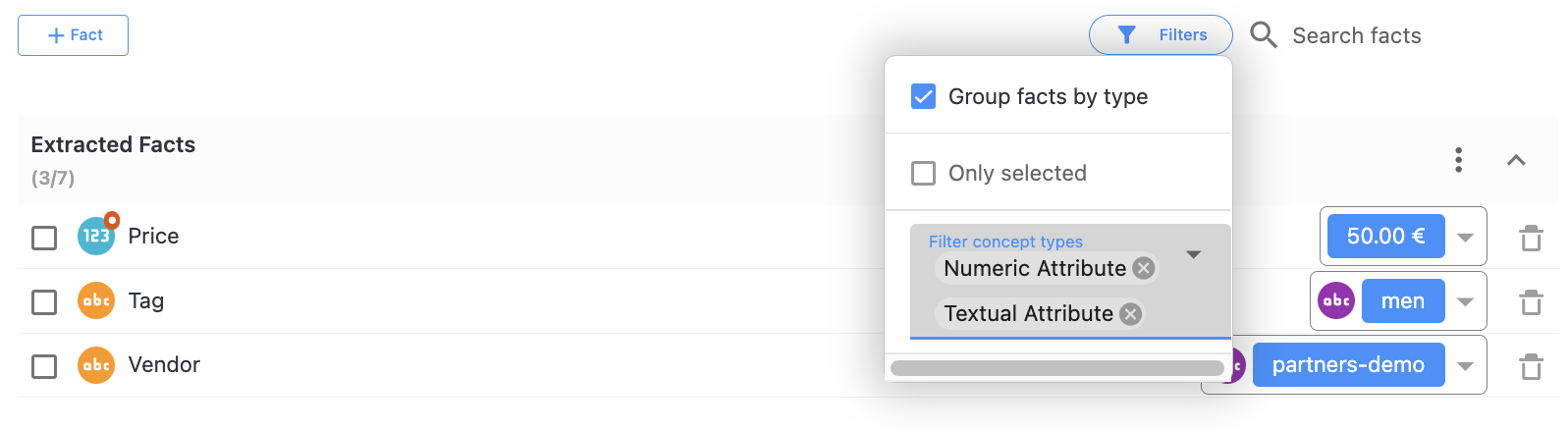
If your product pages have a lot of data, you can also filter the available Facts:

At the bottom of the "Product Details" page, three buttons let you apply your changes, discard them, or delete the product from your search results:

"Content List" shows all non-commercial pages from your Shopify store, plus any other Data Sources you configure:
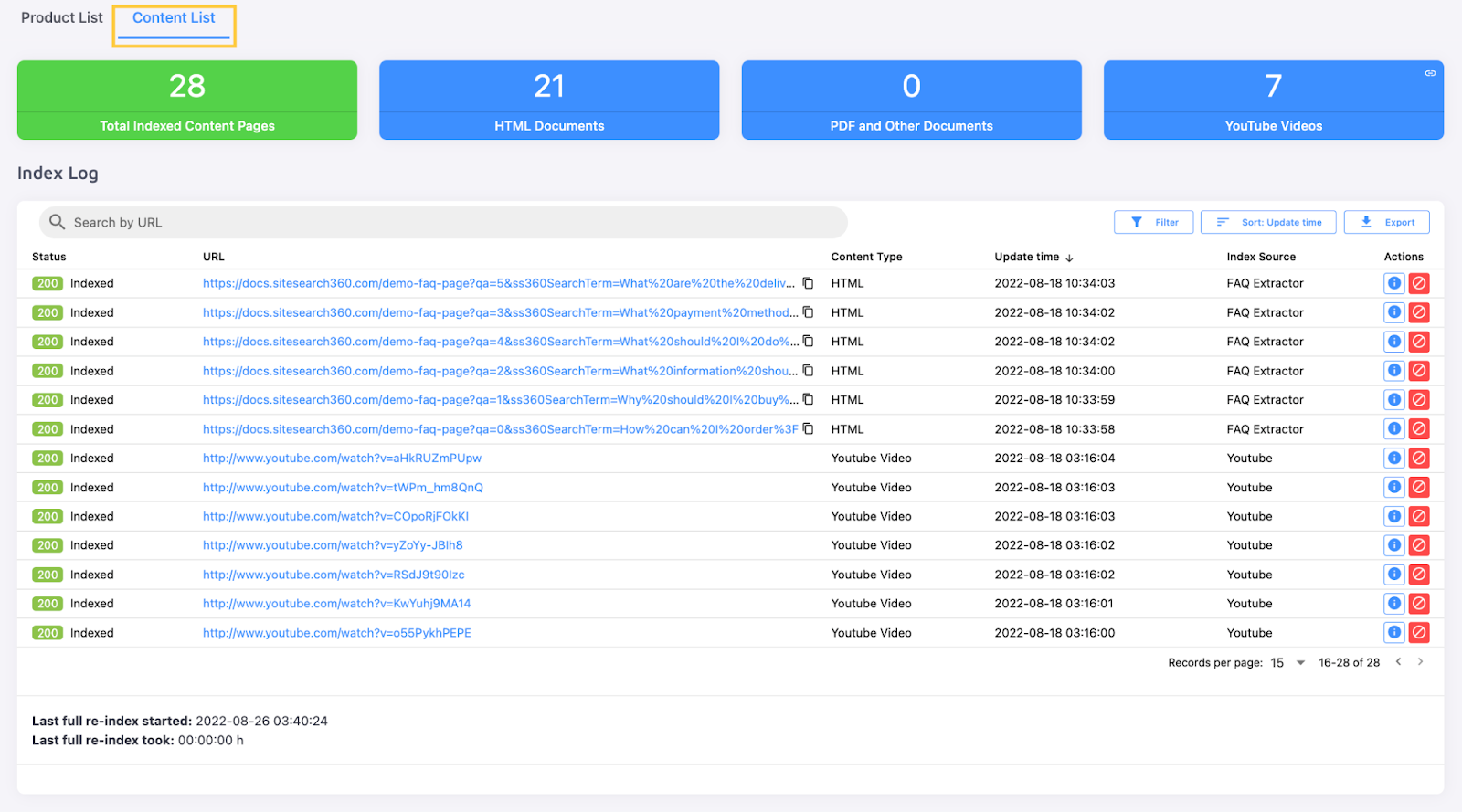
This data can also be filtered:

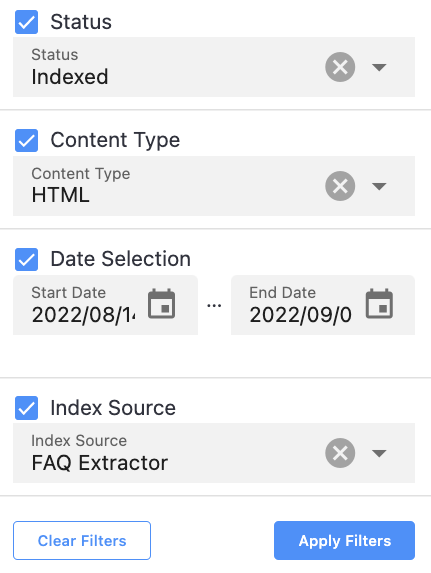
sorted by when the page was added or updated:

and exported for later analysis:
Each page's description includes a status (available for searching or not), its content type and Data Source, and two buttons on the right:
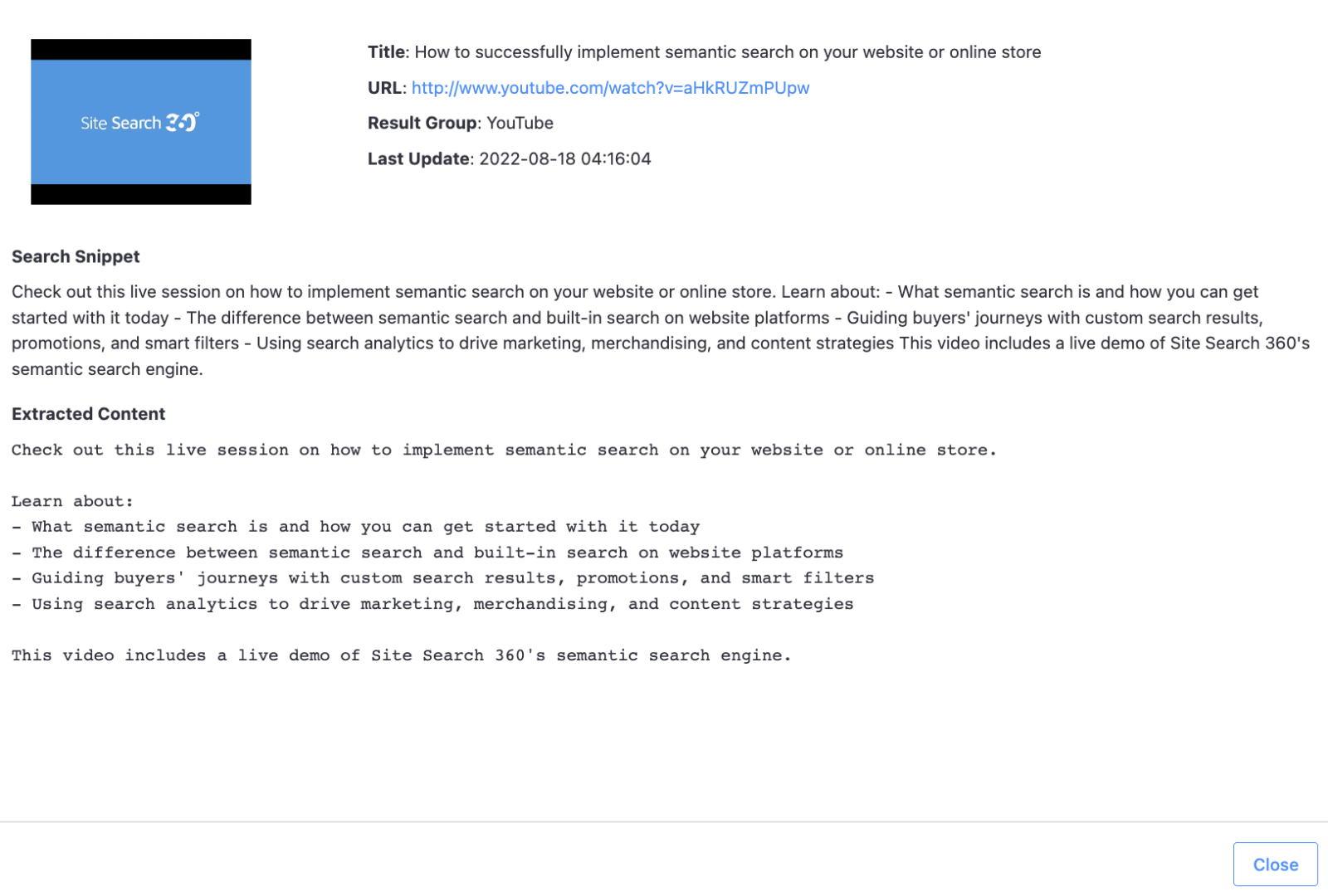
- The "Show Details" button, same as in "Product List", opens a window detailing all content that can be extracted and searched on that page:

- The "Remove" button deletes the page from your search results until the next sync. To remove a page permanently, do so through your admin panel:

Search results aren't limited to store pages. Two more Data Sources are available: "FAQ" and "YouTube".
In the "FAQ" tab, add a preconfigured FAQ page with a few XPaths, or create a new one using the Site Search 360 FAQ Generator.
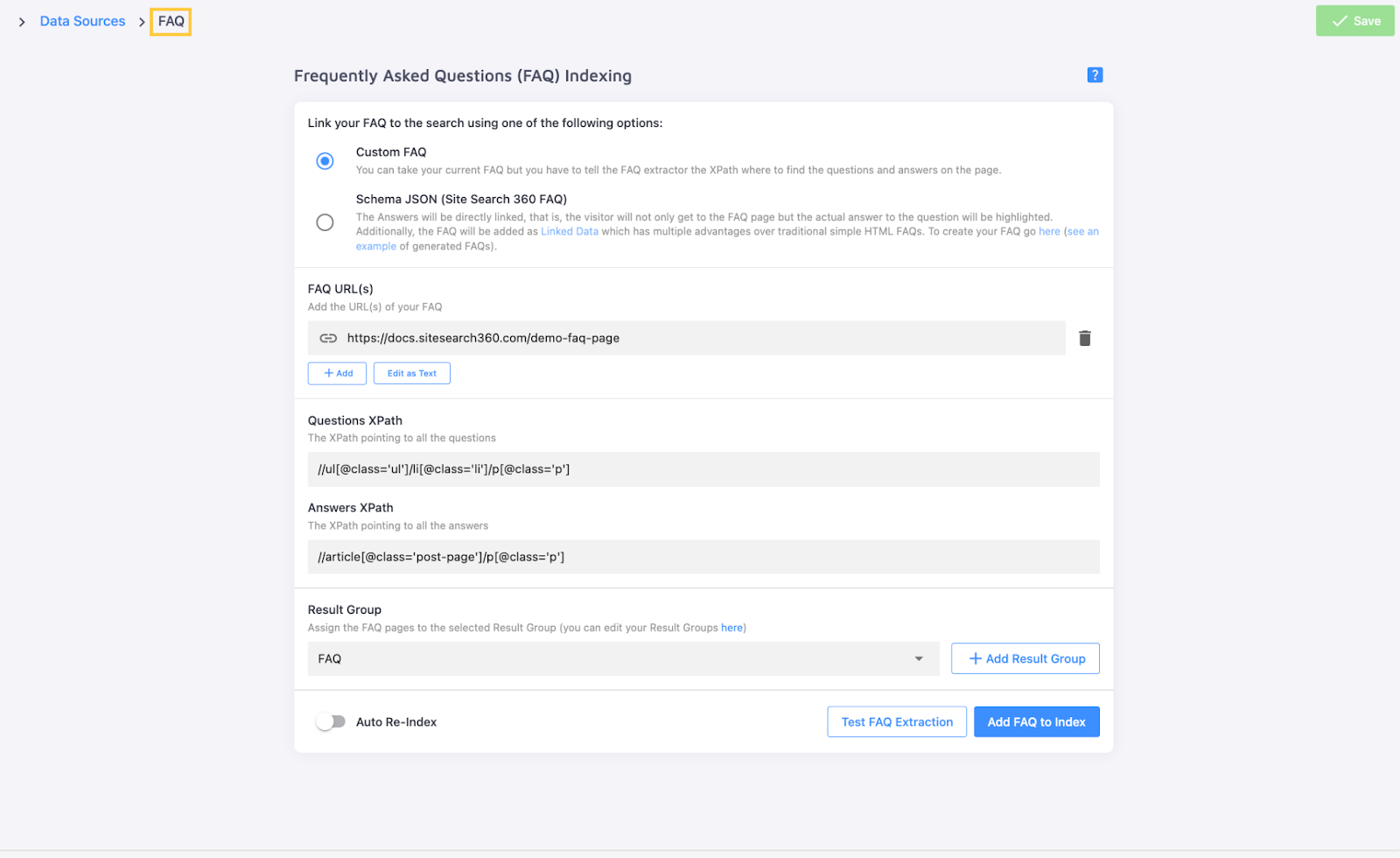
This process is covered in detail in our article on FAQ Indexing.
The "FAQ" tab is where you'll first see the "Show Help" icon:

Click this icon to open an instruction page from the documentation directly in your Control Panel:
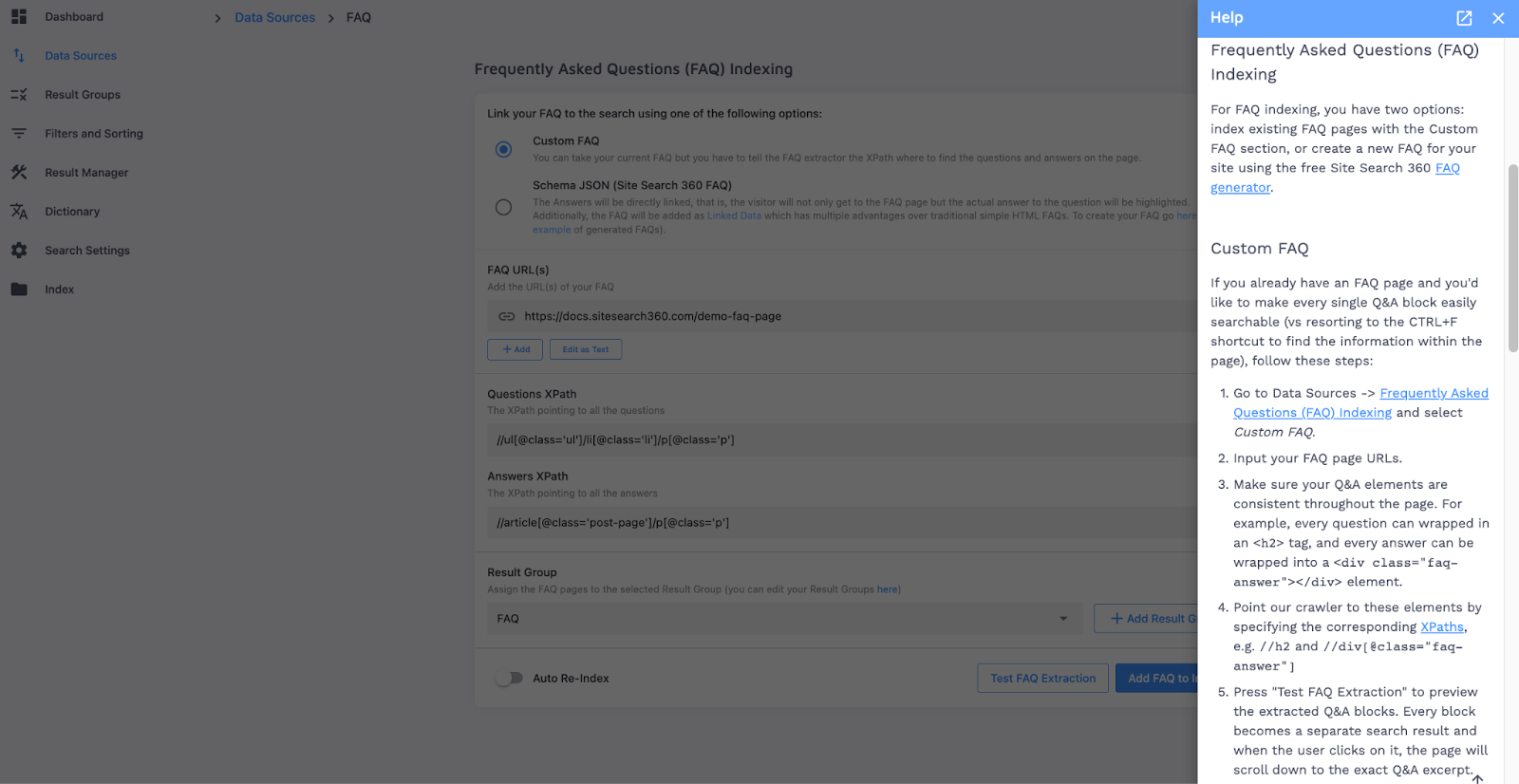
or search all How-To's using the field at the top of the screen:

You can also add your YouTube channel to the search, including playlists and individual videos:
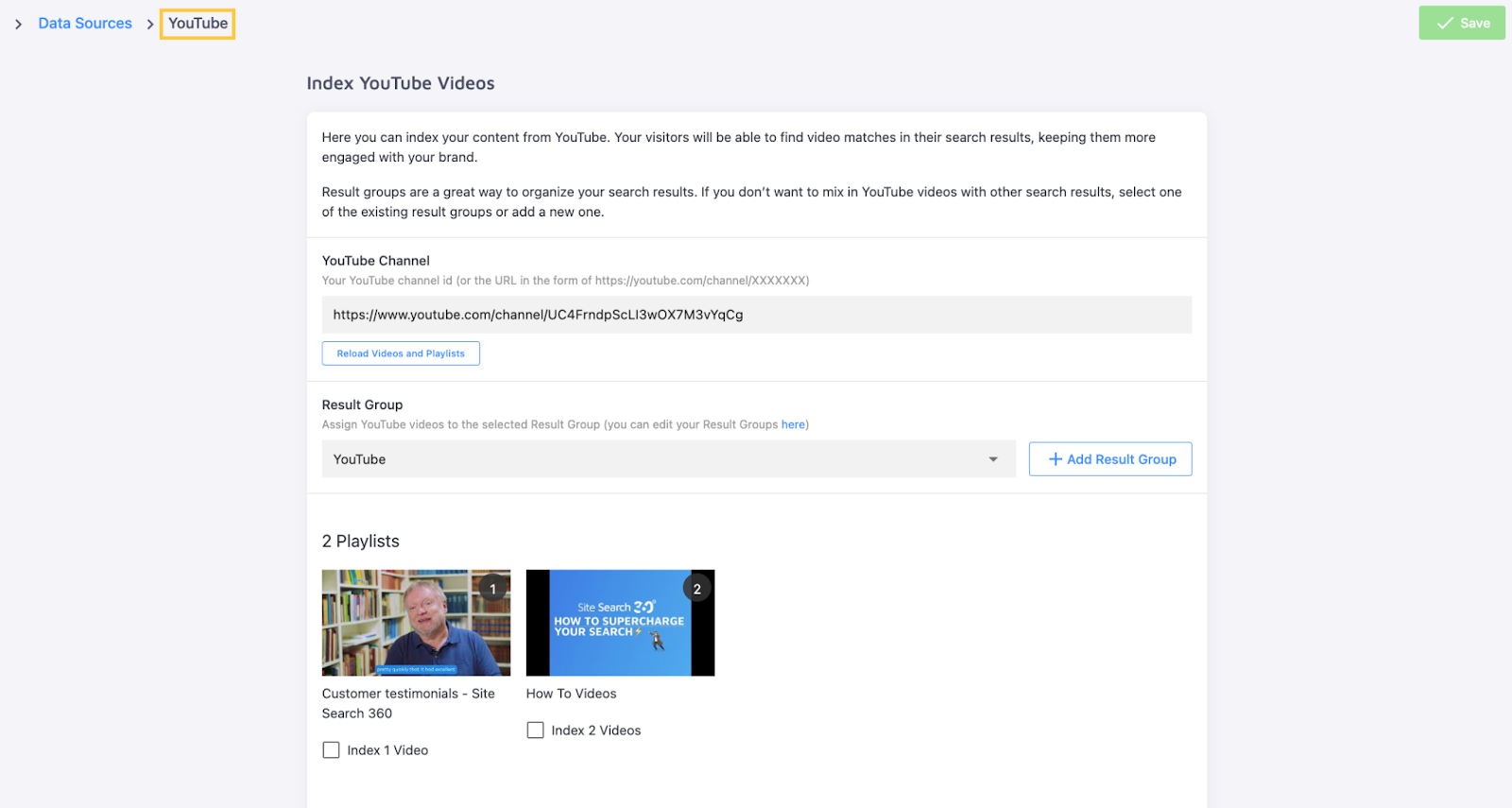
For most Site Search 360 projects, YouTube Indexing is a paid add-on. Shopify users have it enabled by default for as long as the "Free Start" welcome plan is active.
Result Groups
Next is the "Result Groups" section:
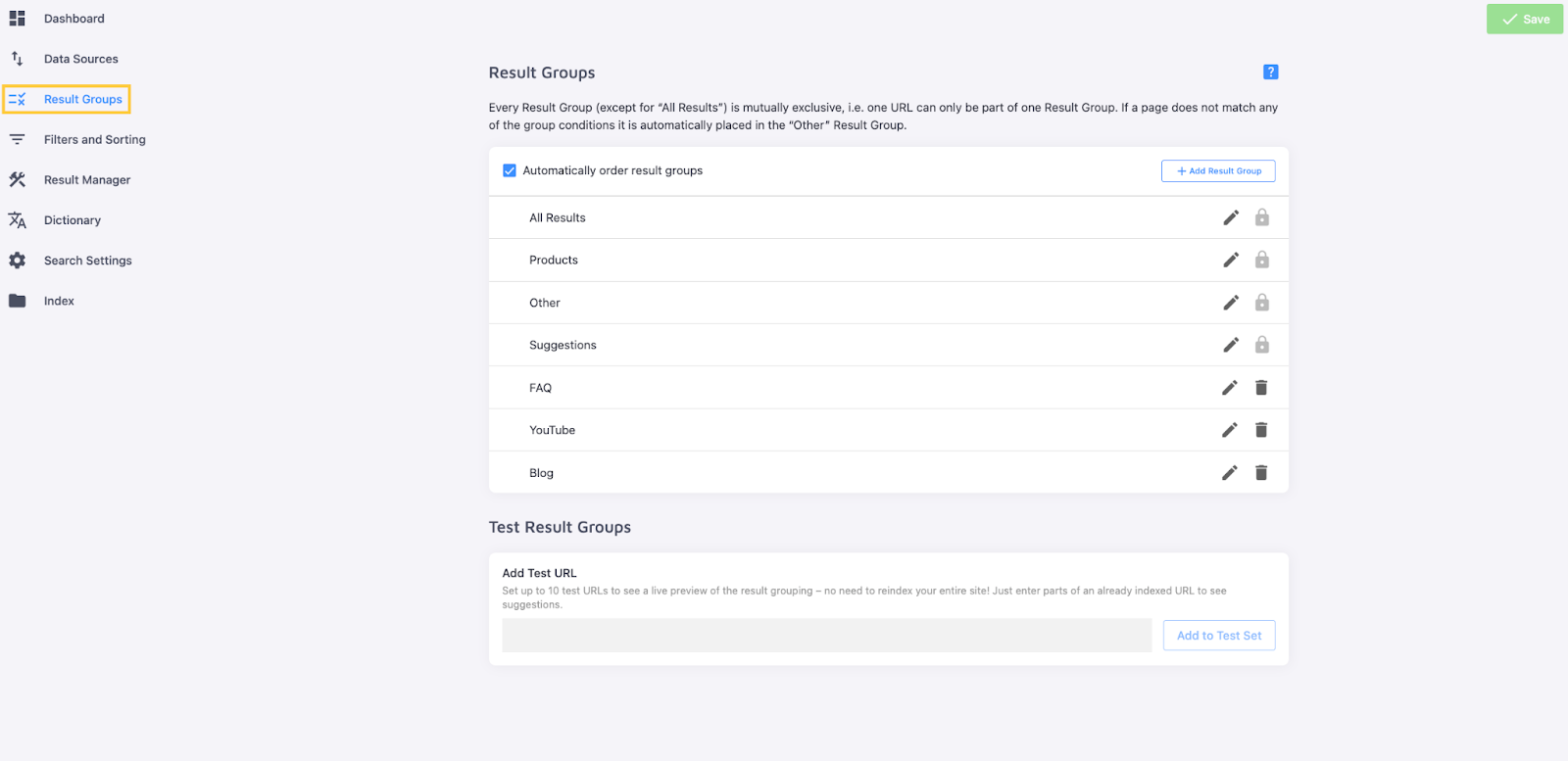
Result Groups let you categorize search results, grouping similar content in one place. Some, like "Products" or "Suggestions", are created automatically when you launch your project. You can add others manually as needed.
Here's an example of what a Result Group for blog posts can look like:
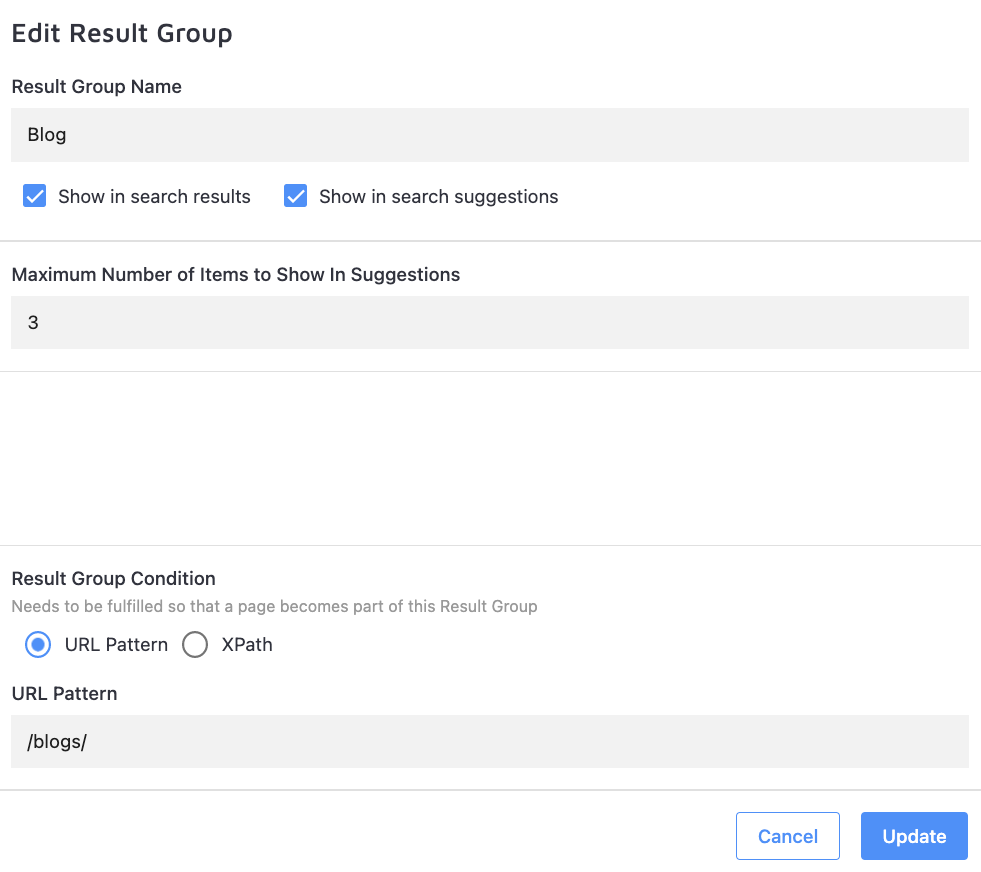
Creating Result Groups is covered in our article on the topic.
Filters and Sorting
"Filters and Sorting" is another way to help users find what they need with less effort.
"Filters" relies on data extracted from your site's pages - specifically, Product Facts.
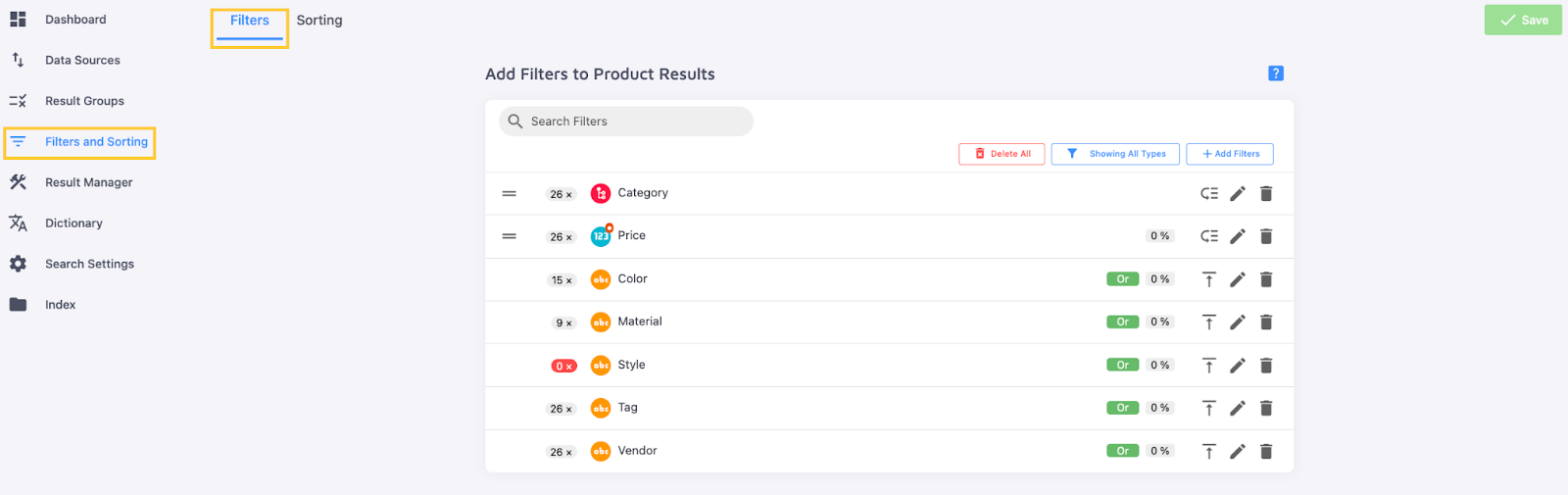
Add new filters based on any available Product Fact, and search, delete, or sort existing ones the same way as Extracted Facts in "Product List".

Here's what configuration for a "Color" filter might look like:
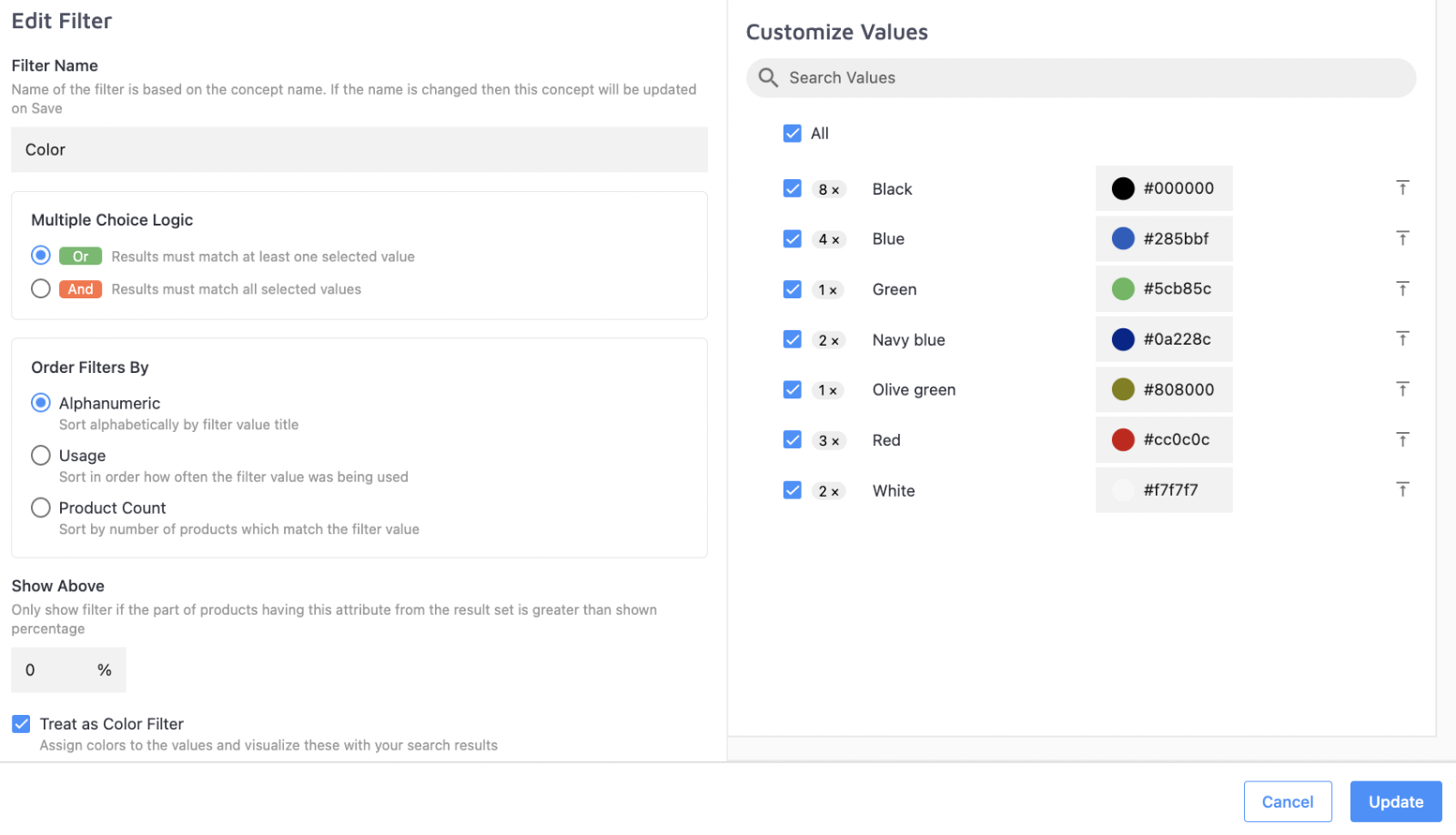
Filters are highly customizable. You can configure:
- The filter name and which Product Fact values it uses
- Whether all values must be found on a page for it to be shown in results
- The order filter values appear in when a search is performed
- The minimum percentage of products that must have a value for the filter to display
For a "Color" filter, like the example above, select "Treat as Color Filter" at the bottom of the page to use the Color Picker (or add HEX codes to filter values) and show colors next to each value in a circle.
Each filter has three buttons on the right: pin it to a specific spot in the filter hierarchy (or unpin it), edit it, or delete it:

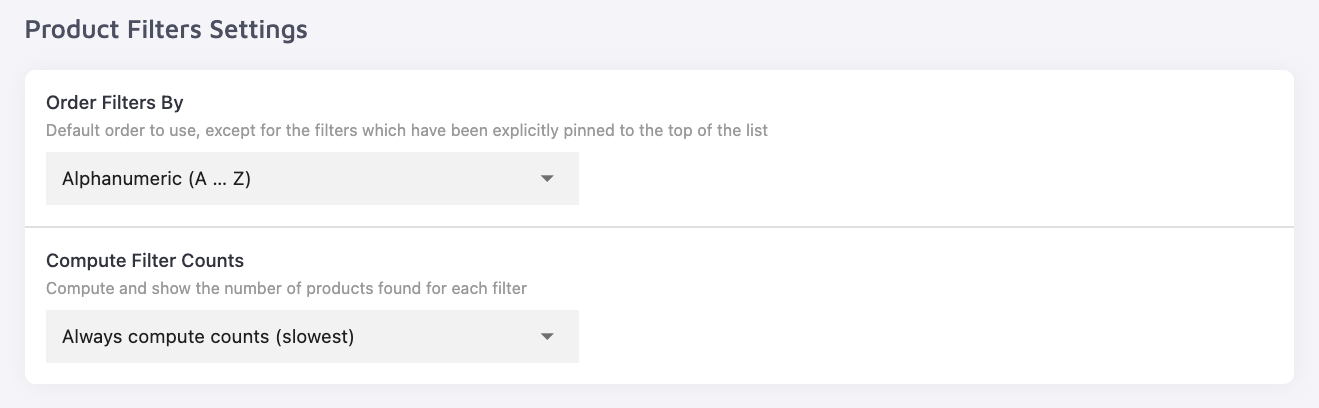
To avoid manually ordering filters, configure automatic sorting under "Product Filters Settings" further down the page - alphanumerically or by popularity (most to least used).
This is also where you decide whether filter values show a count of matching pages. The options are:
- Never compute counts
- Compute only when under 1000 matching pages
- Compute for all filters except range filters
- Always compute counts
Find out more about filters in our dedicated article or check out our Filters demo page to see them in action.
The "Sorting" tab controls the order search results are presented in. Sorting is based on numeric Product Facts (like "Price"), from lowest to highest (Ascending) or highest to lowest (Descending).
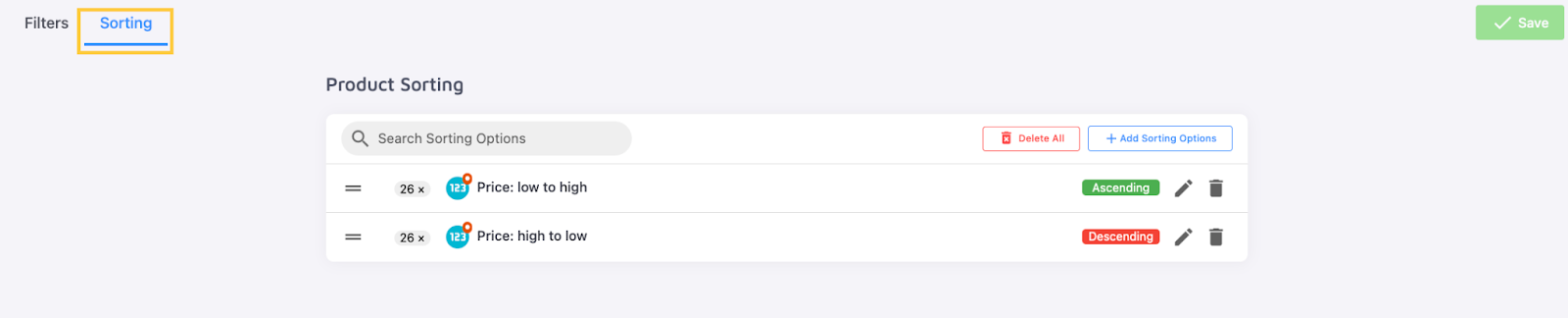
Learn more about this feature in our Sorting Options article.
Result Manager
The "Result Manager" section handles search result layout customization.
The first tab you'll notice is "Result Mappings":
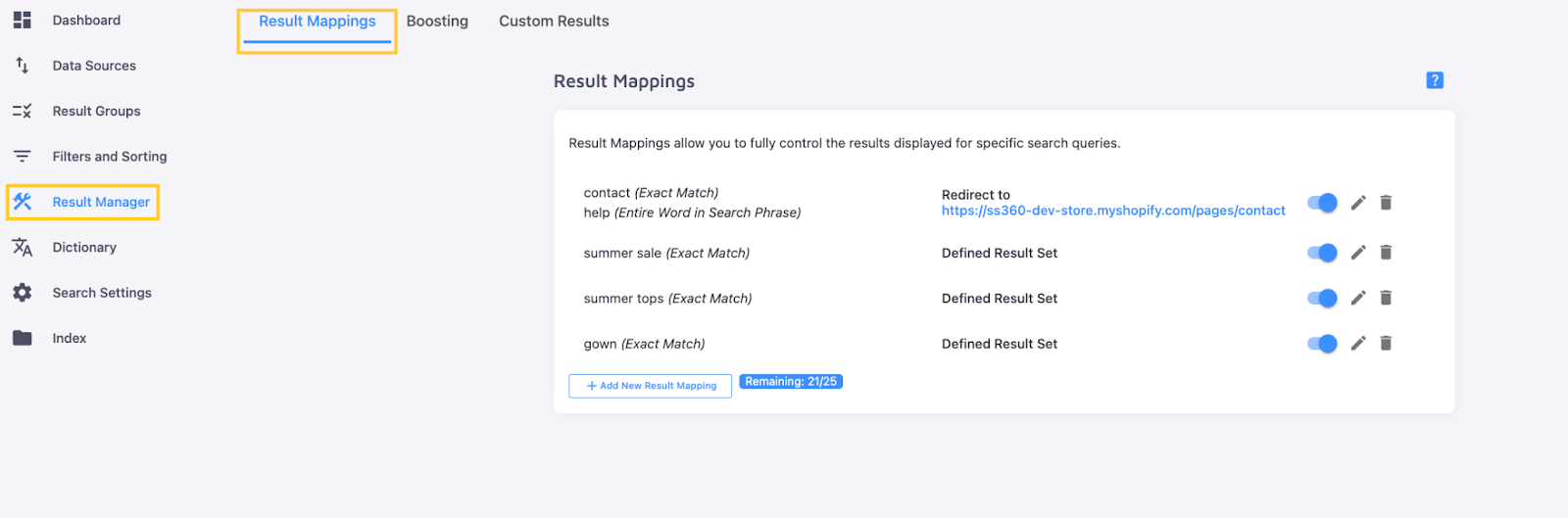
Use this to control search results behavior for specific queries. You can:
- Customize a unique set of results for any query (with filters, singular filter values and sorting options applied to them automatically should you so decide)
- Replace search results for one query with products and pages that would normally appear for another
- Redirect any query to a specific URL instead of the search results page
Here's an example of a mapping we've created to show specific entries from our catalog whenever someone searches for gowns:
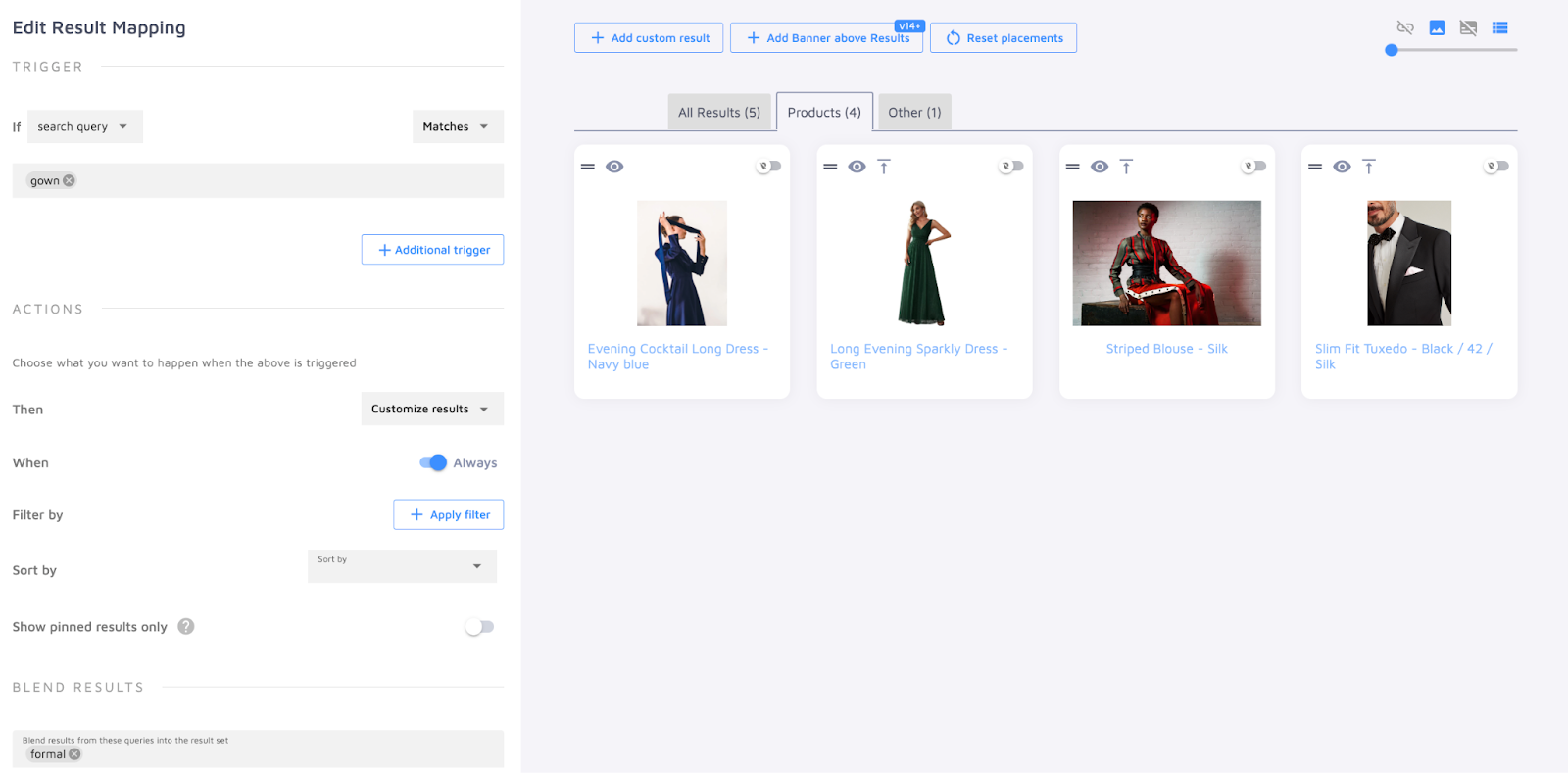
Hide, edit, or delete any mapping using the buttons to the right of its name:

You're not limited to your store's pages: add pages from other domains to your result set, or create entirely new ones with the "Custom Results" feature:
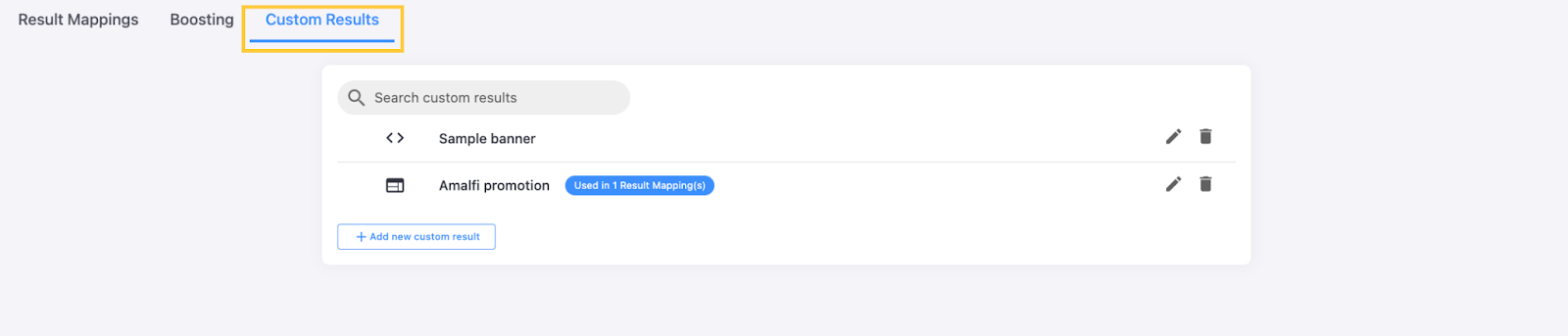
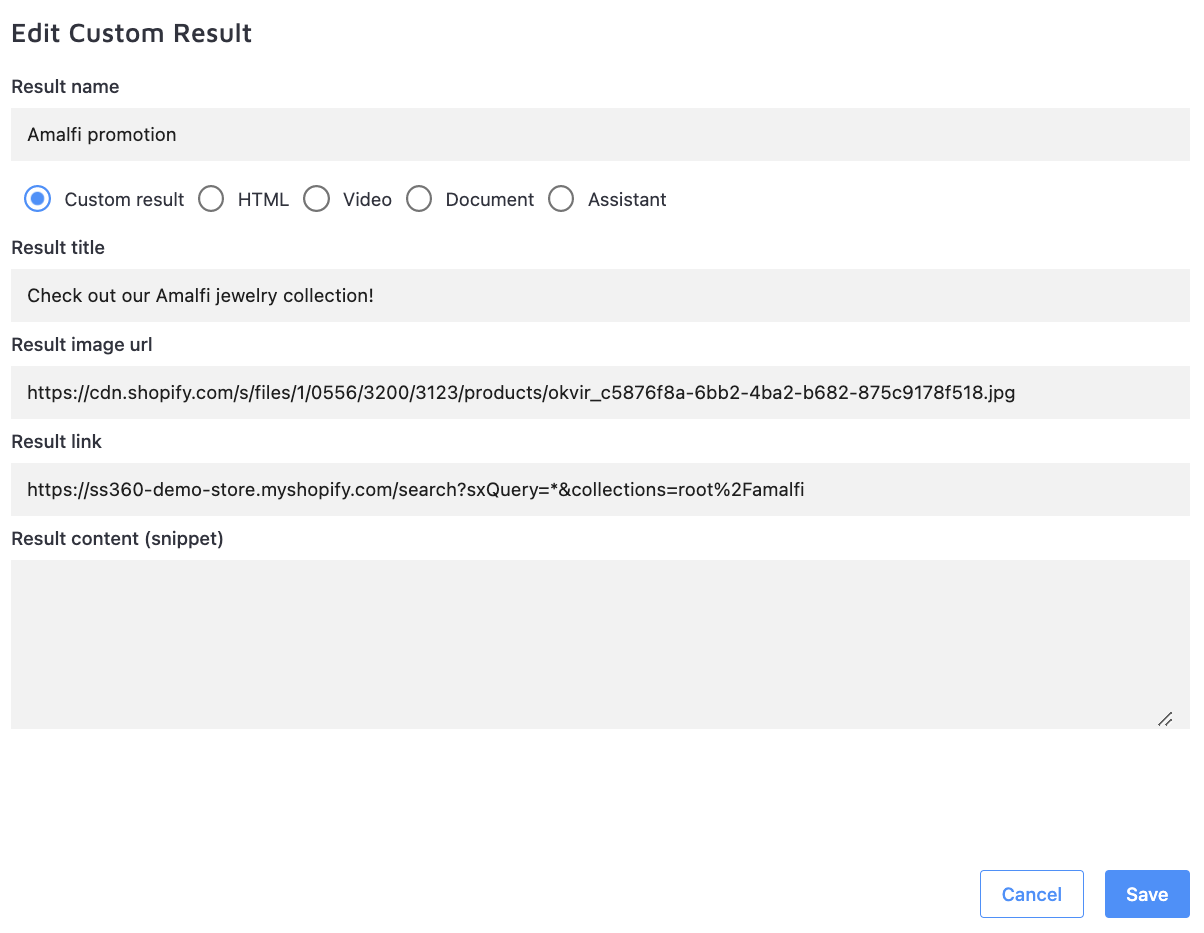
Configure either a promotional banner displayed above search results, or a regular page indistinguishable from them. This example uses the latter:
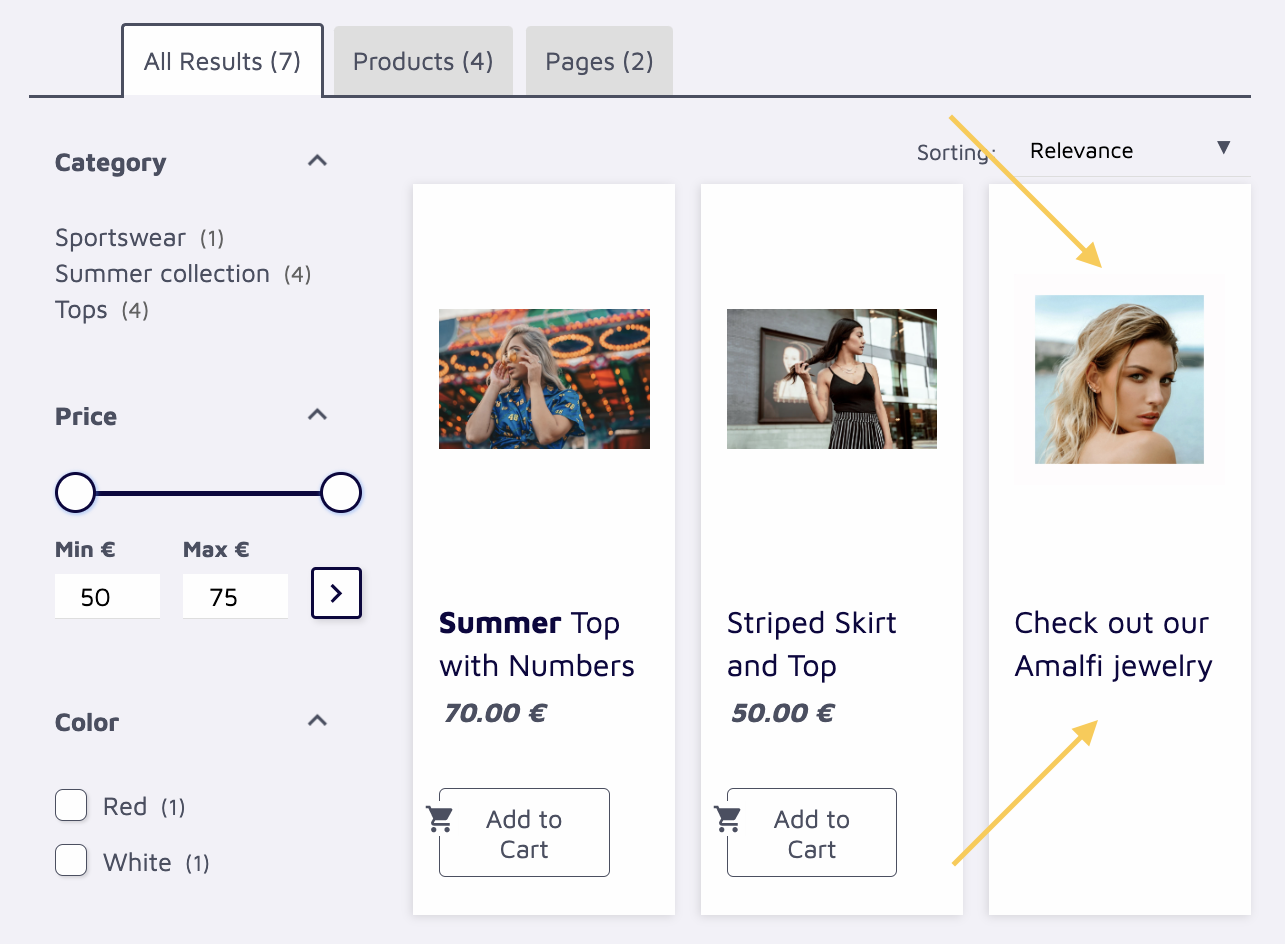
See our article on the Result Manager for details on creating mappings and custom results.
Between these two tabs is "Boosting":
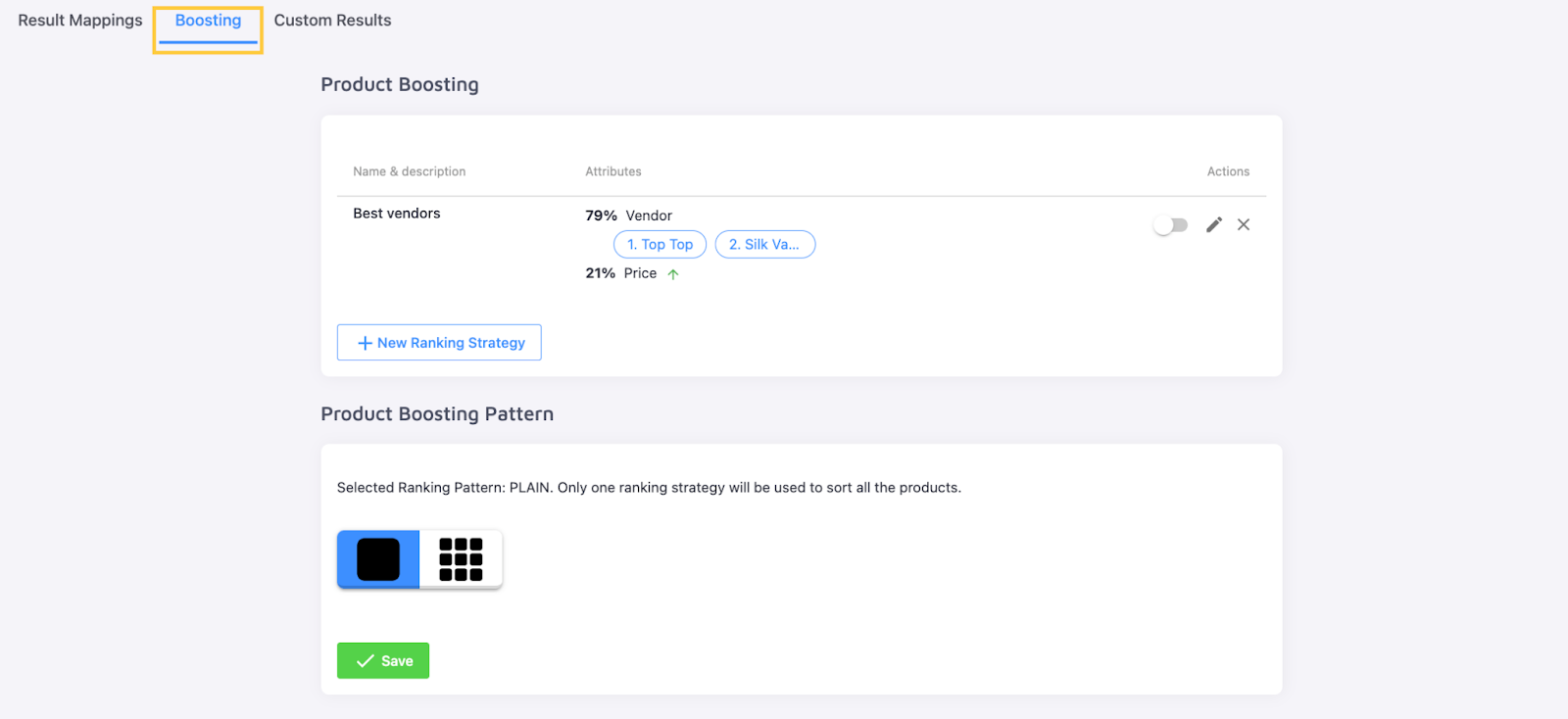
Boosting strategies automatically place certain pages higher than others in search results.
Boosting works differently for product and non-product pages, with different setup processes for each.
For products, boosting is configured as a ranking strategy based on available Product Facts. Click "Add New Ranking Strategy" and choose the fact values that, when found on a product page, tell the crawler to prioritize that page in the results.
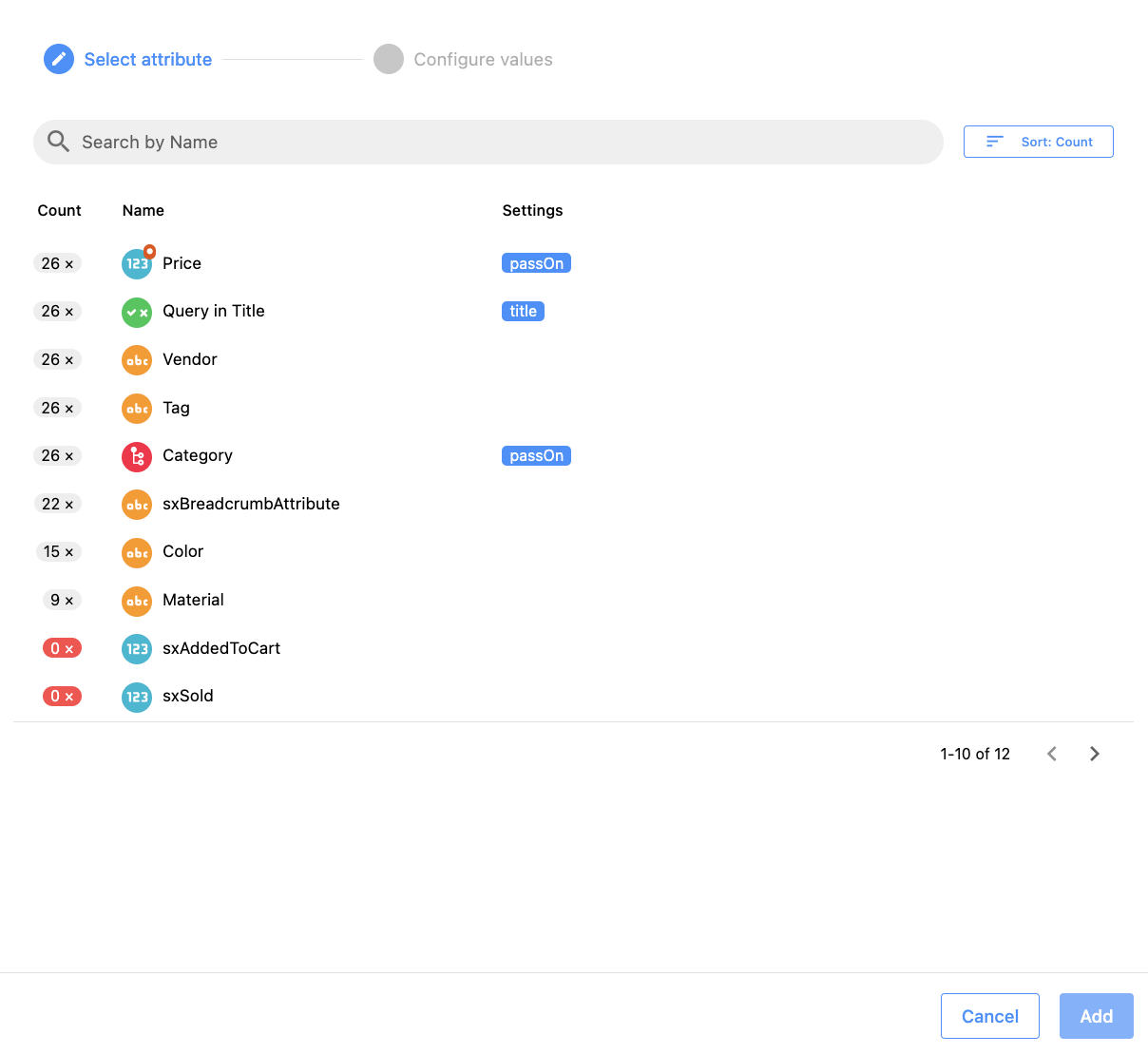
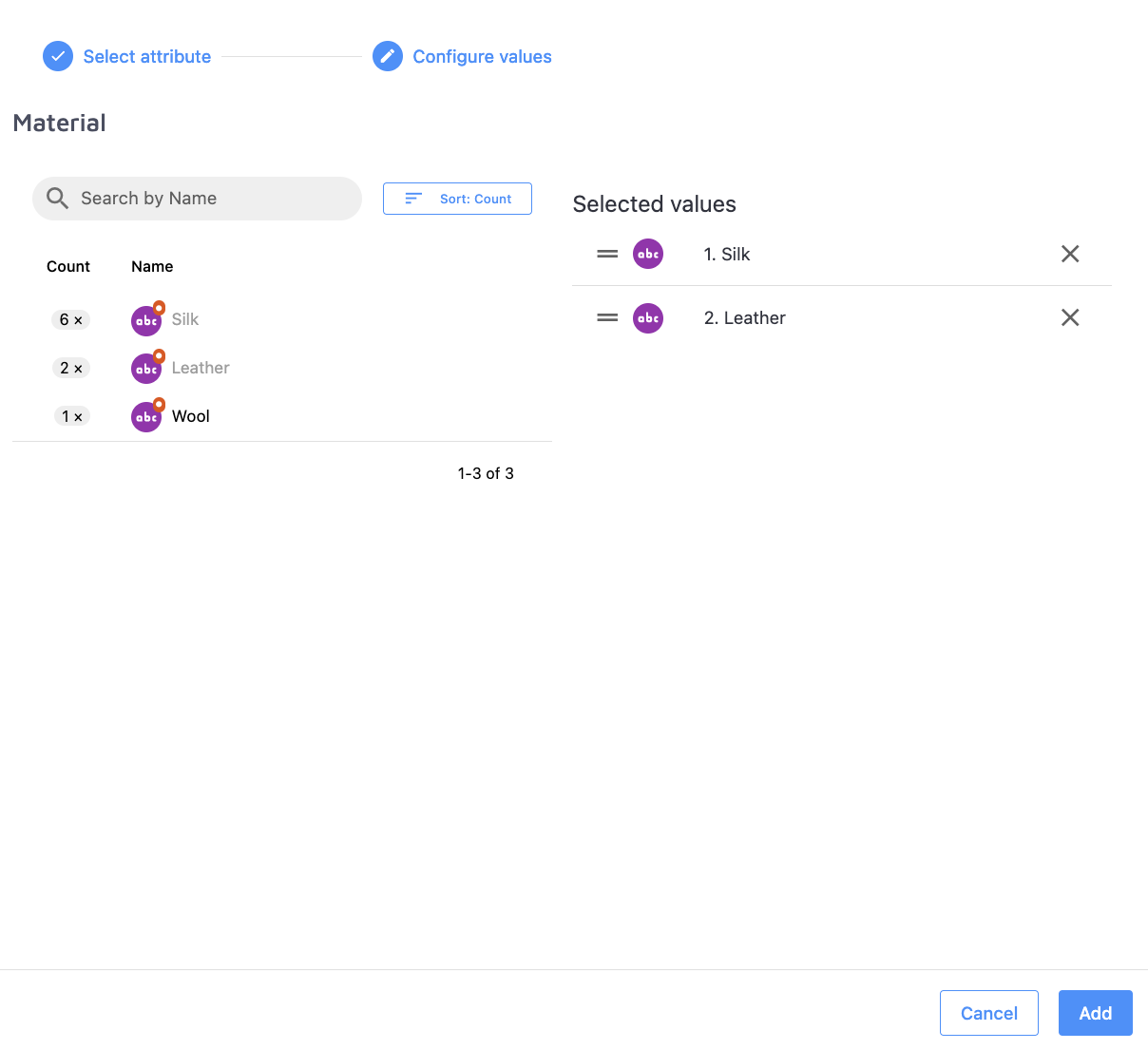
Add multiple criteria to a single ranking strategy. Weigh them equally, or use the toggle at the top to prioritize one over another.
In the example below, boosting is applied based on both material and color, so "black leather" products rank above "leather" products, which rank above "black" products.
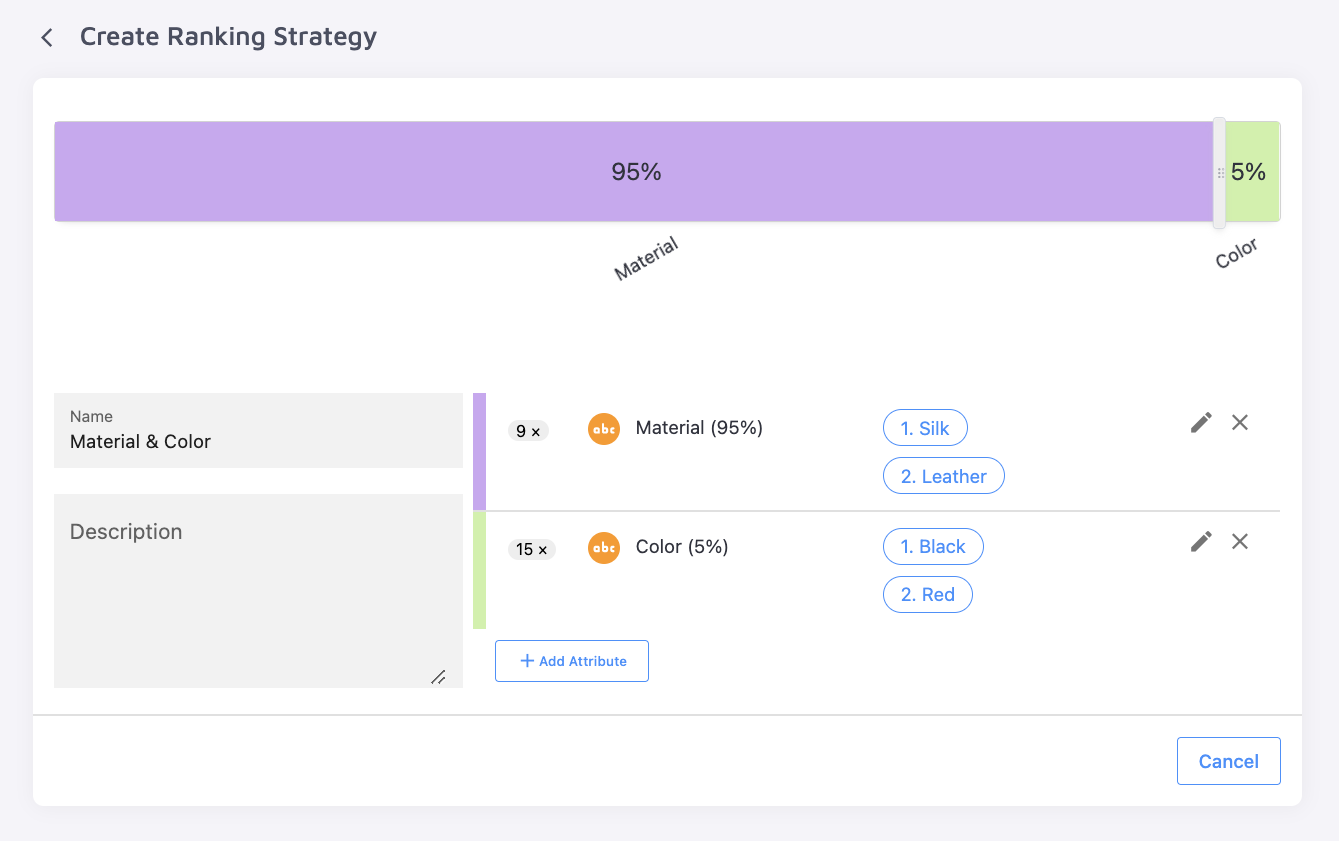
Any ranking strategy can be shown, hidden, edited, or removed using the buttons on the right:

With multiple ranking strategies, use the Plain Pattern to enable and disable specific strategies, or the Chessboard Pattern to alternate between strategies across searches.
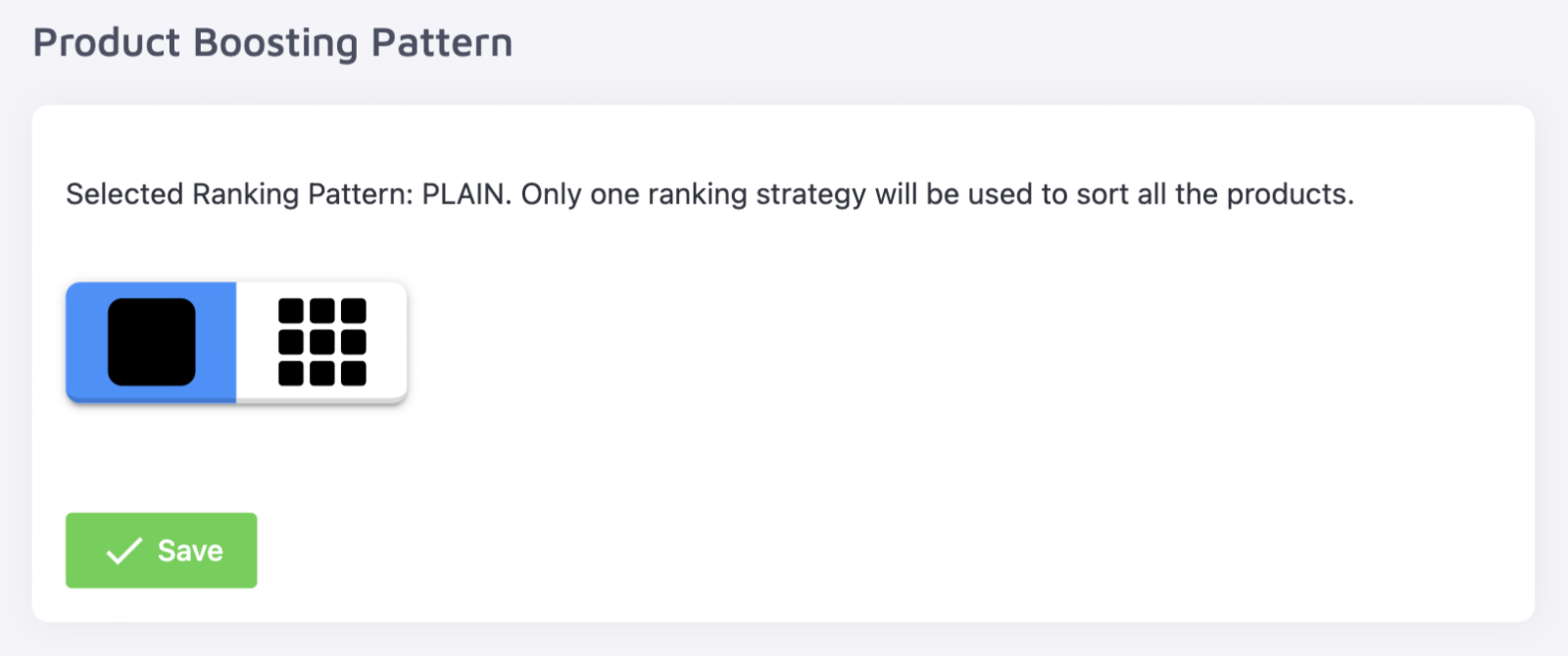
Ranking strategies are explored in detail in our dedicated article.
Non-product pages have no Extracted Facts, so they can only be boosted by URL Pattern. In this example, collections and blog posts are both boosted above other non-product pages, with collections prioritized higher than blog posts:
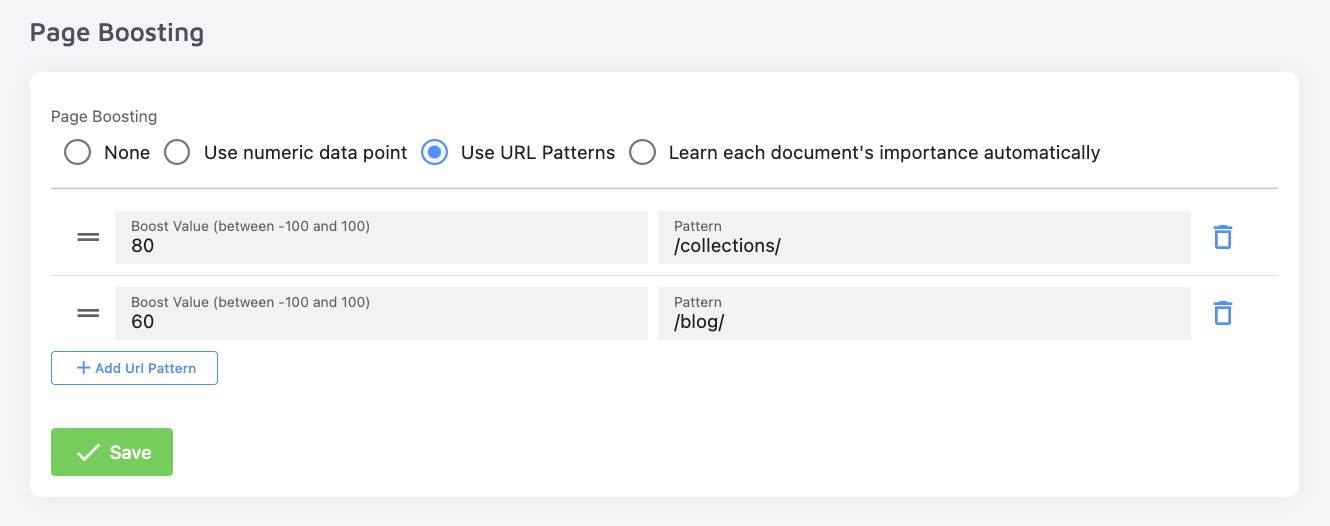
Further information on this is available in our "Page Boosting" article.
Dictionary
The "Dictionary" section offers more ways to customize which results appear for a given query:
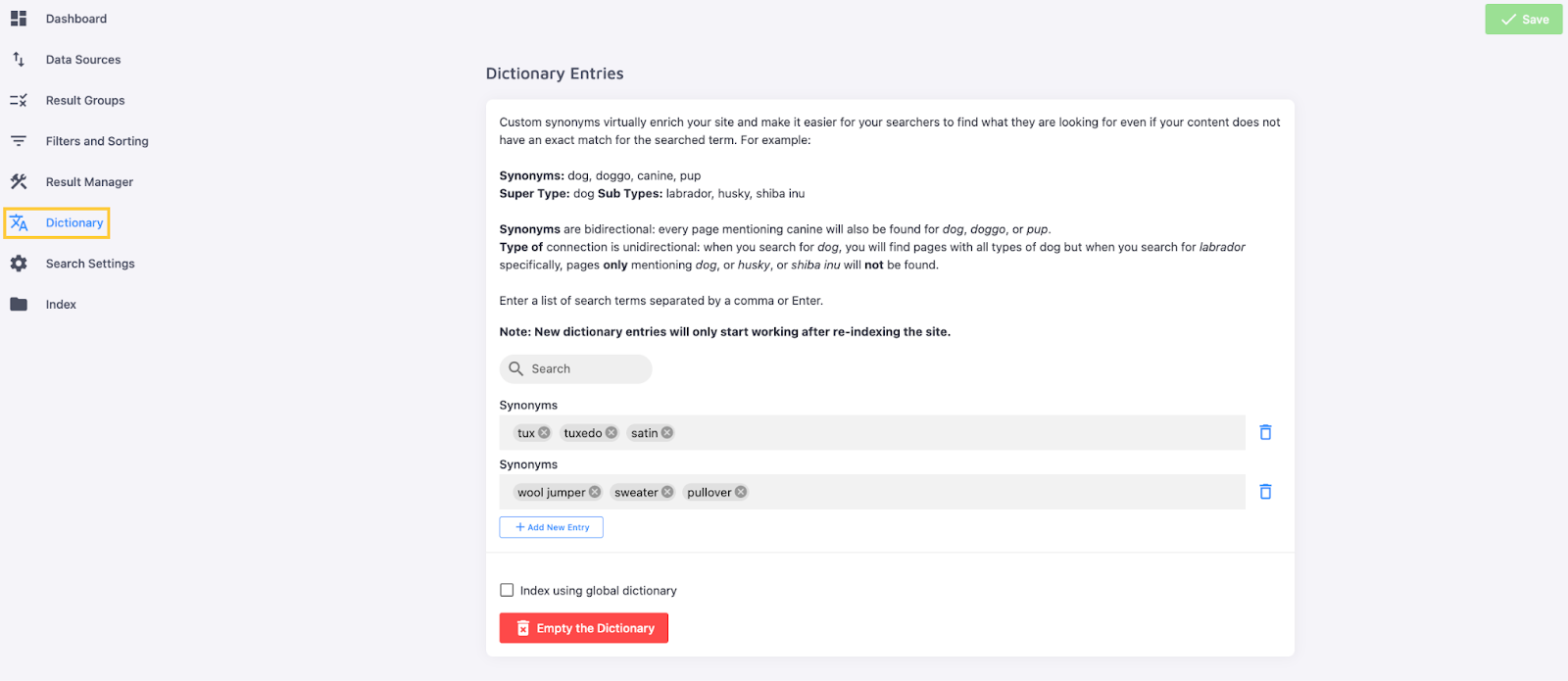
Create synonymous queries, where results for one query also appear for another (and vice versa), or a one-directional "type of" connection, where searching for a "super type" also shows results for its "sub types" (but not the reverse).
More on this section in our "Dictionary" article.
Search Settings
The "Search Settings" section of the Control Panel covers your search's general behavior.
As with ranking strategies, "General" Search Settings are separate for product and non-product pages.
For "Product Search", you can configure the following settings:
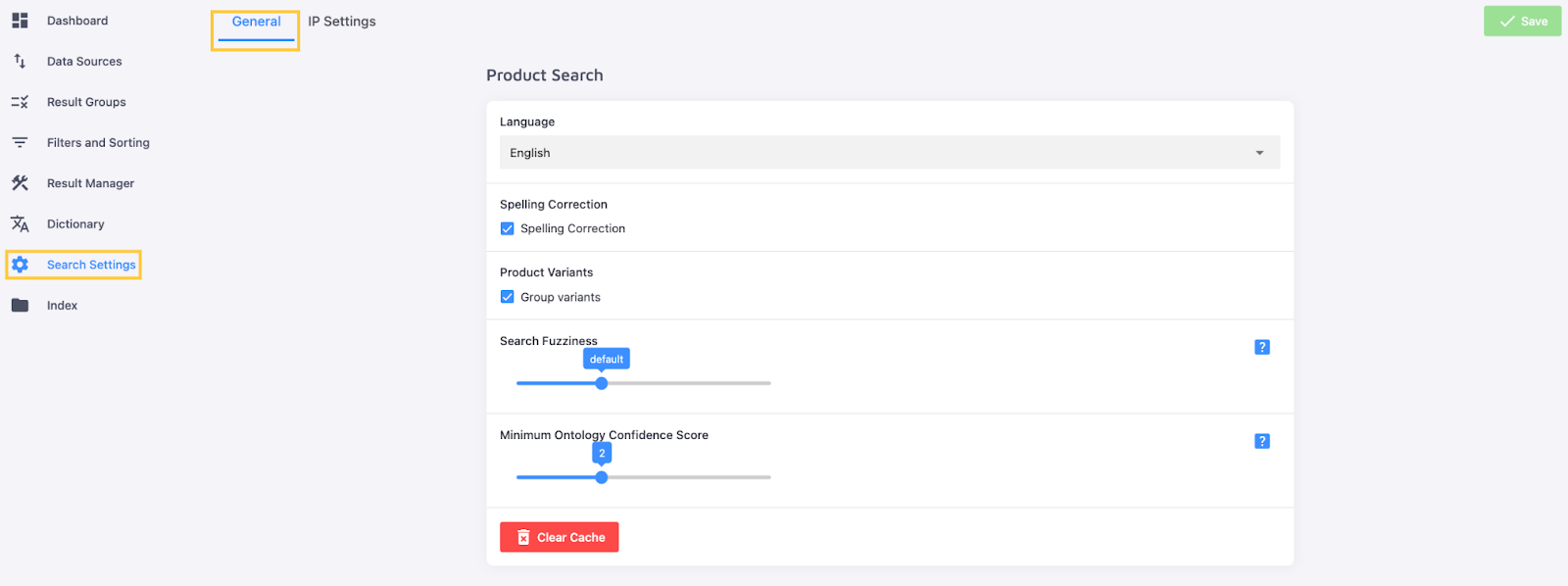
Most settings are self-explanatory, except for two:
- "Product Variants" are versions of the same product in different colors, sizes, and similar options. Group variants into one search result with alternative images, or give each variant its own dedicated result. See our article on Product Variants for details.
- "Minimum Ontology Score" controls how closely a query needs to match the internal product categorization for a page to appear in results (for example, "iPhone case" results for an "iPhone accessories" query, but not for "iPhone"). The default is 2; higher values require a more precise match. See our dedicated article for details.
"Content Search" settings are similar to "Product Search", with a few exceptions:
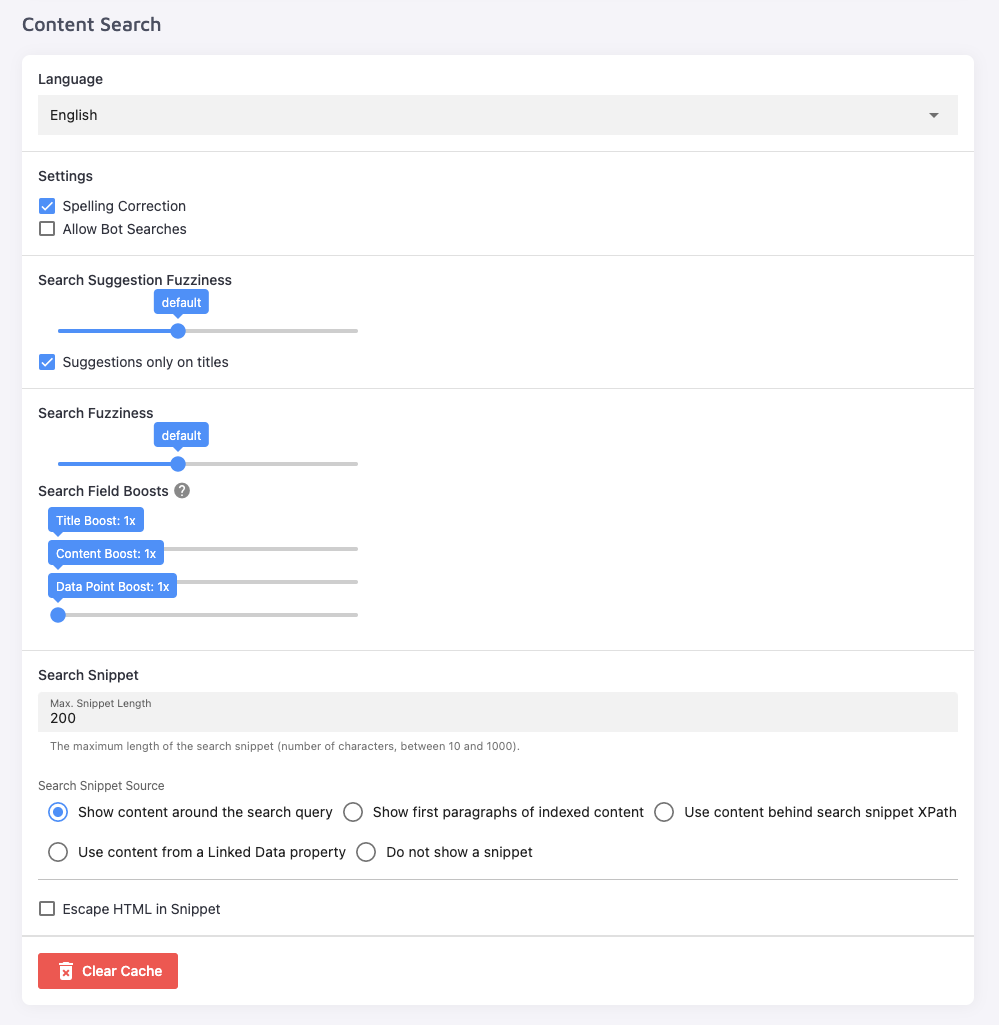
- "Search Fuzziness" works like "Minimum Ontology Score" but as a spectrum rather than a number, ranging from "extremely strict" (requires a perfect match between the query and page content) to "get more results" (matches on just a few entered characters).
- "Search Field Boosts" work like "Page Boosting", but apply individually based on whether the query match is found in a page's title or content, rather than in bulk by URL Pattern.
- "Search Snippet" is the description shown under each non-product search result. Use the text block where the query match is found, the first few paragraphs of the page's content, custom XPaths and Linked Data, or no snippet at all.
Both settings types have a "Clear Cache" button at the bottom, for when you need a clean slate:

All settings related to "Content Search" are further explored in our "Search Settings" article.
The "IP Settings" tab controls who (and what) can access your search:
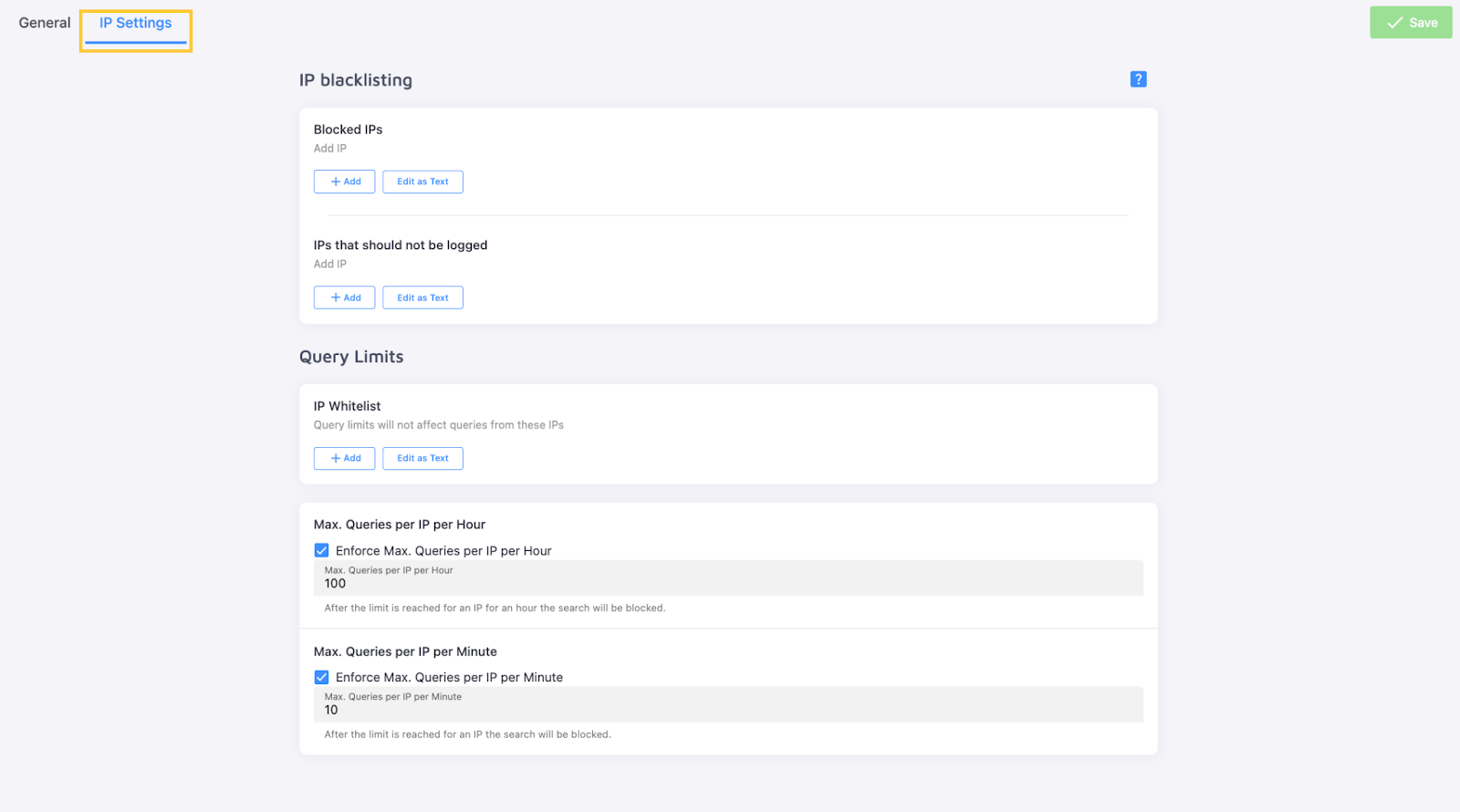
Block specific IPs from using the search, or exclude them from your search statistics (useful for keeping your own queries out of Analytics). This tab also lets you set query limits per IP, which prevents overage charges and protects against bot attacks.
These limits and permissions are also detailed in our article on "IP Settings and Query Limits".
Next, style your search in the Design tab — see Customize Your Shopify Search Design.