IP Settings and Query Limits
Configure which IP addresses are tracked, blocked, or rate-limited. For the broader reasoning on when to reach for these settings against bots and abusive traffic, see Search Security.
How do I prevent logging and tracking for certain users?
You might have your own team using your website's search often and don't want these searches to skew your logs. You can set a cookie in your browser for those users which prevents logging of their queries.
When you're on your site, press ctrl+shift+e and the tracking will be disabled for this specific browser. Alternatively you can set a ss360-tracking=0 cookie to prevent the tracking.
To do so, open your browser console (F12 in Chrome and Firefox) and write document.cookie = "ss360-tracking=0; expires=Sun, 14 Jun 2022 10:28:31 GMT; path=/";.
You can change the path and expiration date according to your needs.
You can also add IPs under IPs that should not be logged below if the cookie approach does not work for you.
When you test your search by using the search bar in Search Preview, these test queries are not logged either.
IP Blacklisting
If you can identify offending IP addresses, you can block them directly under Search Settings → IP Settings.
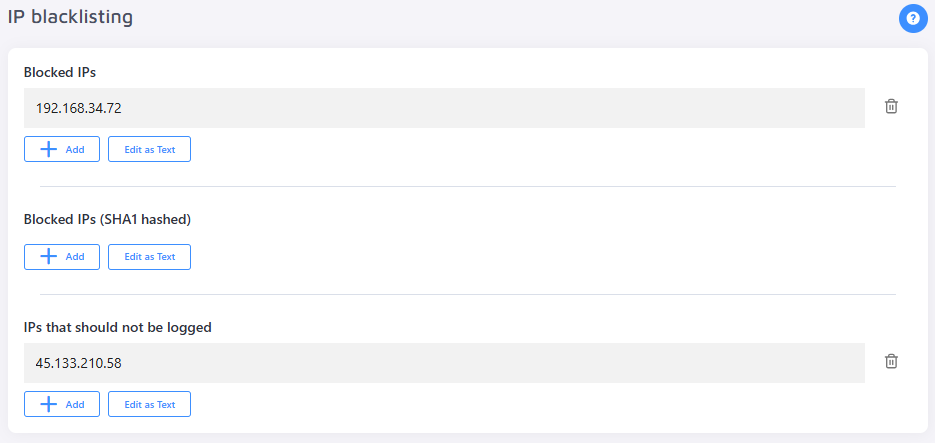
- Blocked IPs — blocks requests from the specified IP addresses.
- Blocked IPs (SHA1 hashed) — same as above, but accepts hashed IP values for added privacy.
- IPs that should not be logged — requests from these IPs will still be served, but will not appear in your analytics.
We support wildcard notation so you can use an asterisk (*) to add IP ranges, e.g. 46.229.168.* or 46.229.*.* or 46.*.*.*.
Query Limits
Use these options, also found under Search Settings → IP Settings, to cap how many searches an IP address — or your site as a whole — can perform.
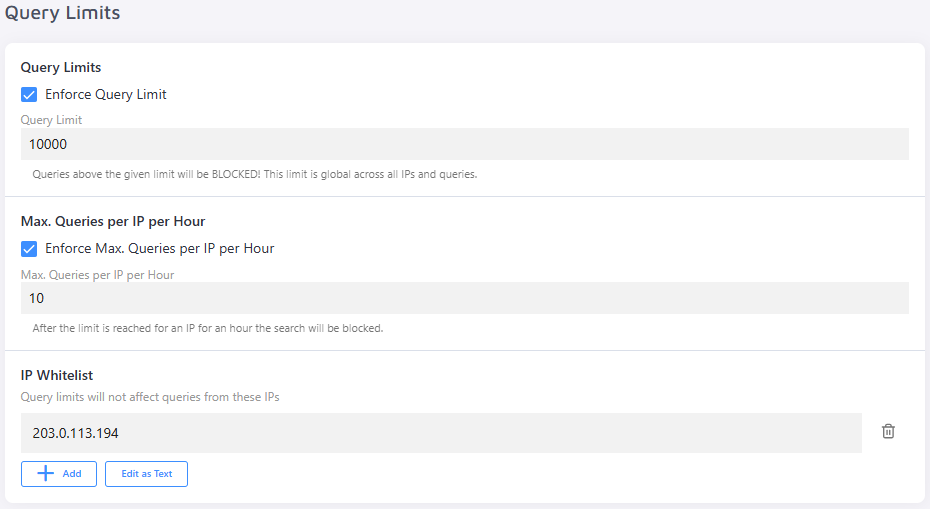
- Enforce Query Limit — sets a cap on the total number of monthly queries your site will serve. To avoid unexpected overages, align this with your plan's quota.
- Max. Queries per IP per Hour — defines the per-hour request threshold for a single IP address.
- IP Whitelist — query limits will not apply to IPs added here. Use this to exempt internal or trusted IPs — such as your own team's — from being rate-limited during testing or monitoring.