Customize Your Shopify Search Design
The Search Designer, in the Design tab of the Site Search 360 Control Panel, lets you match your search to your store's theme.
The Search Designer has five tabs, each covering a specific part of your search.
Main search settings
Start with "Main search settings".
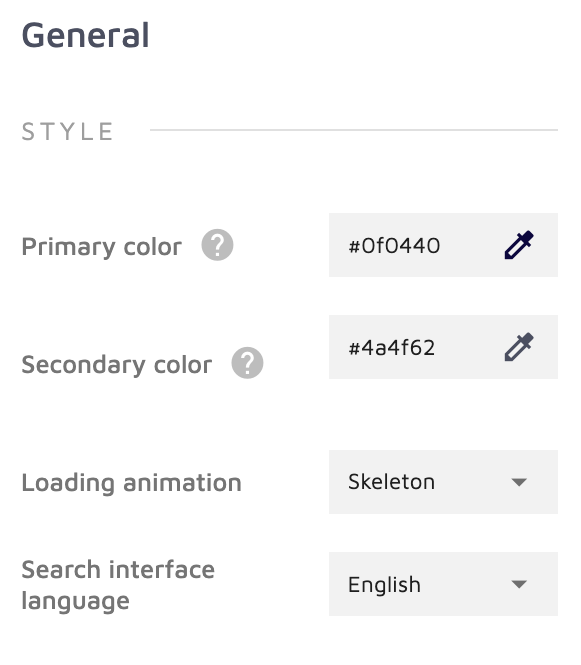
This tab starts with styling options for your search box: colors, loading animation, and language:
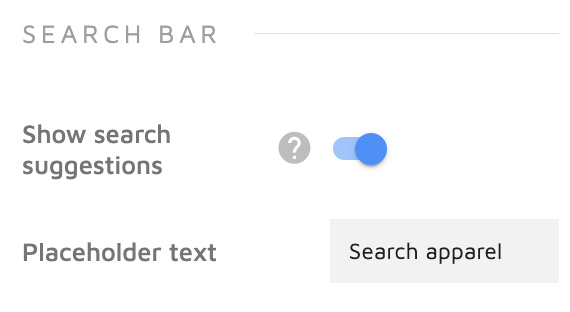
Next is a toggle for search suggestions and a field for the placeholder text displayed inside the search box:
The next section configures how (and where) search results are presented:
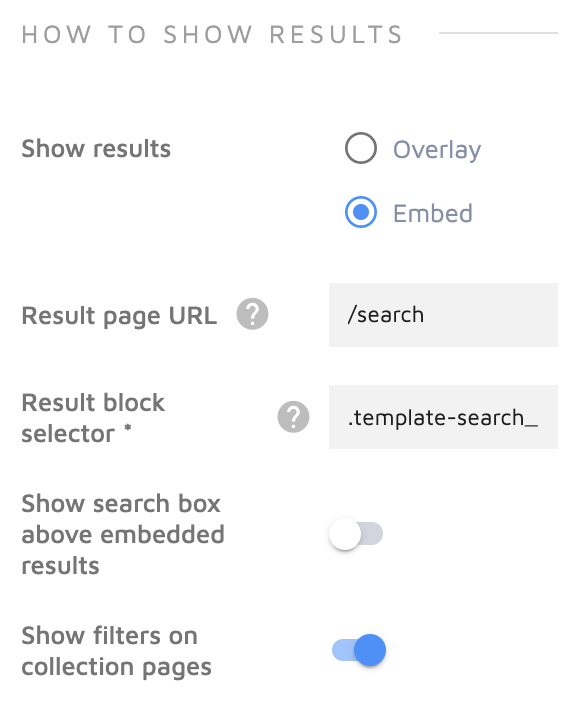
The "overlay" option places search results in a pop-up window; "embed" shows them wherever the search is initiated. If you use embed, provide a selector present on every page so the search works site-wide.
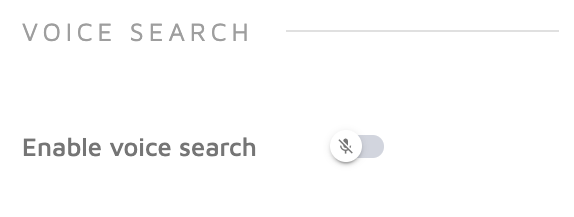
Here you can also enable searching via voice commands (shown in action in our Voice Search demo):
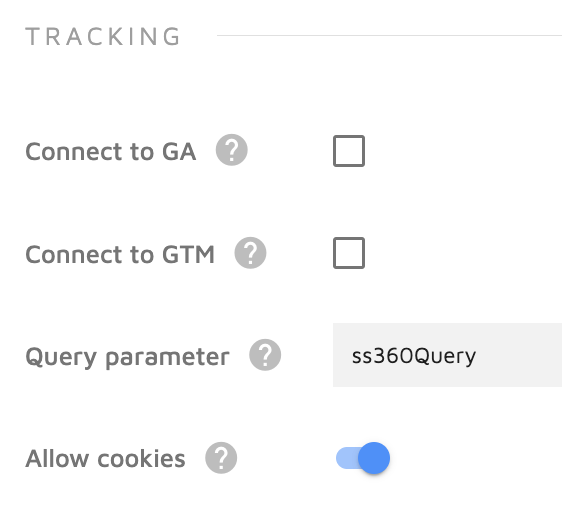
You can also connect your search to Google Analytics or Google Tag Manager for extensive search statistics, or enable/disable the search's cookies (cookies improve Analytics accuracy, so disabling them isn't recommended in most cases):
Autocomplete suggestions and as-you-type results
The "Autocomplete suggestions and as-you-type results" tab controls the look and feel of suggestions displayed before the search is initiated.
"Empty State" and "Query-based" configure suggestions shown before any characters are entered and as users type:
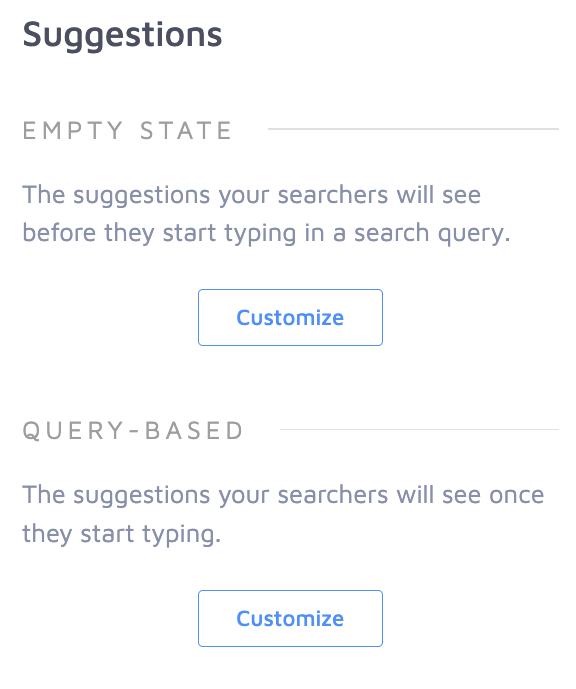
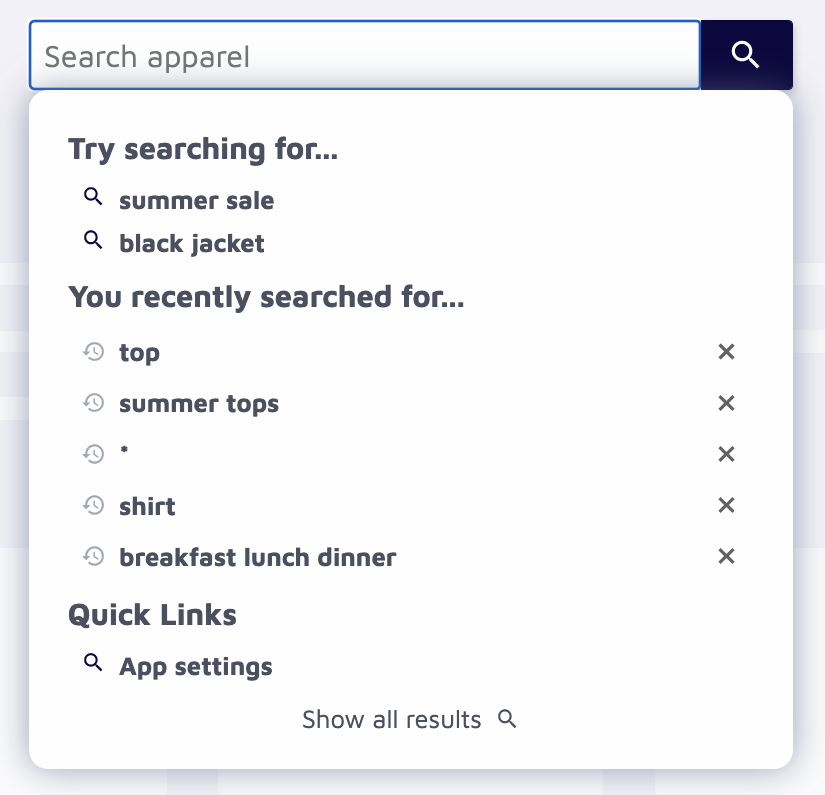
"Empty State" (or "Pre-filled Suggestions") controls the pages and queries suggested when a customer first clicks the search box. This can include separate blocks for manually configured queries, recent search history, and a link to a predetermined page:
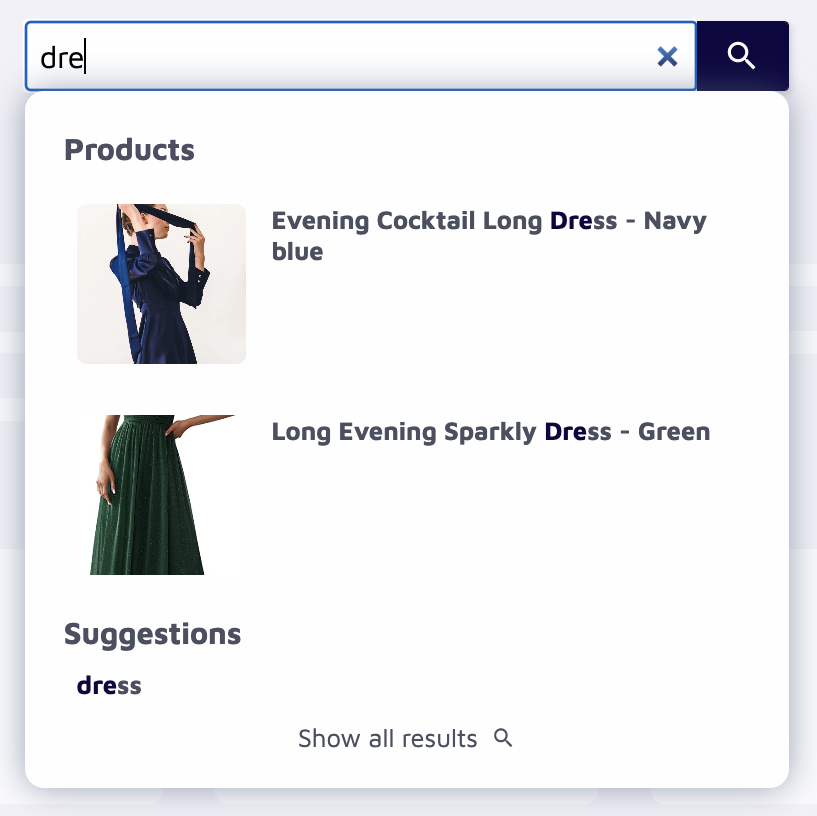
The "Query-based" configuration controls autocomplete queries shown once the search box has text, based on the most popular pages from preconfigured Result Groups. Example using two Result Groups:
General suggestion settings here include the number of characters needed to trigger suggestions and the clickable text that takes users to the full results list:
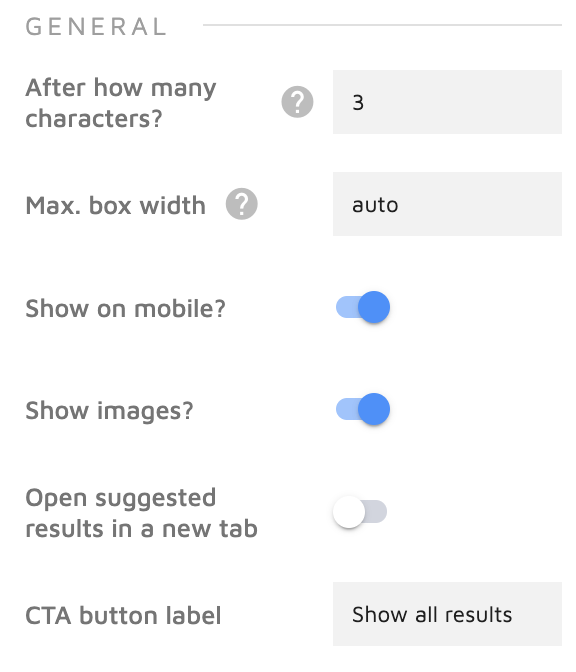
Search result behavior
The next tab, "Search result behavior", covers additional settings for results presentation, Filters, Result Groups, and Highlighting.
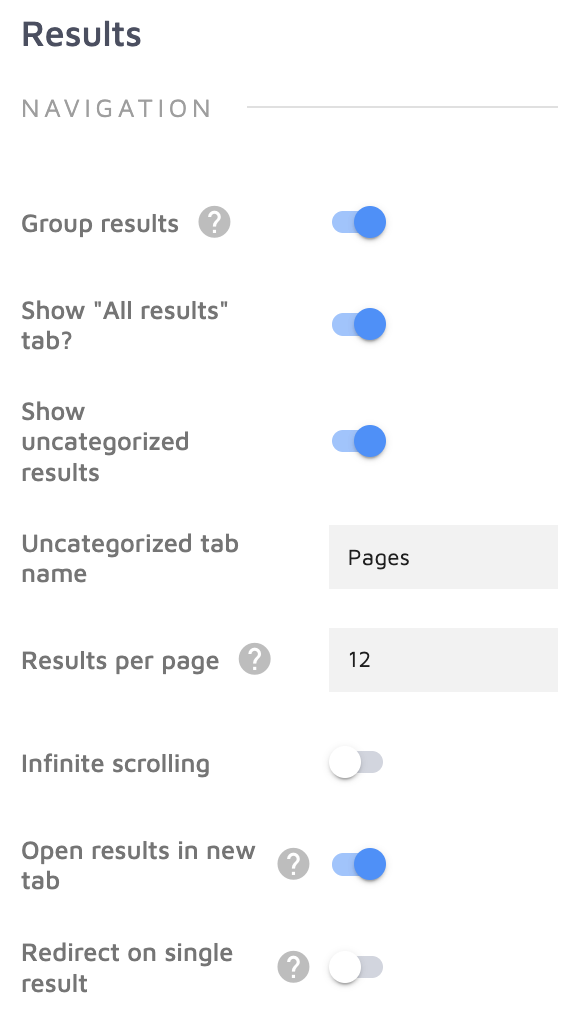
Under "Navigation" you can configure:
- Whether results are separated into Result Groups
- A tab showing all matching results regardless of group, and another for pages that don't fit any group (named "Other" by default, though you can rename it)
- The number of results per page, or infinite scrolling with no pagination
- Whether results open on a new page
- Whether a query with a single matching result redirects users to that result automatically
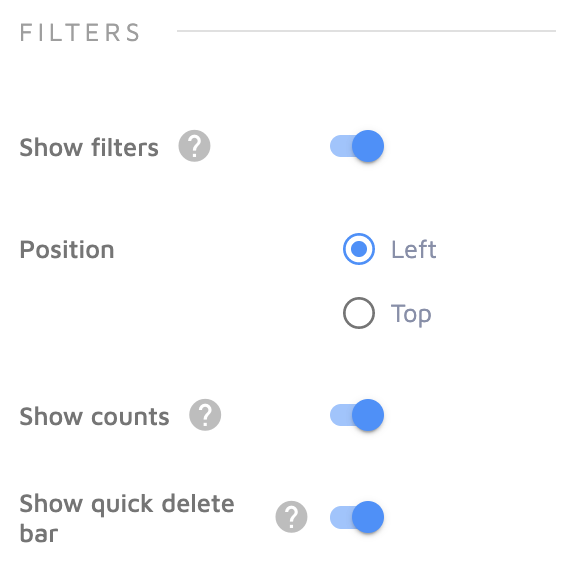
The "Filters" section has three toggles: enable/disable filters, show a count of matching products next to each value, and add a "Clear" button to reset a filter to its default state. You can also choose where filters appear on the search page.
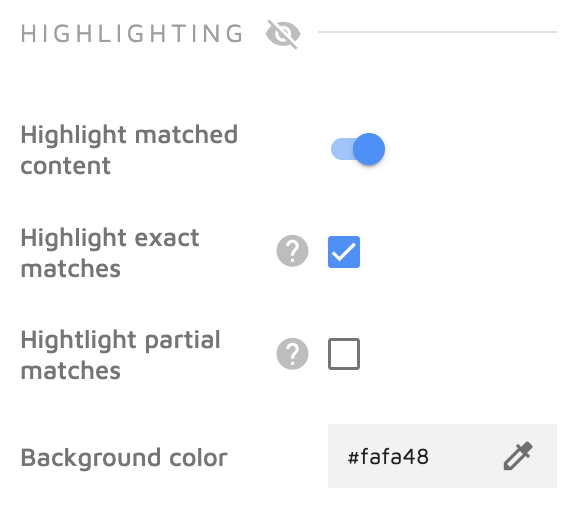
"Highlighting" configures how exact and partial query matches are styled in a page's title and/or snippet, making matched words stand out:
At the bottom of this tab, toggles let you hide specific Result Groups from the search:
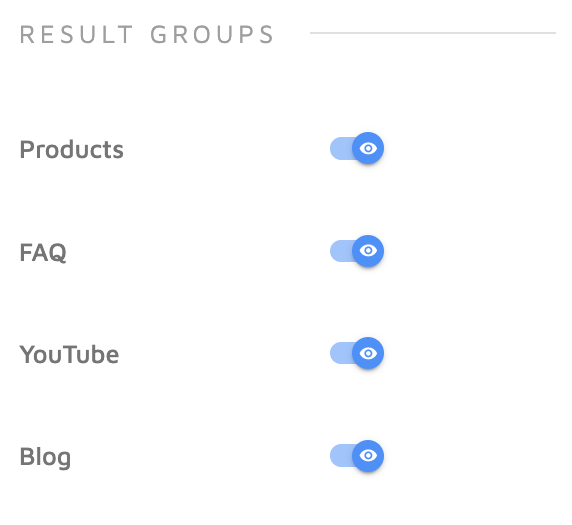
Search result layout
The "Search result layout" tab covers more search result appearance settings.
Choose whether each result shows one primary image or several, and which images to show for pages without a default image (or hide images altogether):
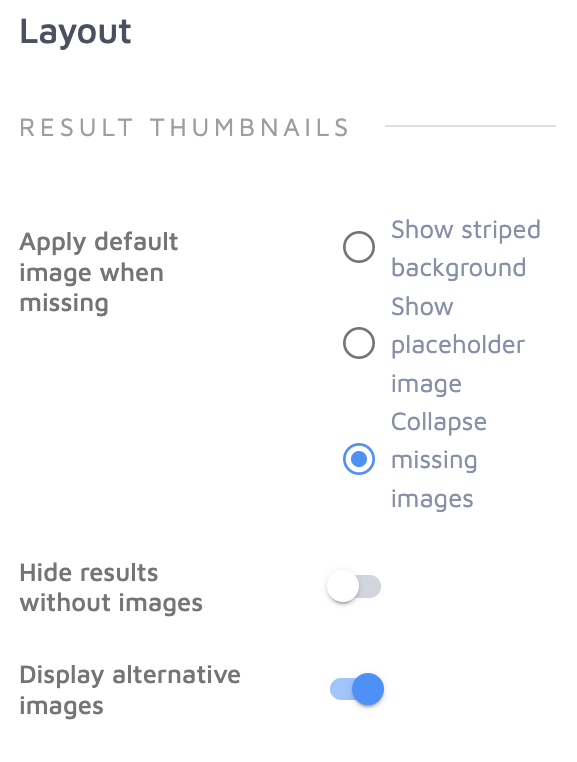
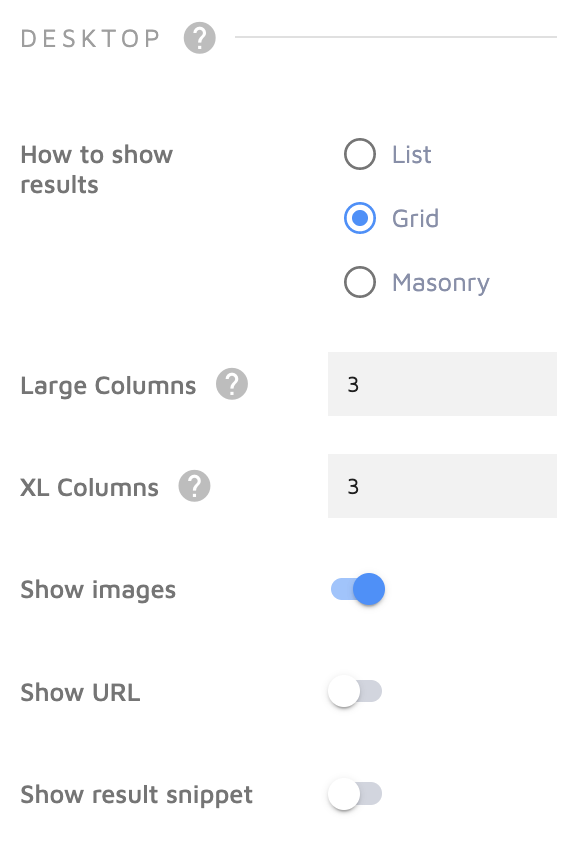
Up next - customization options for the search on desktop:
and mobile:
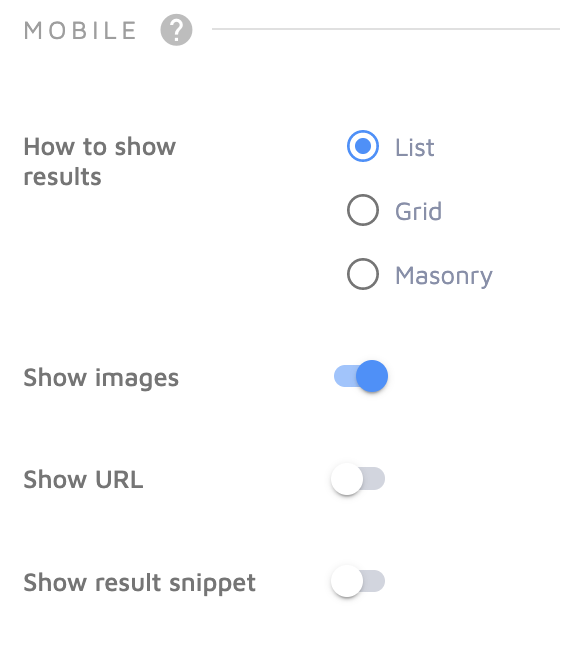
Display results one at a time or several per row, and choose whether each result shows an image, URL, and/or description under the title. Desktop and mobile settings don't have to match.
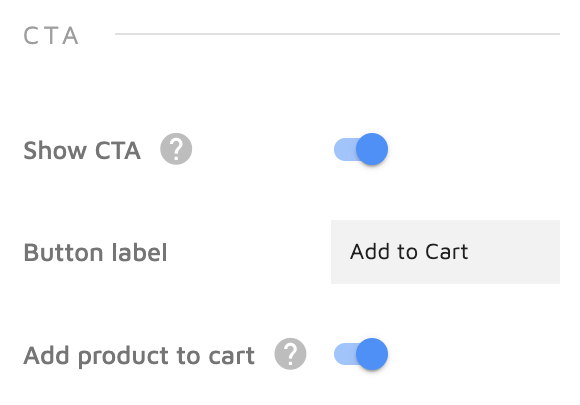
You can also add a button to each result that adds the product to the cart, or, if the toggle is off, takes the user to the product page:
Advanced Settings
Finally, we have the "Advanced Settings" tab.
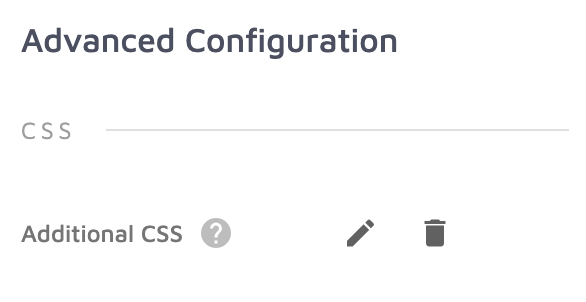
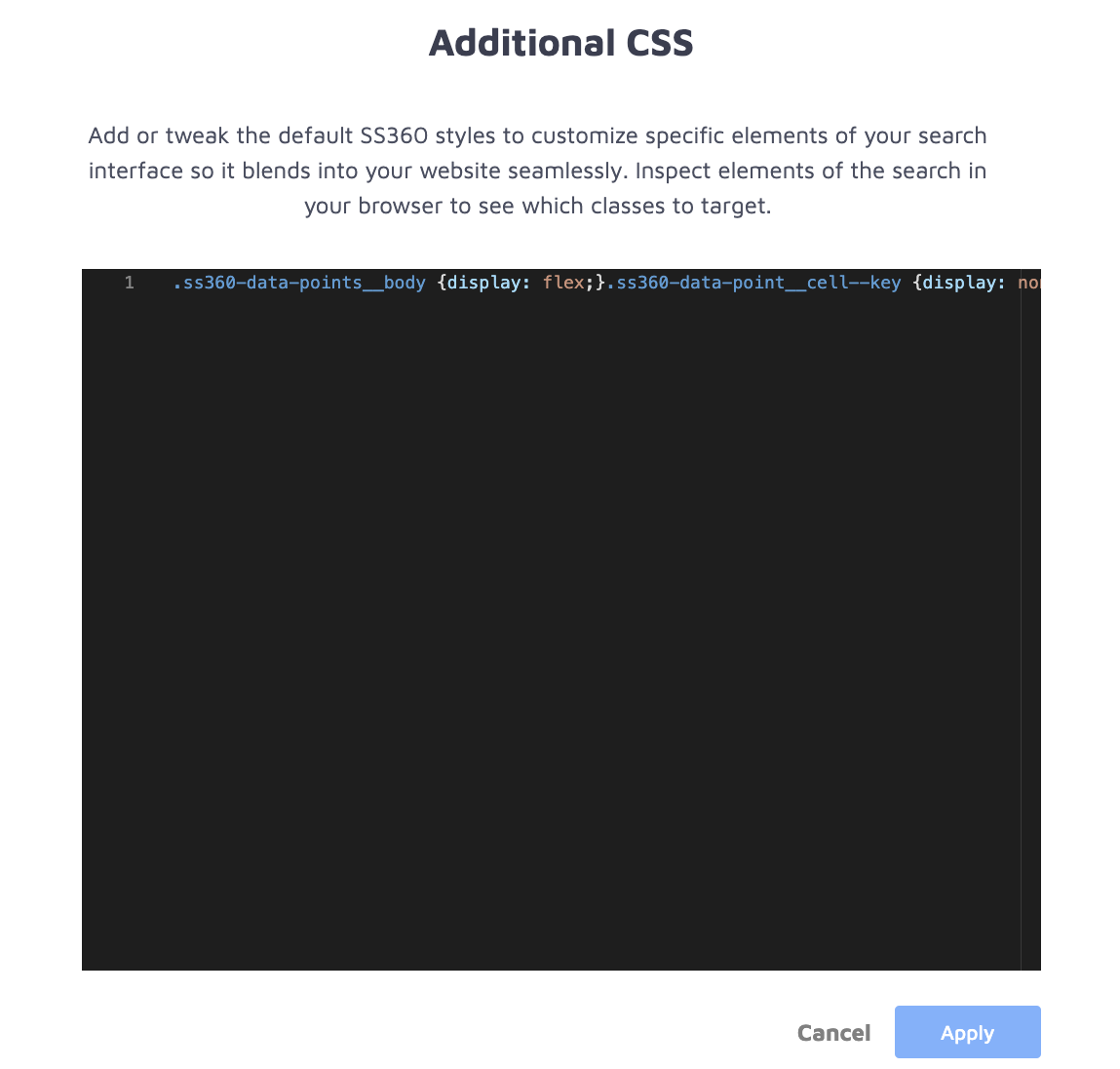
Under "Additional CSS", enter custom code in the pop-up window on the right to go beyond the default Search Designer styling options:
"Callbacks" and "Templating" let you create a custom HTML structure for suggestions and search results.
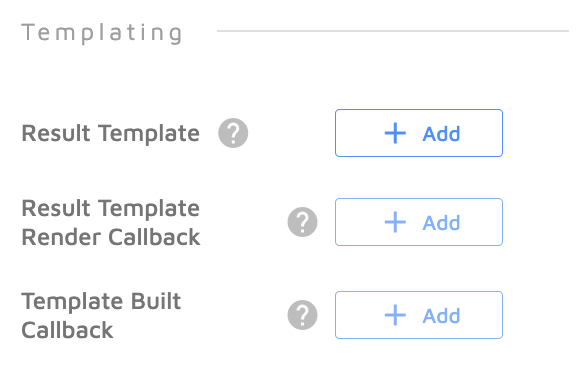
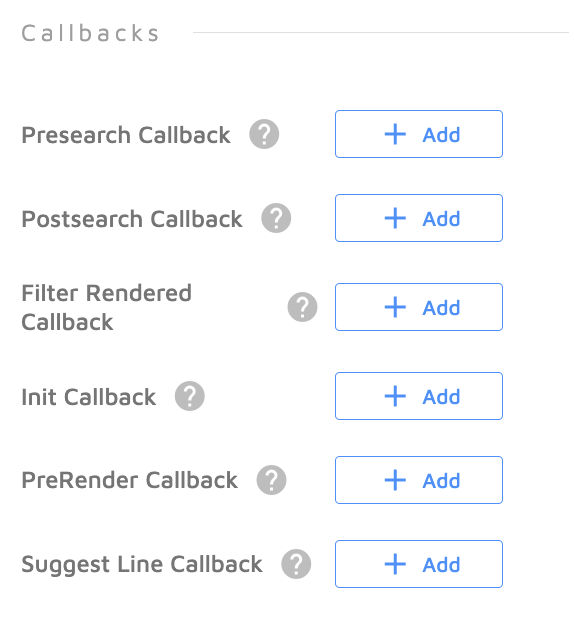
You can read up on both of these features in our "Templating" article.
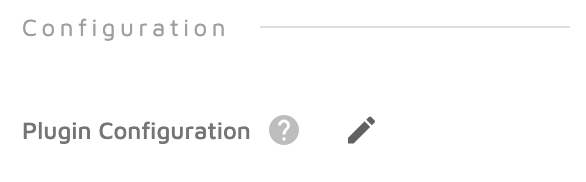
The "Configuration" section at the bottom lets you further personalize search behavior by modifying or adding elements of your config object.
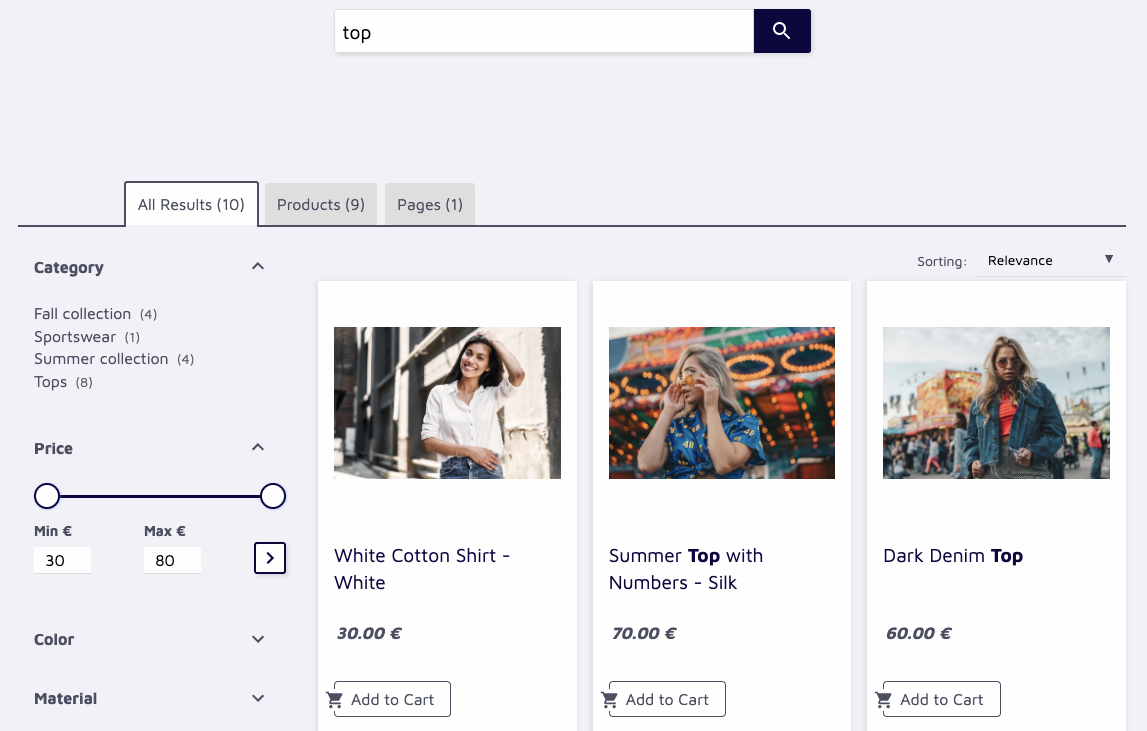
A preview window on the right side of the screen shows your search with all changes reflected immediately, so you can see the result before publishing.
When you're done, publish your changes or revert to the live version using the two buttons in the top right corner:

Make sure to check out our "Search Designer" article for a full guide on all of these features.
When your search is configured and styled, preview it and enable it on your store — see Test and Publish Your Search.