Sorting Options
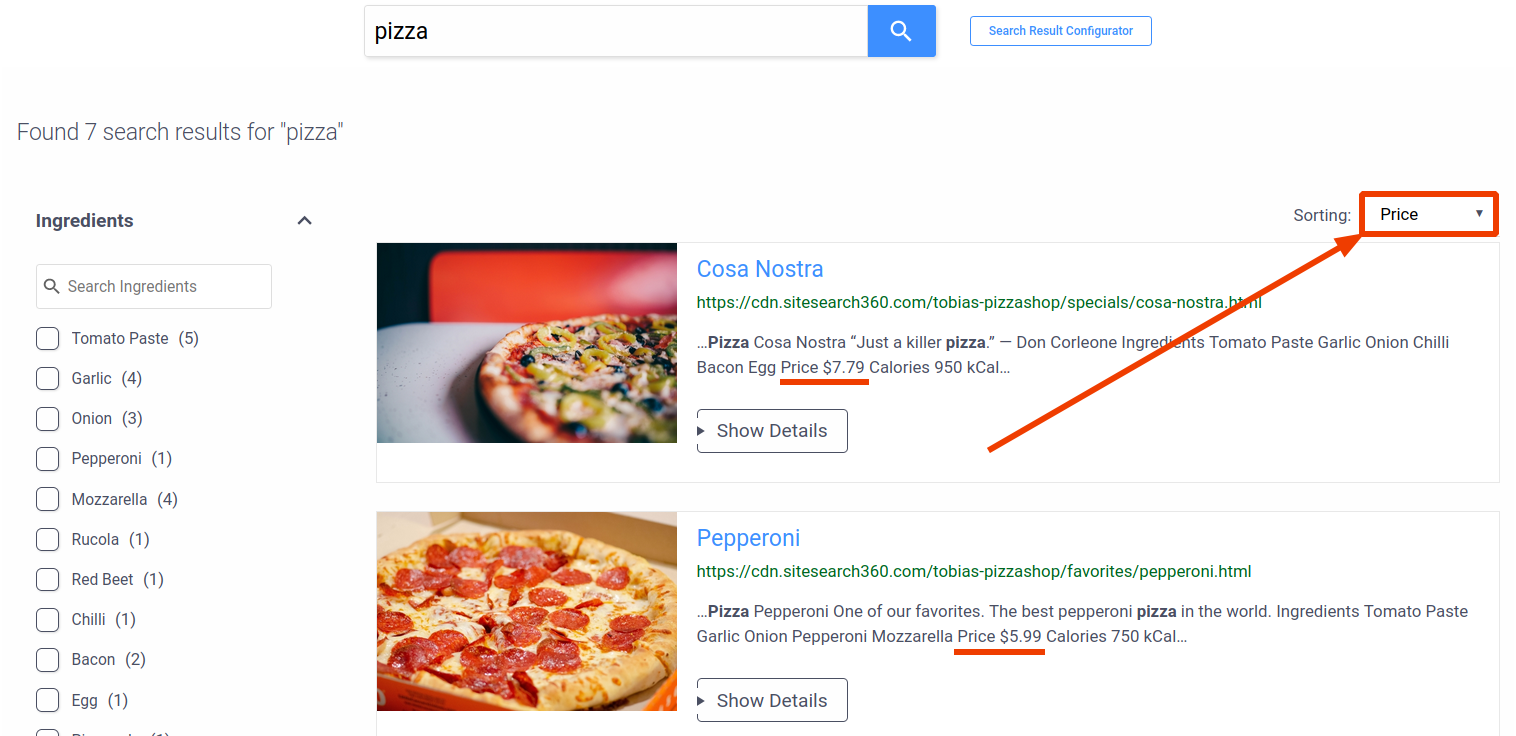
Sorting options let your users reorder search results — for example, by price or publish date instead of relevance.
Content Sorting vs. Product Sorting
If you run ecommerce search, the Sorting tab shows two separate lists, built from different sources:
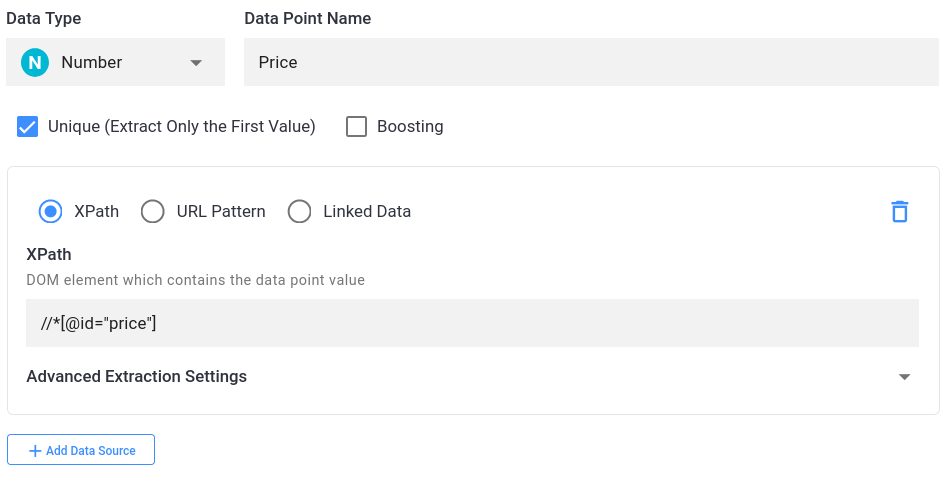
- Content Sorting is built from your data points. You can sort by any NUMBER or DATE data point — for example, publish date or reading time.
- Product Sorting is built from your product feed attributes. You can sort by numeric, date, boolean, or text attributes — for example, price, release date, or availability.
The setup steps are the same for both. Only the source of the sort values differs. Product Sorting needs ecommerce search — see Site Search 360 for ecommerce.
Add a Sorting Option
Go to Filters and Sorting → Sorting in the Control Panel and click Add Sorting Options. In the popup, set up your sorting option:
- Add a name.
- Choose the order: Ascending or Descending.
- Select the source: a data point for content sorting, or a product feed attribute for product sorting.

After you click Add, your Sorting tab looks like this:
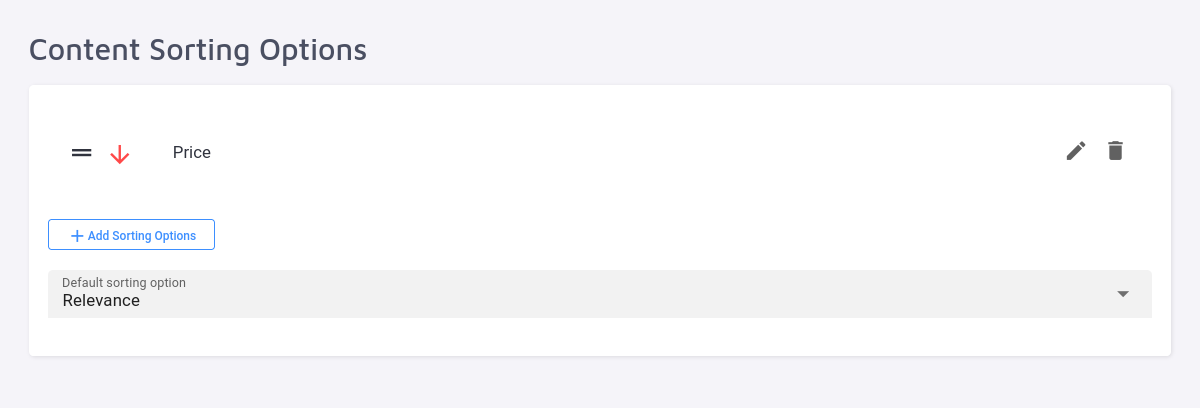
The red arrow indicates the results sort in descending order.
Set the Default Sorting Option
By default, results sort by Relevance. Use the Default Sorting Option dropdown to change this to any sorting option you've created.
After you save your changes, a Sorting dropdown appears in the search view so users can pick their own sort option: