Shopify Integration
A good search helps customers find what they're looking for quickly, with minimum effort on your part. The Site Search 360 Shopify app adds this search to your store in four steps:
- Add the app to your store
- Configure how the search functions — see Configure Your Shopify Search
- Customize how the search looks — see Customize Your Shopify Search Design
- Test the search and enable it on your live site
Add Site Search 360 to Your Shopify Store
Installation starts with the "360 product search and filters" app in the Shopify App Store.
Search for "360" to find the app listing. Click "Add app", log in to your Shopify account, and click "Install app" to add it to your site.
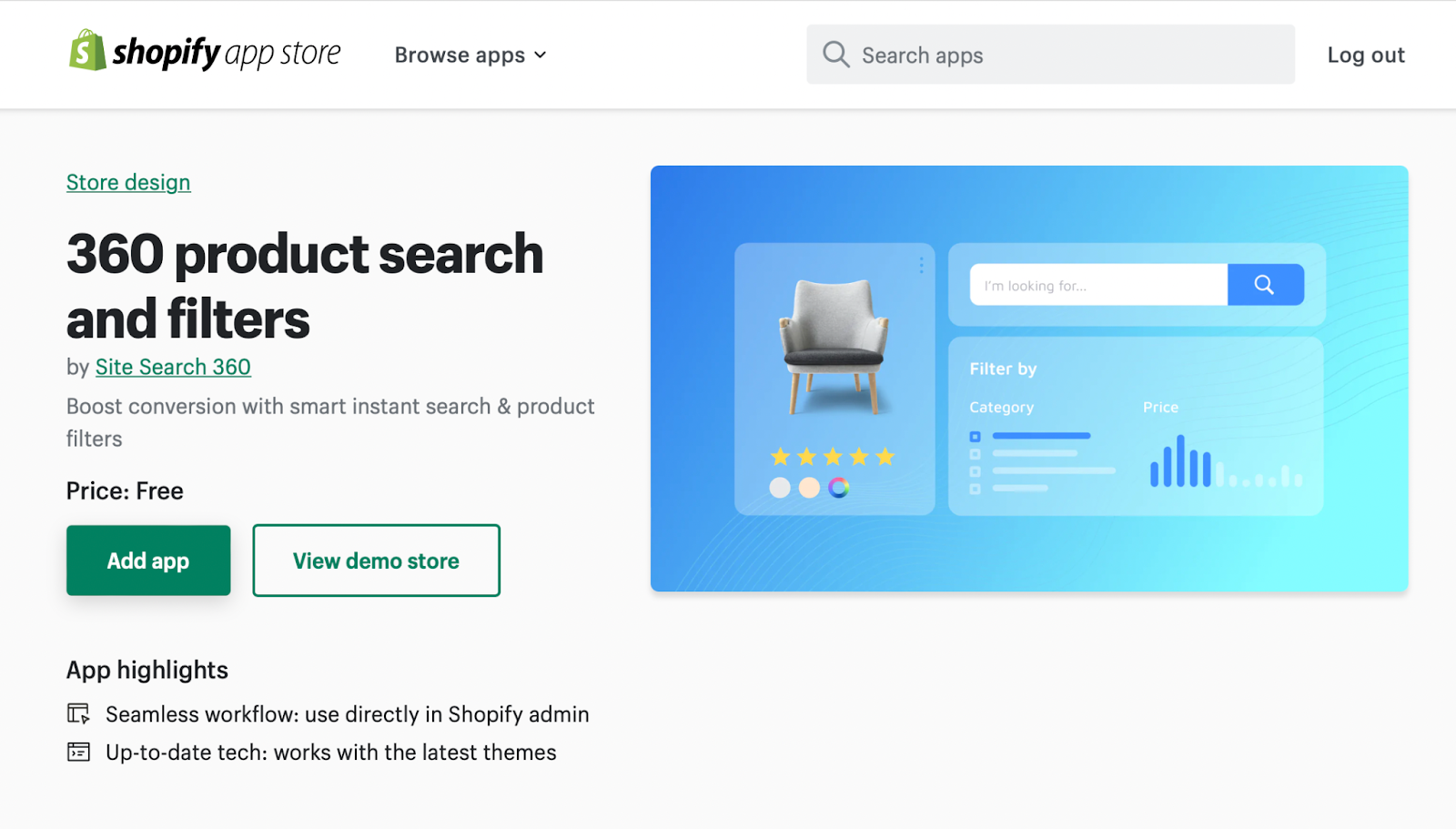
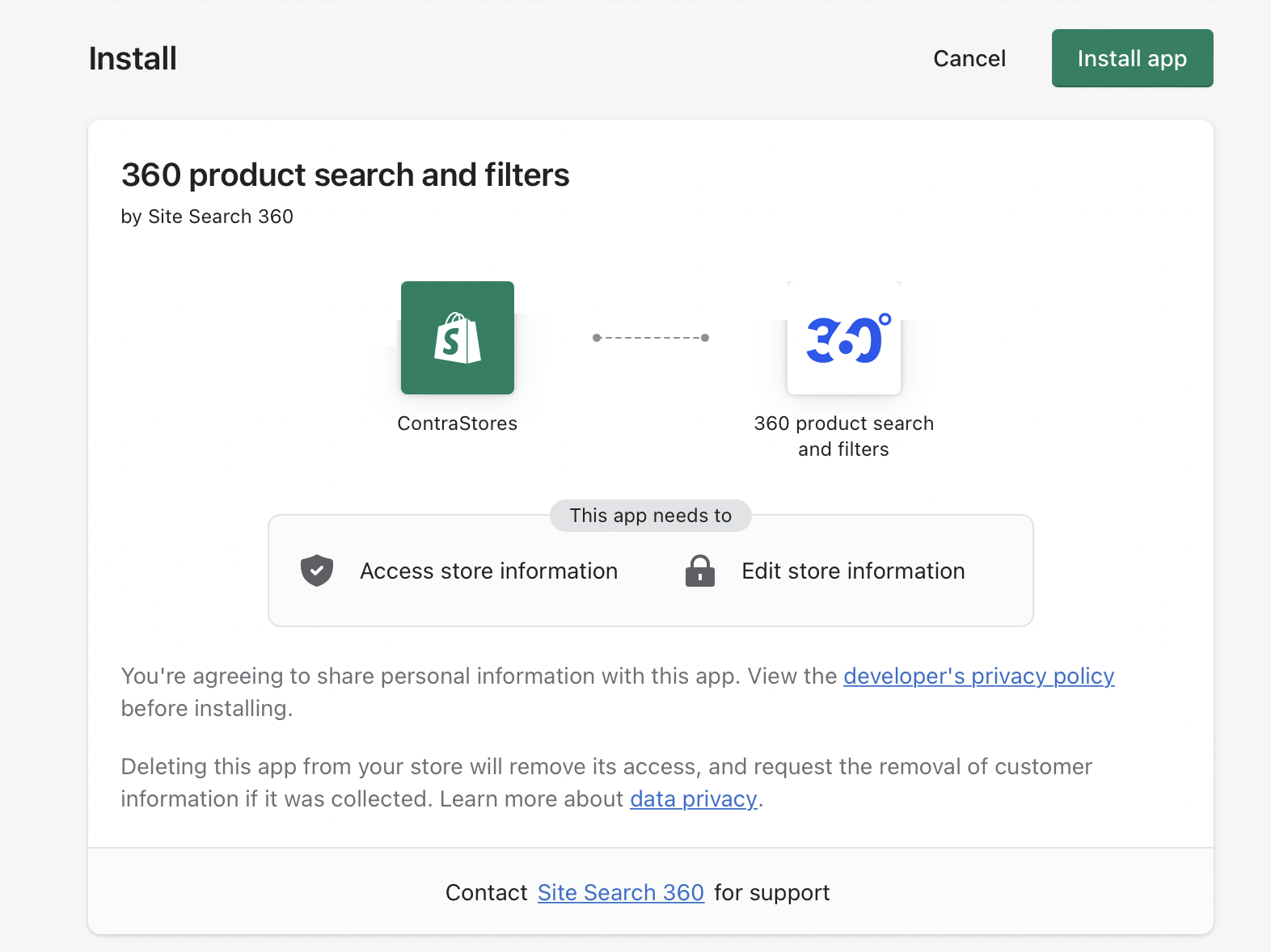
You can install the app directly, or open the "View demo store" link on the landing page first to see the features available.
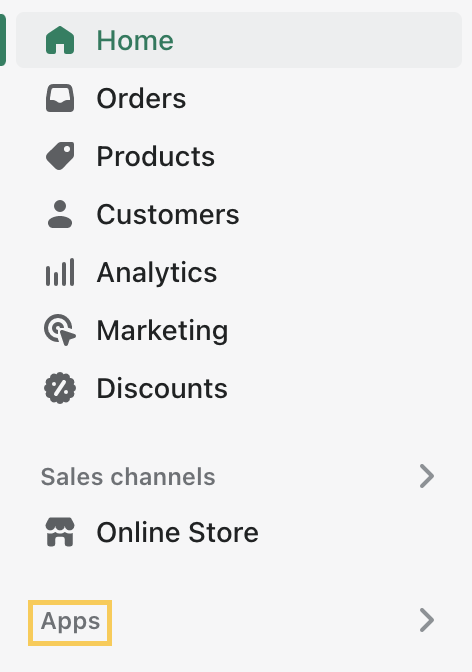
Once installed, find the app under "Apps" in the left-side panel menu of your store's admin page:

Click the app title to open your Site Search 360 Control Panel:
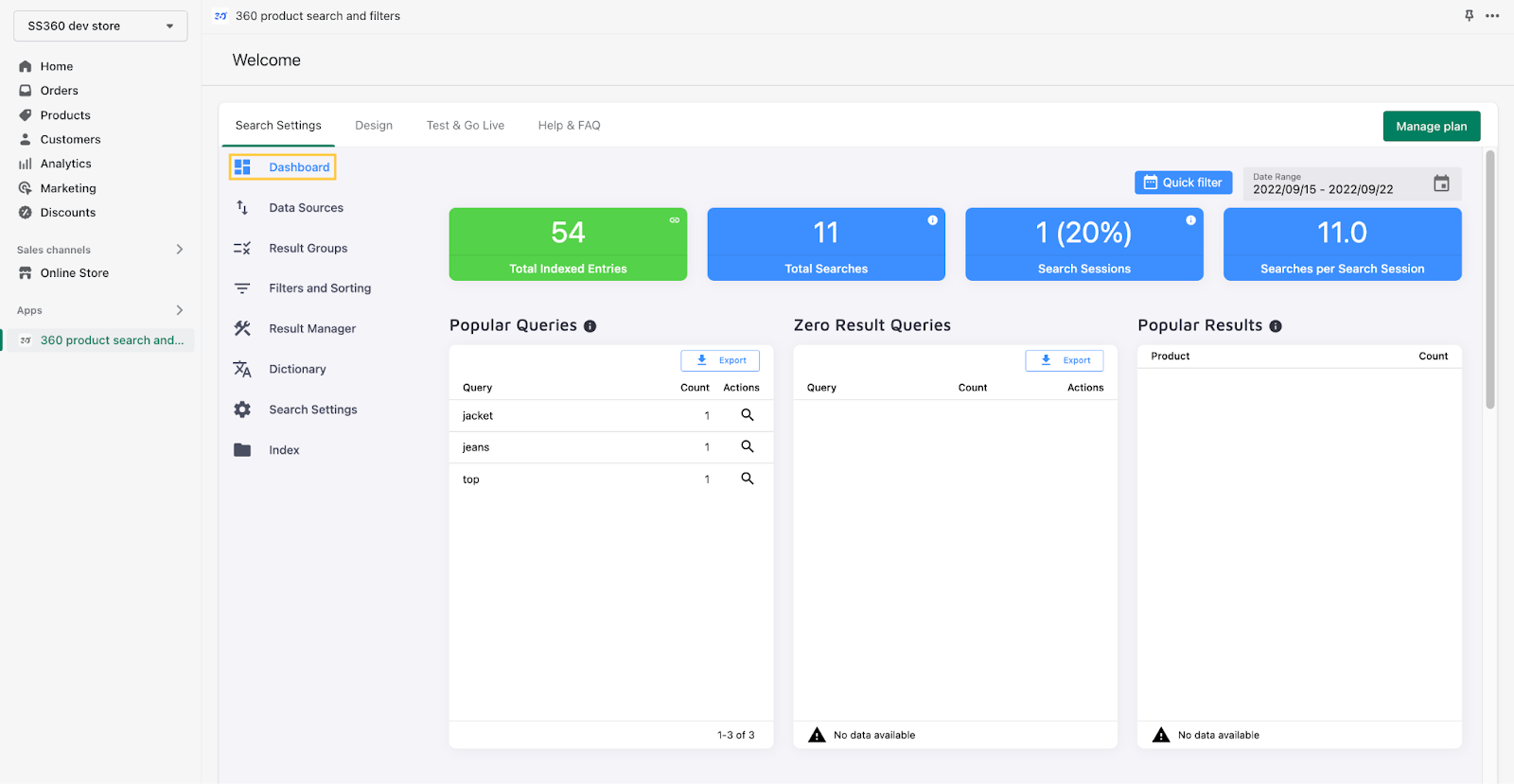
The Control Panel has four tabs:
- Search Settings — see Configure Your Shopify Search
- Design — see Customize Your Shopify Search Design
- Test & Go Live — see Test and Publish Your Search
- Help & FAQ — short answers to common questions about the app
Test and Publish Your Search
The "Test & Go Live" tab covers testing and publishing:
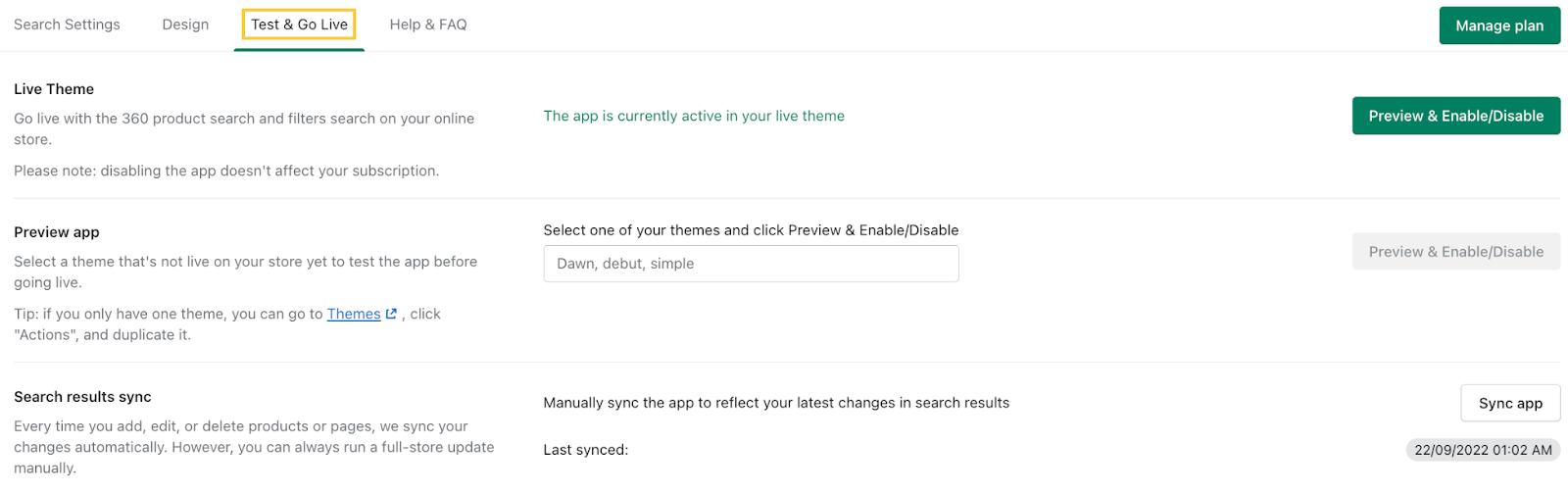
This is where you go for three major things:
- Check out what the search will look like when implemented to your site
- Enable the search on your site
- Update your project to include recently added/changed pages in your search or remove obsolete ones
To preview the search before going live (or after any change), click "Preview & Enable/Disable" in the "Preview app" section. This opens a preview screen that replicates your site's layout and design:

Locate the search box and enter a sample query:
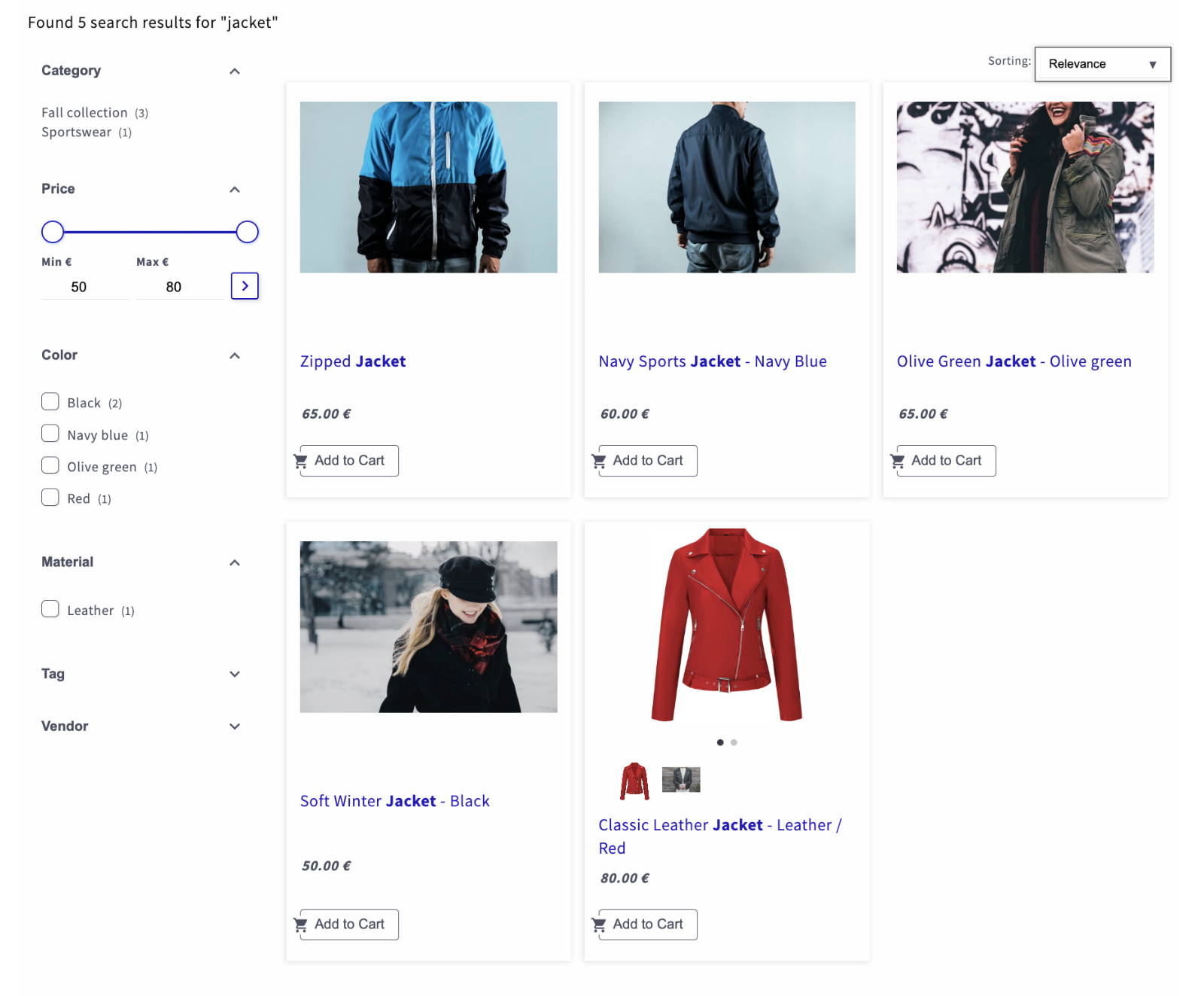
Once you're satisfied with the preview, go live with your search.
There are two ways to do this: via the "Test & Go Live" tab or your Shopify "Themes".
With "Test & Go Live":
- Click "Preview & Enable/Disable" under "Live Theme" to open the "Preview" section:

- Open the "App embeds" tab in the left-side panel menu and turn on the toggle next to "360 search and filters":
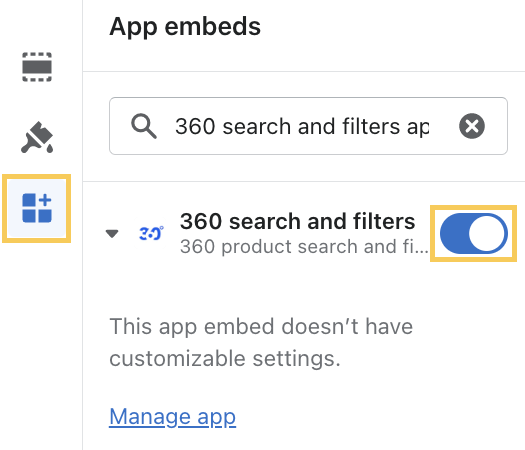
- Save your changes using the button in the upper right corner:

With "Themes":
- Open the "Themes" tab located in the left side panel menu of your admin page:
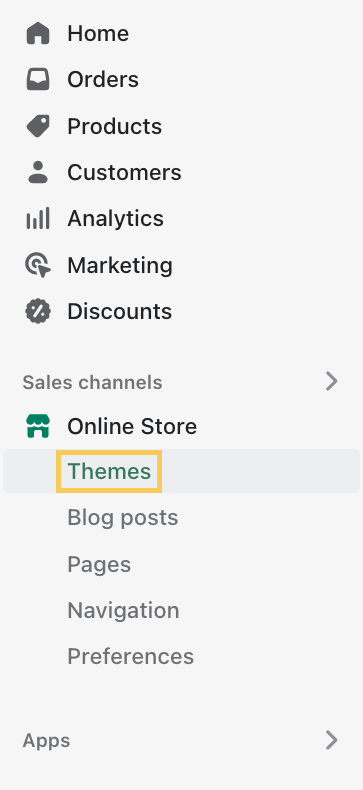
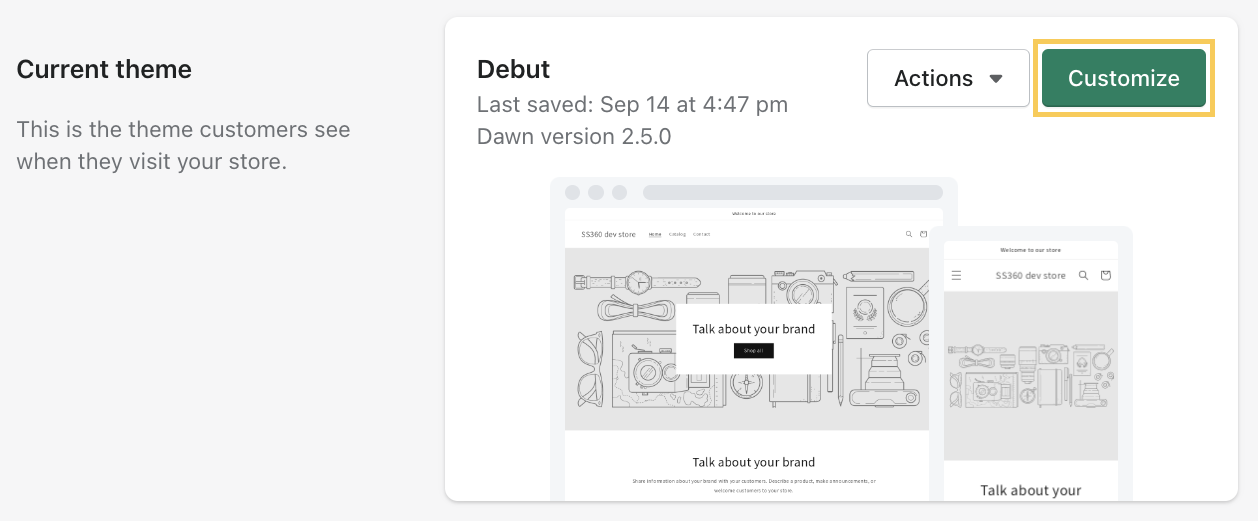
- Click "Customize" next to your current theme to open "Preview":
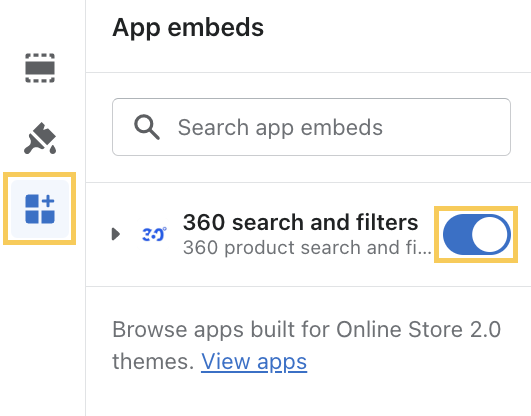
- Open "App embeds" and turn on the "360 search and filters" toggle:
- Save using the button in the top right:
Your search is now active on your store.
The last item in this tab is the "Sync app" button under "Search results sync".
Search results stay up to date with your site automatically: new pages become searchable, updated pages are reflected in their search results, and deleted pages are removed.
If the crawler ever misses a change, start a manual sync to correct it.
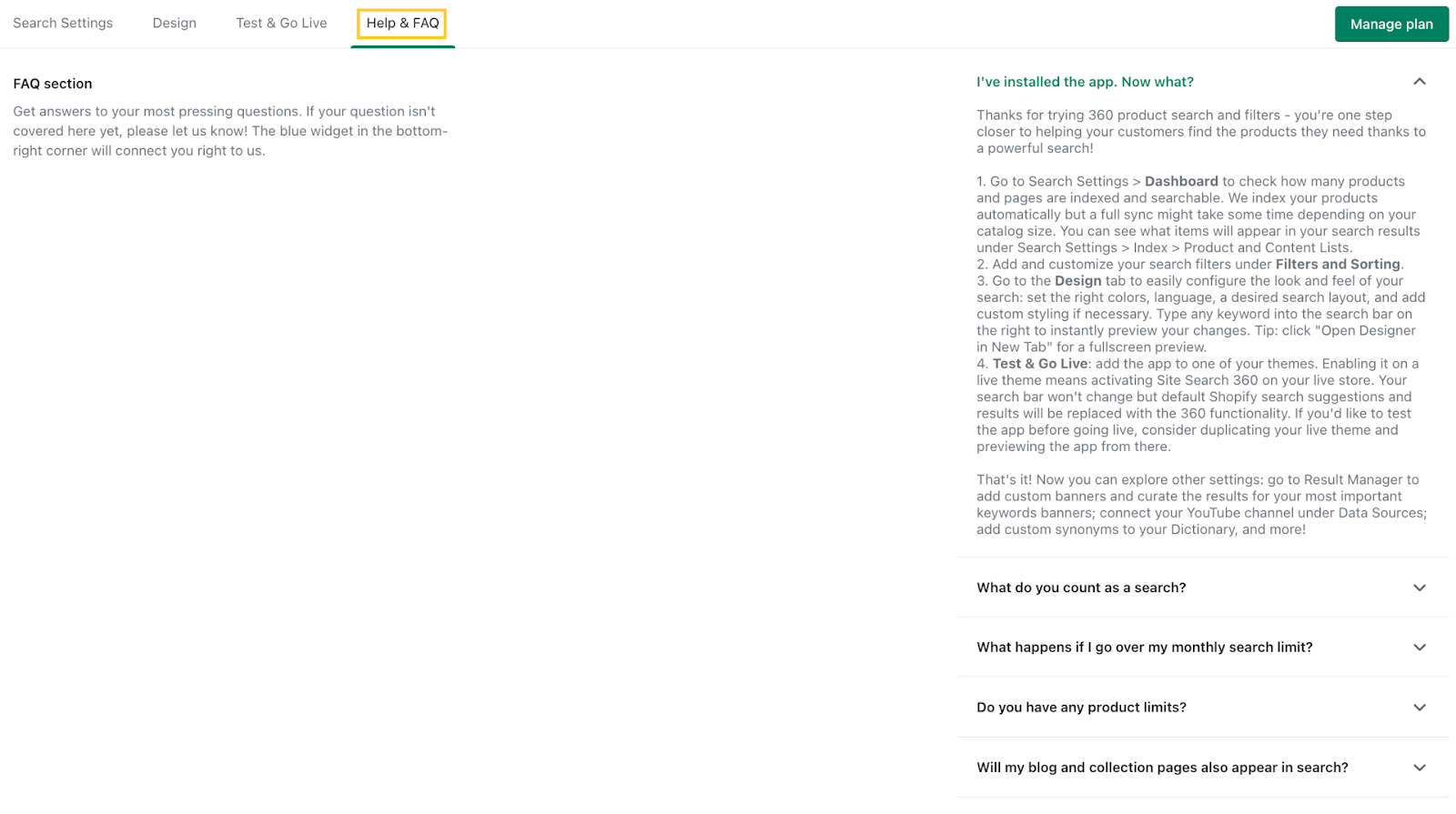
The "Help & FAQ" tab has short answers to commonly asked questions about the app:
For further help, or questions not answered in this guide or the FAQ, email the support team.