Configure Your Duda Search in the Control Panel
Most search settings — what gets indexed, how results are ranked, filters, synonyms and more — live in the Site Search 360 Control Panel rather than in Duda. You don't have to leave the site editor to access it, though — open your Site Search 360 app settings by clicking "Open" in the widget's entry in Duda's App Store:
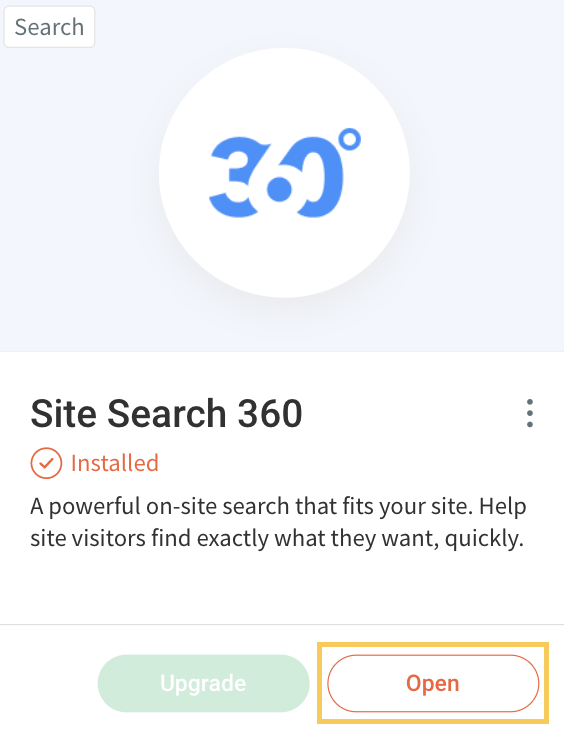
This takes you to your Dashboard and logs you in automatically.
Dashboard
The "Dashboard" section has three tabs, each showing data about your search's performance.
The "Analytics" tab shows how the search is being used.
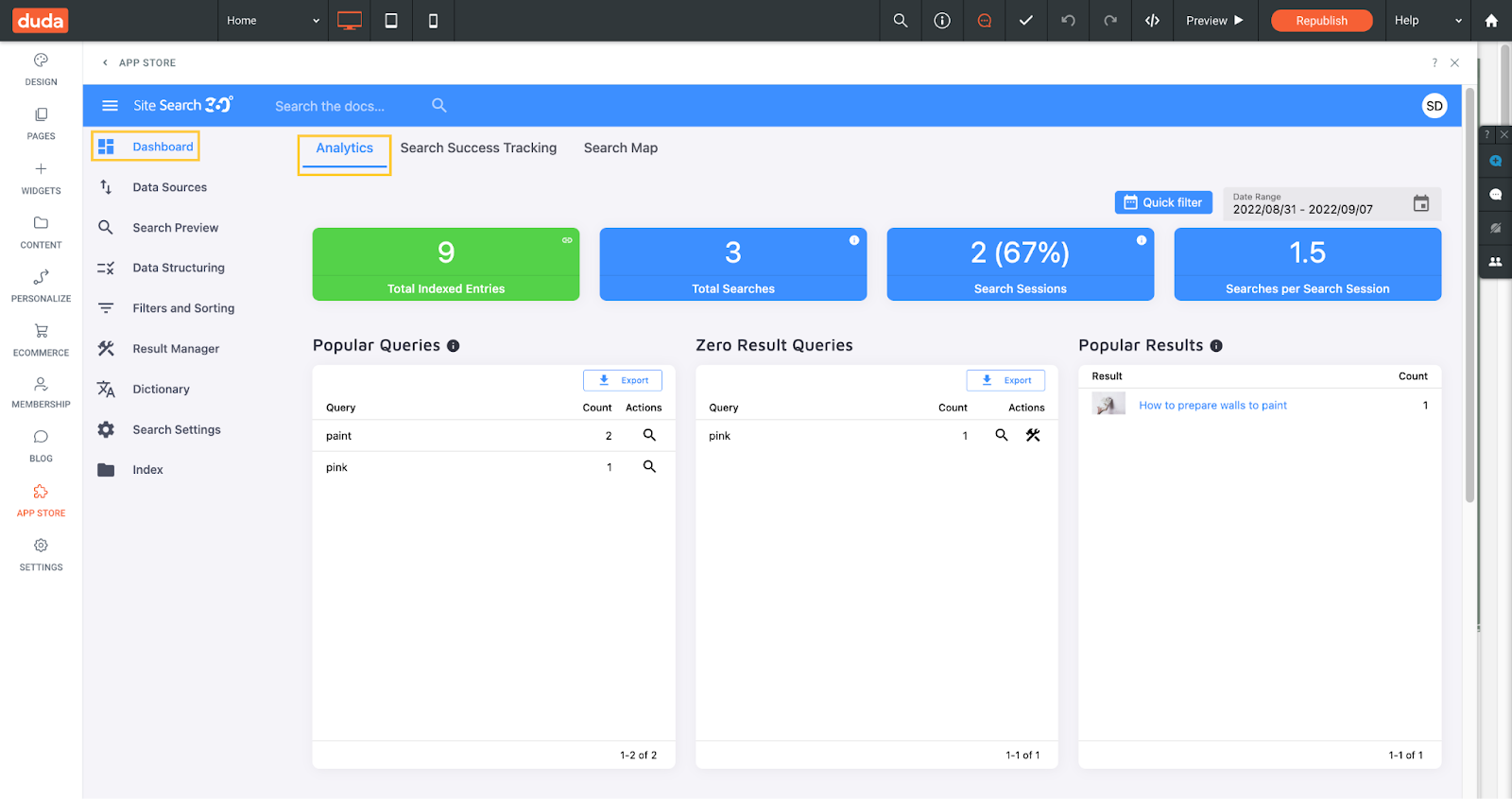
When you first implement the search, you'll see basic information about your project, like the number of pages the crawler has found and added to the search results. Available data expands as search usage grows — you'll see which search terms are most common and which return zero results, among other metrics.
Two buttons in the top right corner filter your search data. "Quick Filter" shows performance for today, yesterday, or the last 7, 30, or 90 days. "Date Range" lets you choose any custom period.

You can learn more about data pulled from your users' experience with the search in our article on Dashboard Analytics.
The "Search Success Tracking" tab tracks conversion-related metrics. With regular engagement, it goes from this:
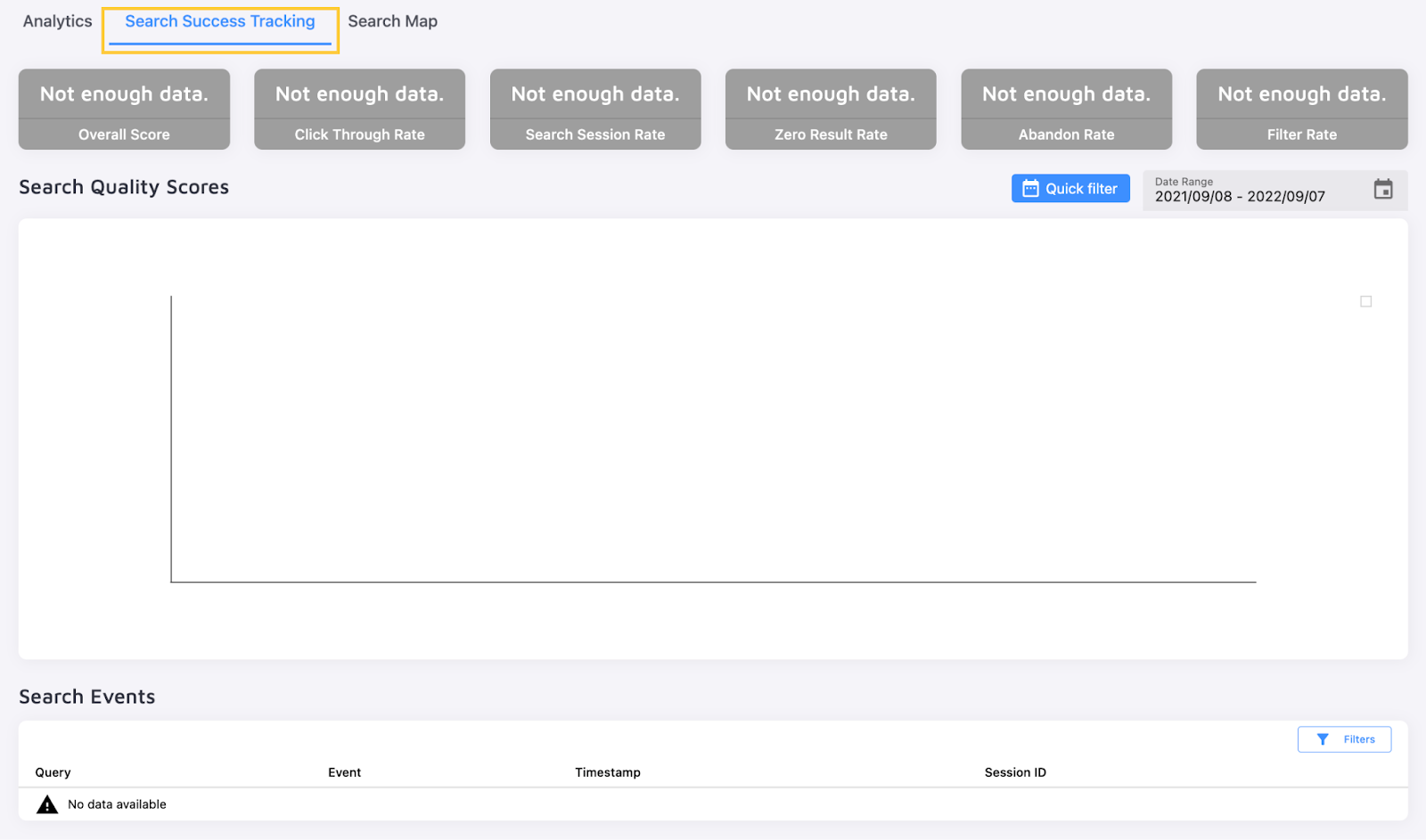
to this:
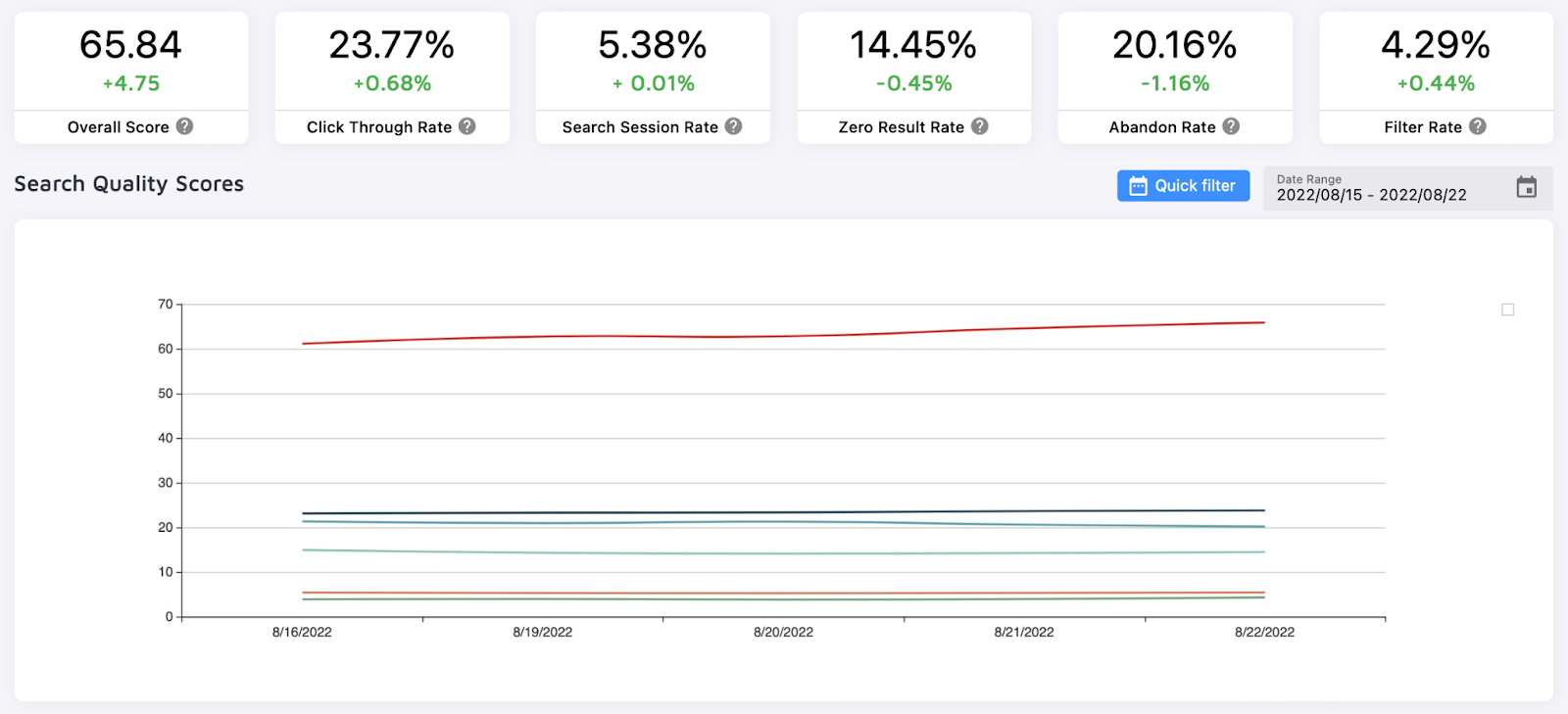
Your Search Success rate combines how many users engage with the search, how often they click results or use filters to narrow them down, and how often they see no results for their queries. Each query is recorded and detailed in this tab.
The "Search Map" tab shows where your users are based and which queries are popular in a particular region:
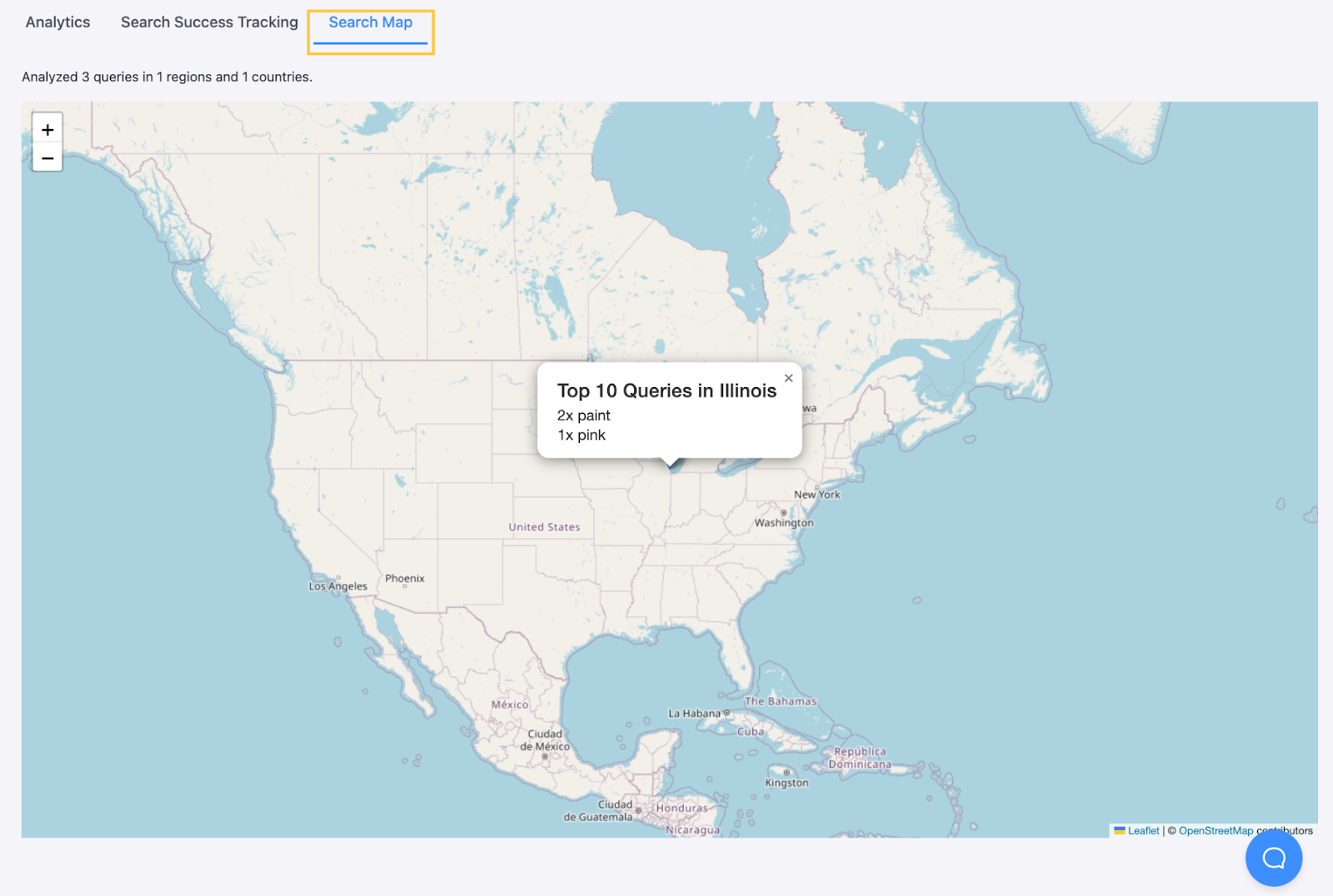
The "Search Success Tracking" and "Search Map" tabs only appear if these features are enabled for your plan (currently available for "Holmes" only). See our pricing page for plan differences.
A "Chat" icon appears at the bottom right of every tab. All users can email the Site Search 360 support team; "Holmes" users can also use the chat to contact support without leaving the project page and get a near-instant reply.

Data Sources
The "Data Sources" section covers everything that gets crawled to populate your search results.
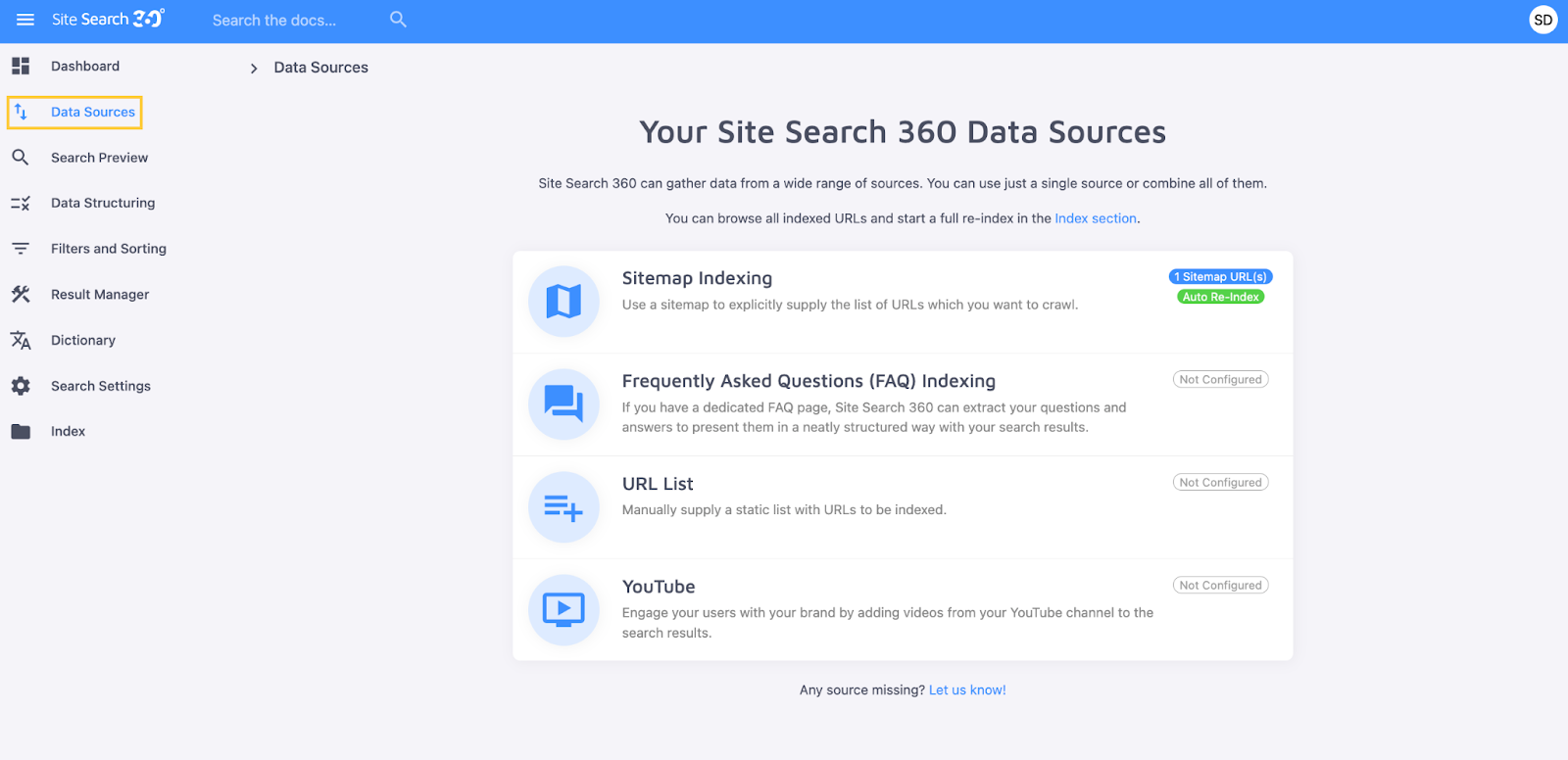
"Sitemap Indexing" is used by default for every Duda project. The sitemap is pulled from the site editor when your project is created and updates automatically as you add, edit, or remove pages.

You're not limited to the sitemap's default settings for how content is indexed.
If the same content appears twice in your search, use deduplication to clean up the results without changing your Duda project:
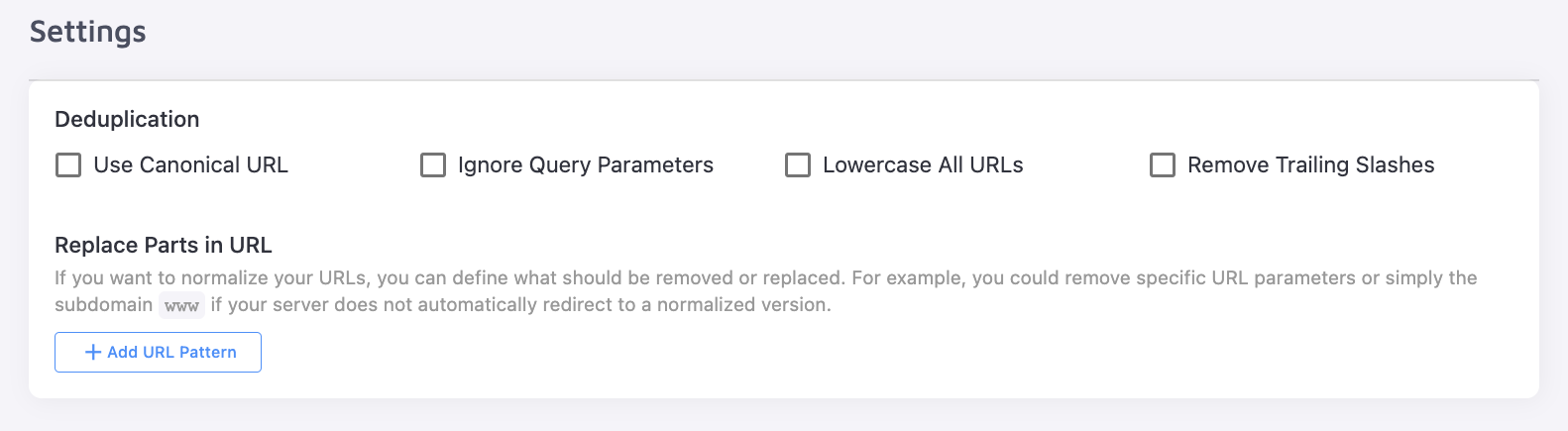
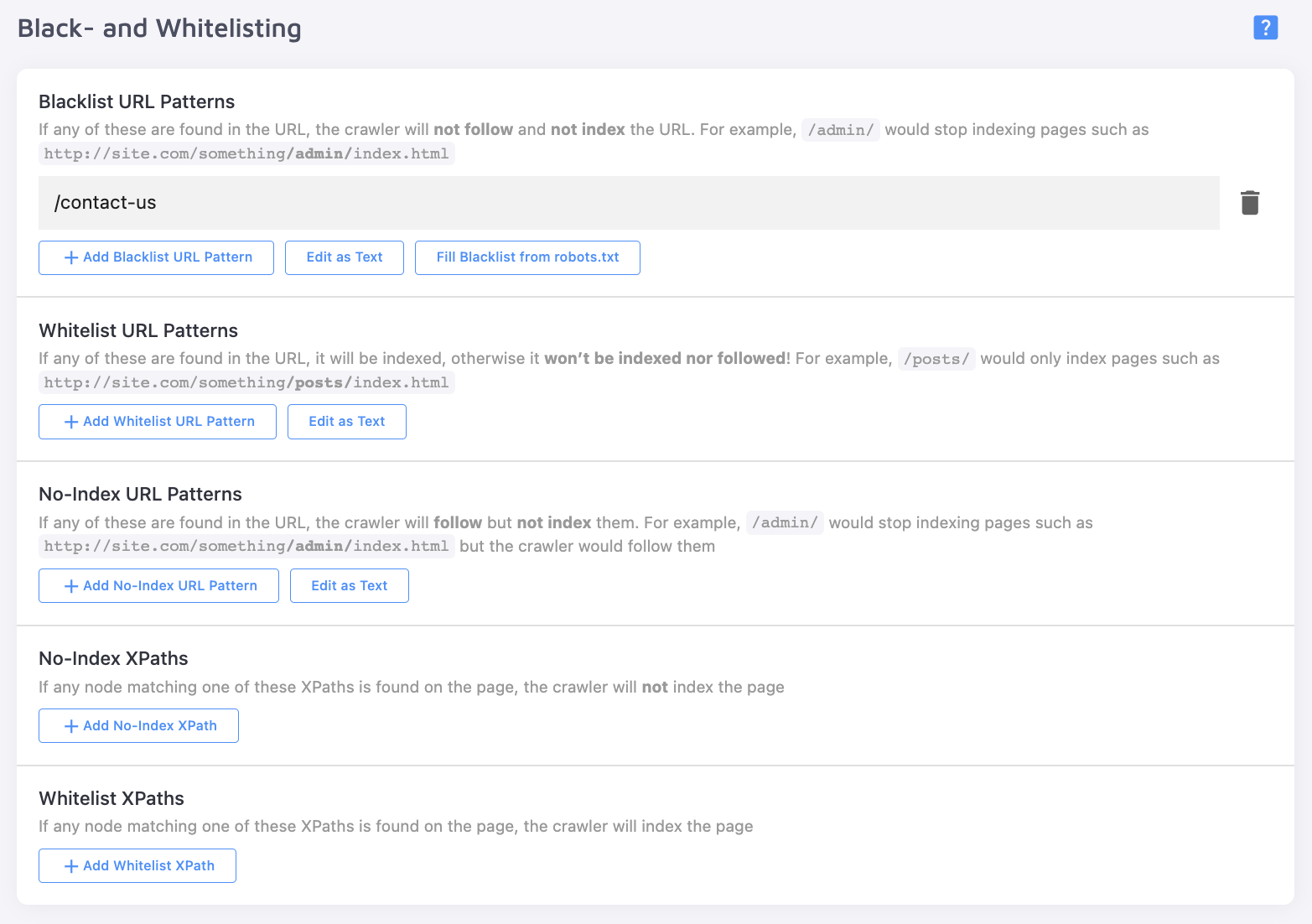
You can also remove pages from your search results without deleting them from the site by either blacklisting or no-indexing them. Alternatively, restrict the crawler to a specific area of your site by whitelisting certain pages.
If the crawler can't index certain pages, check the "Advanced Settings" for possible fixes.
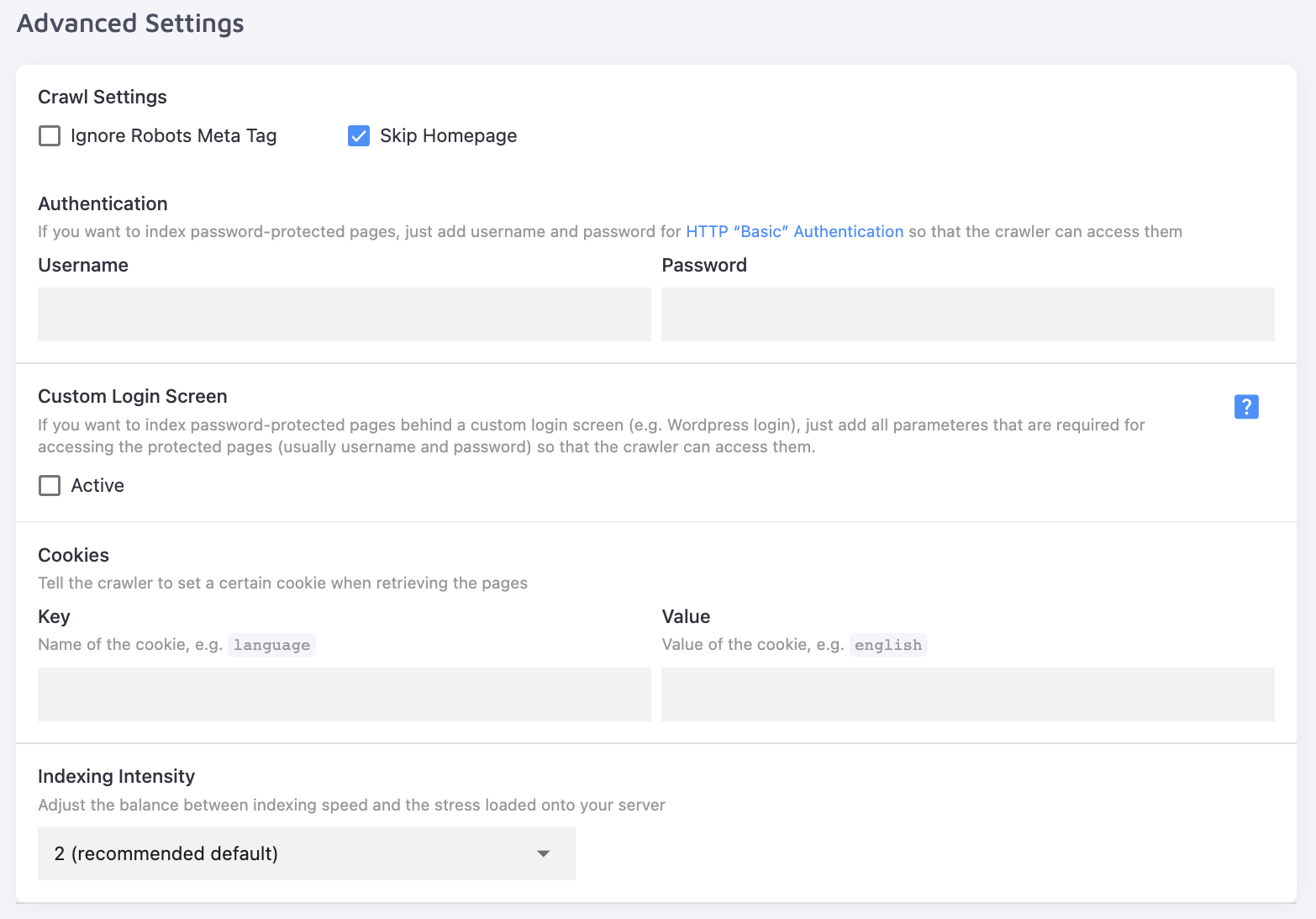
Sometimes pages are hidden from search engines by a no-index robot meta tag. You can let the app access these pages without exposing them to search engines by ignoring this meta tag.
In other cases, the crawler can't access pages that are password-protected or behind a login screen. Enter your login credentials to make this content accessible to the crawler.
Crawler Settings are explored more thoroughly in our article on this topic.
These options apply only to your sitemap, but the sitemap isn't the only data source the crawler can use. You can also add your site's FAQ, a list of URLs from other domains, or a YouTube channel (the latter only on "Holmes").
Throughout this section and others, you'll see a "Show Help" icon next to some settings:

Click it to open a How-To article explaining how that setting works:
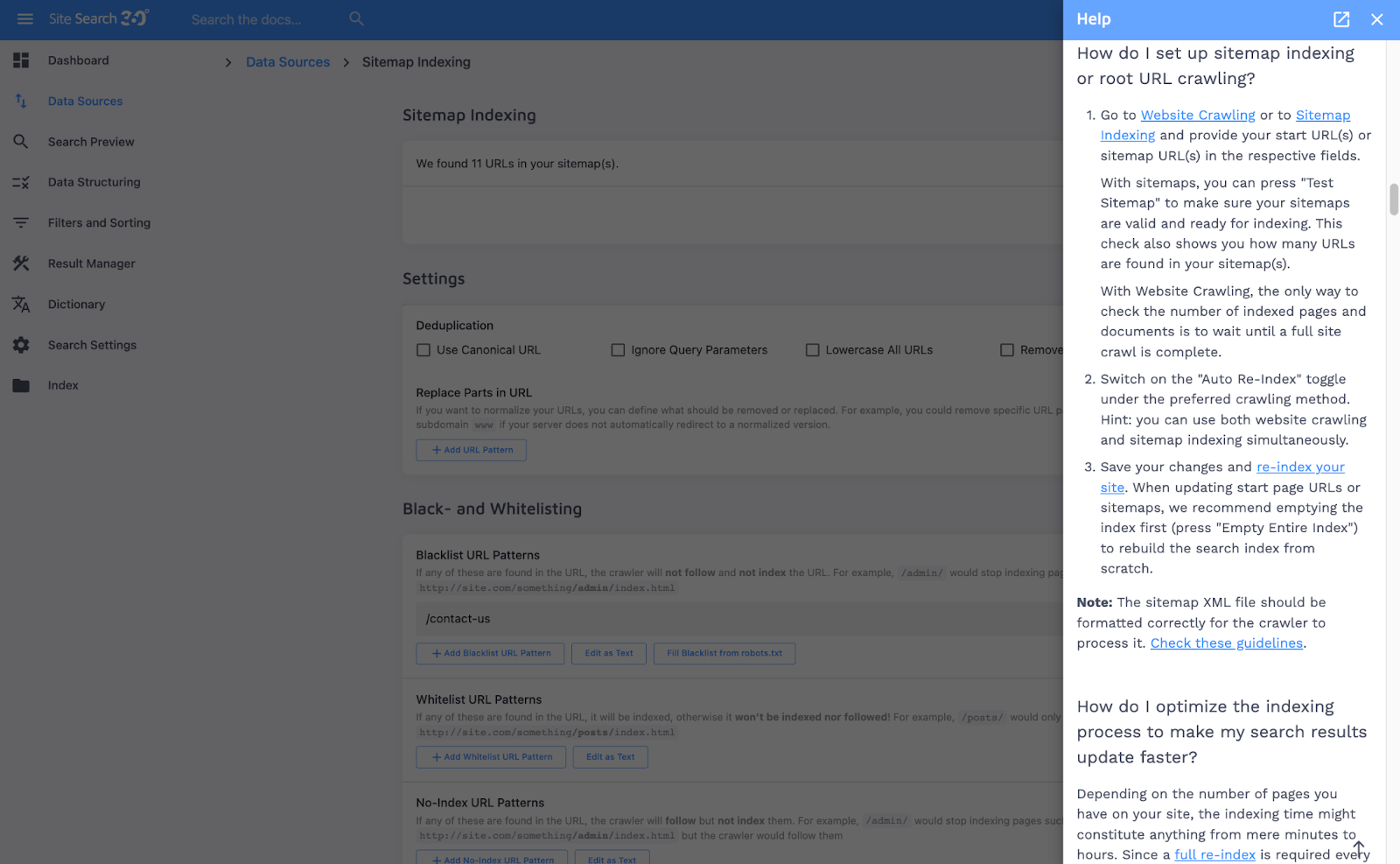
You can also search these docs directly by entering a feature name in the search field at the top left of the screen:

Search Preview
The "Search Preview" section shows how your search functions without switching to your site editor or the live site.
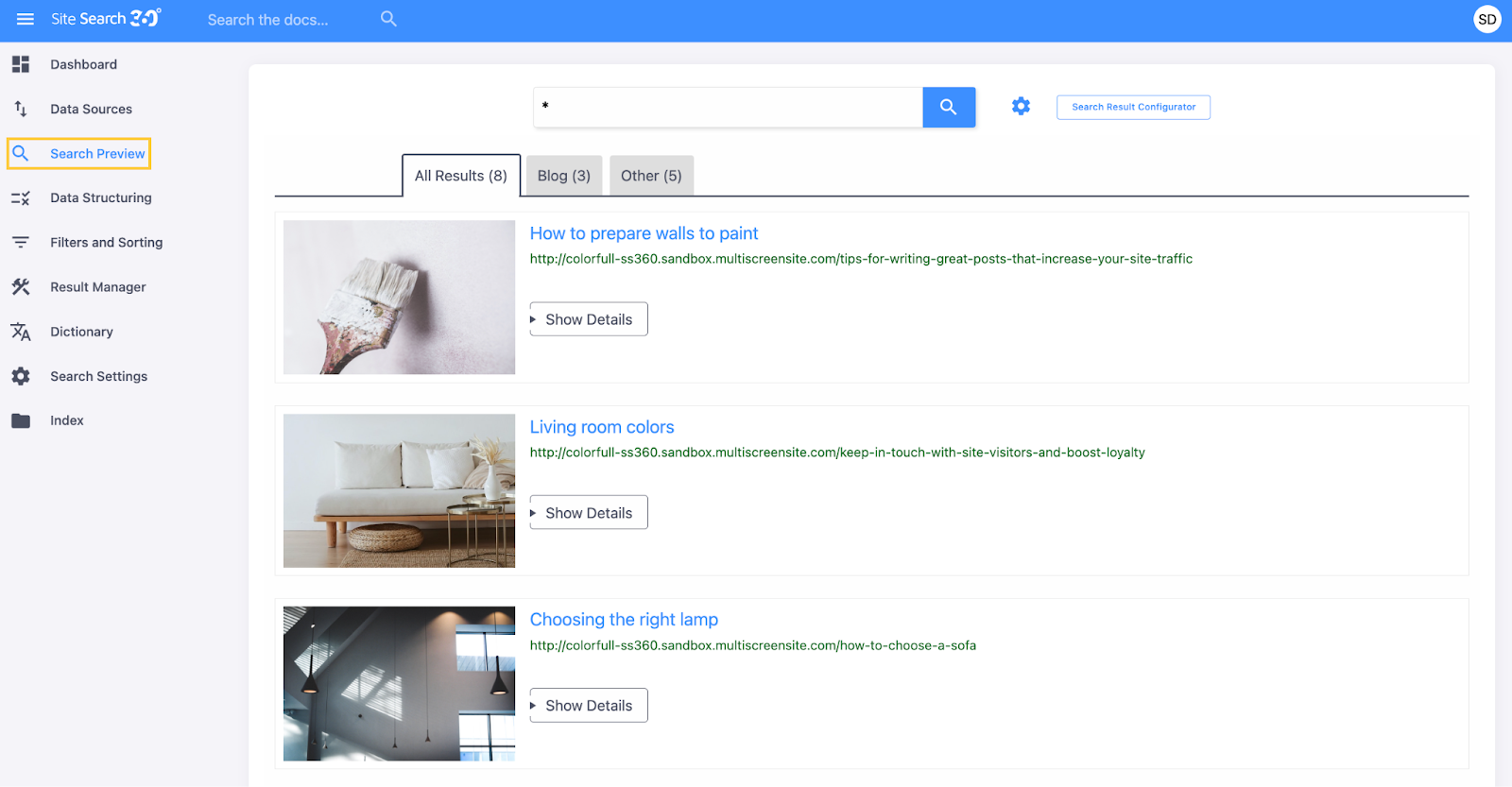
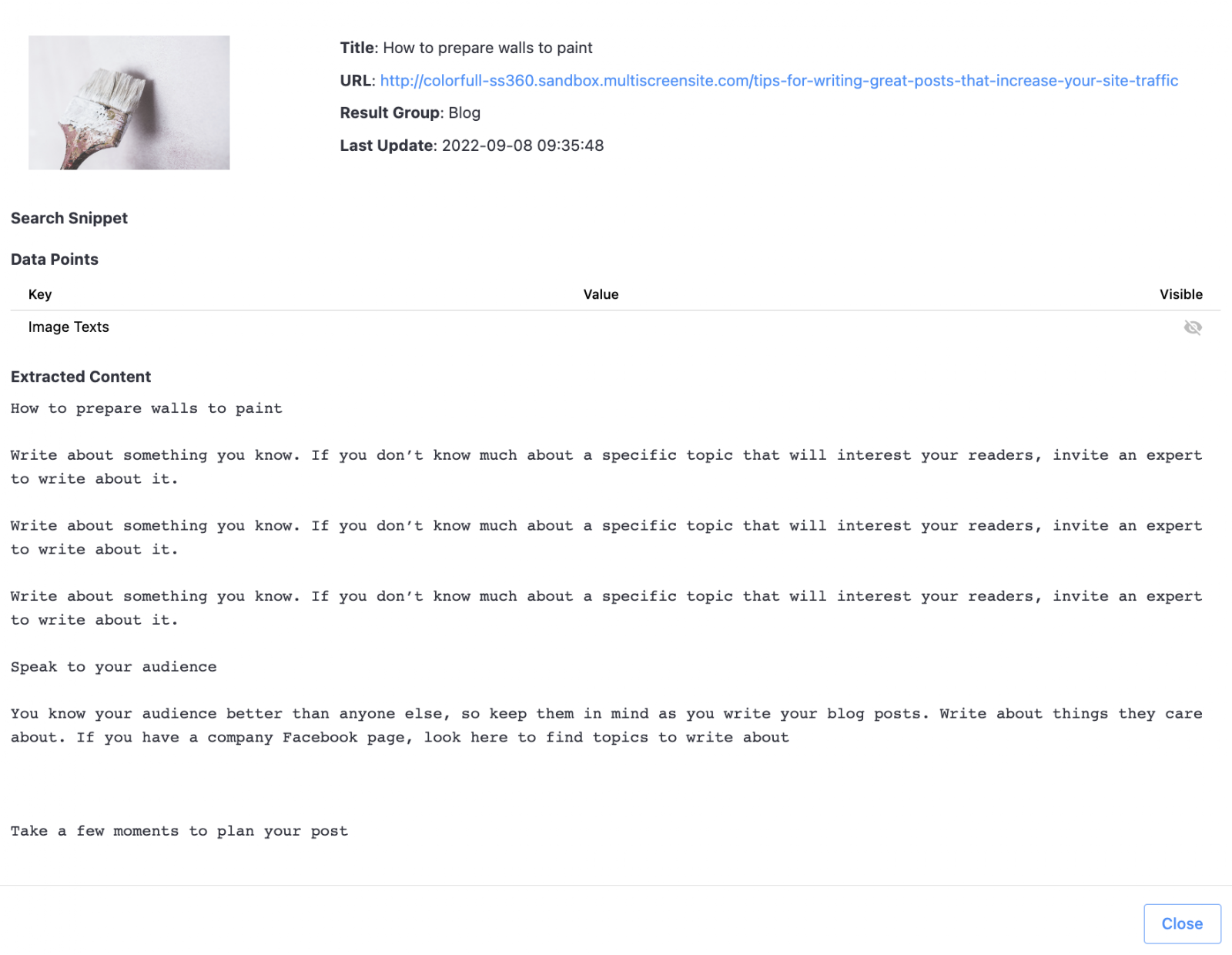
"Search Preview" shows which results appear for a given query and which Result Groups they belong to. Click "Show Details" to see the content extracted for each page:

"Search Preview" also lets you configure the search's general behavior, in a section called "Preview Settings":

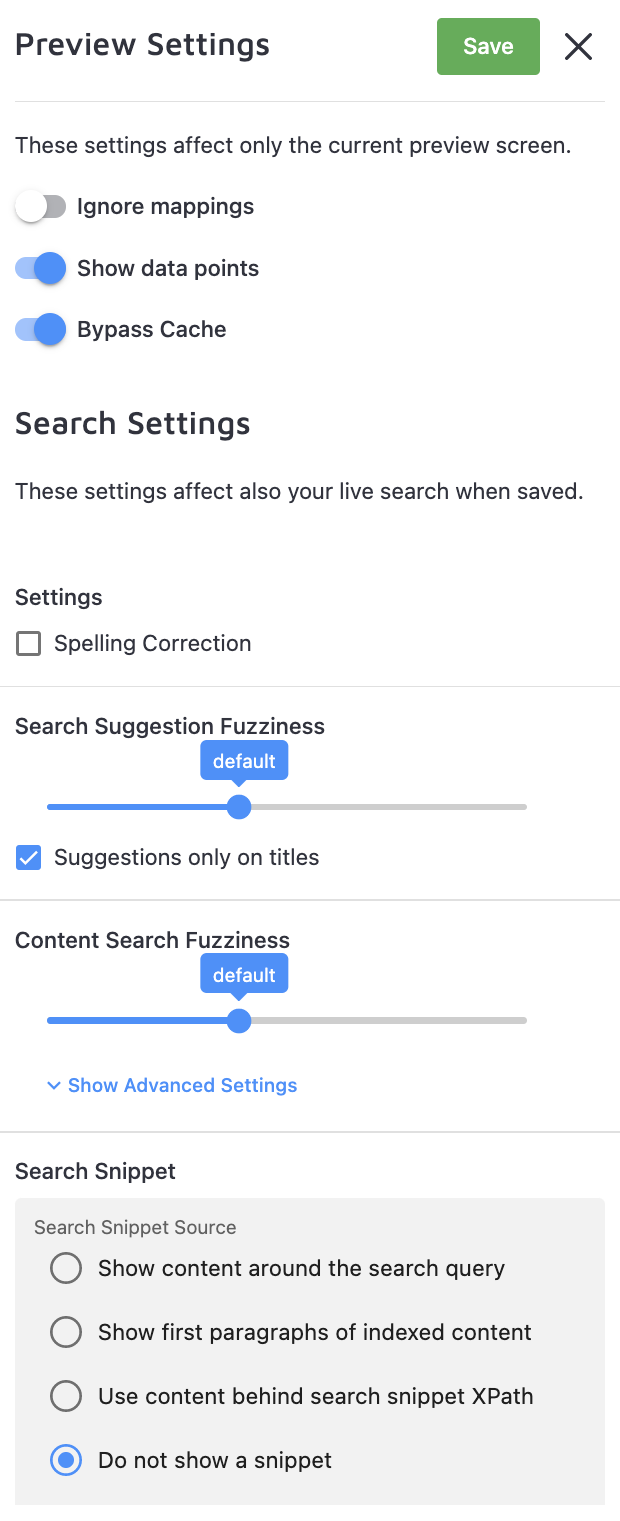
Most of these settings are self-explanatory, but a few are worth noting:
- Search Fuzziness controls how closely the extracted page info (title, text, tags, etc.) needs to match a query. It ranges from "extremely strict" (an exact match) to "get more results" (maximum leniency, matching just a few entered characters).
- Text (or search) snippet is the description shown under each search result. It can be plain text or a collection of Data Points, set up in the "Data Structuring" section of the project page.
There are also some advanced settings here related to page boosting:
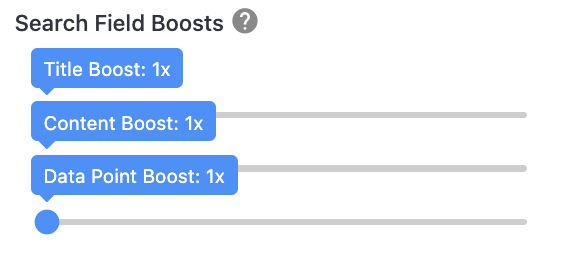
Boosted pages rank higher than others automatically. For example, if a query match appears on several pages — one in the title, another in the description — you can set which one ranks higher by default. You can create multiple boosting patterns with different values.
All these settings are explored in detail in our Search Settings article.
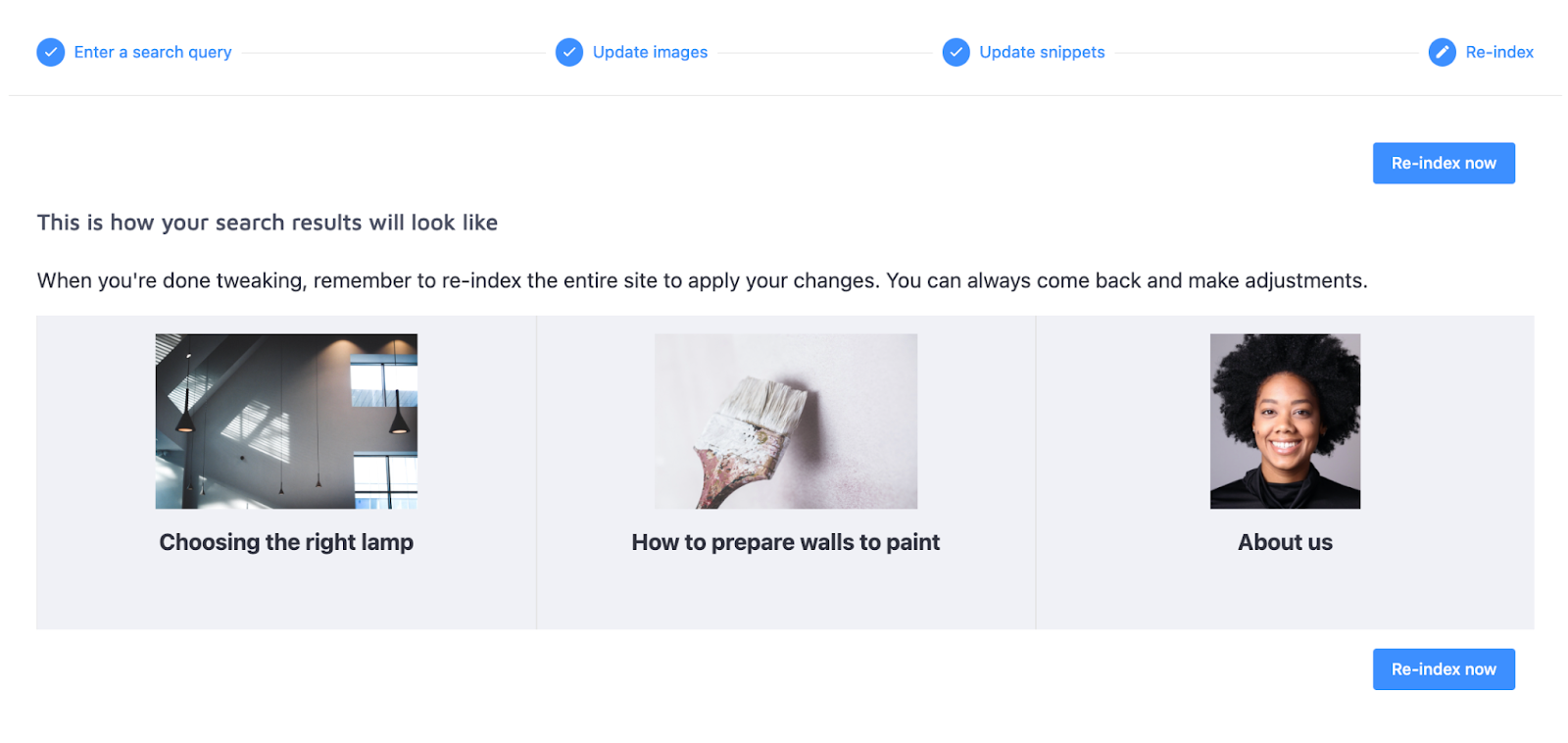
Next to "Preview Settings" is the "Search Result Configurator":

It lets you set the general look of your search results:
- Whether titles are extracted from the page's <h1>, <h2>, or <h3> element
- Whether images are detected automatically, selected from the page's content, or not displayed at all
- Whether the search snippet uses the Open Graph description tags, the first two paragraphs of the page's text, or nothing at all
Data Structuring
The next section is "Data Structuring". It has three tabs.
"Data Points" are bits of information extracted from page content and presented consistently across similar entries — for example, sizes for products or dates for articles.
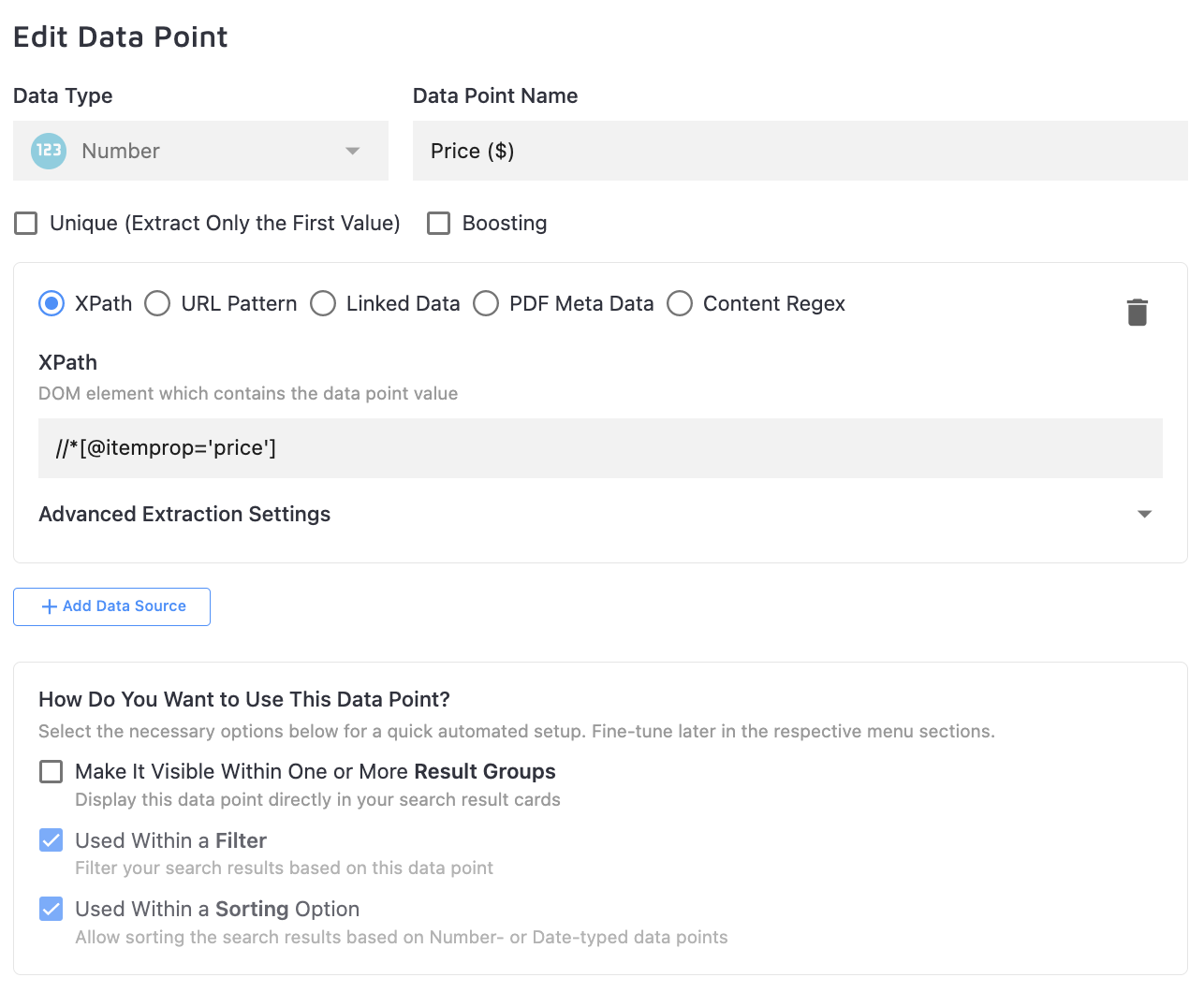
In this tab, configure Data Points to appear in search snippets or serve as extraction criteria for filters:
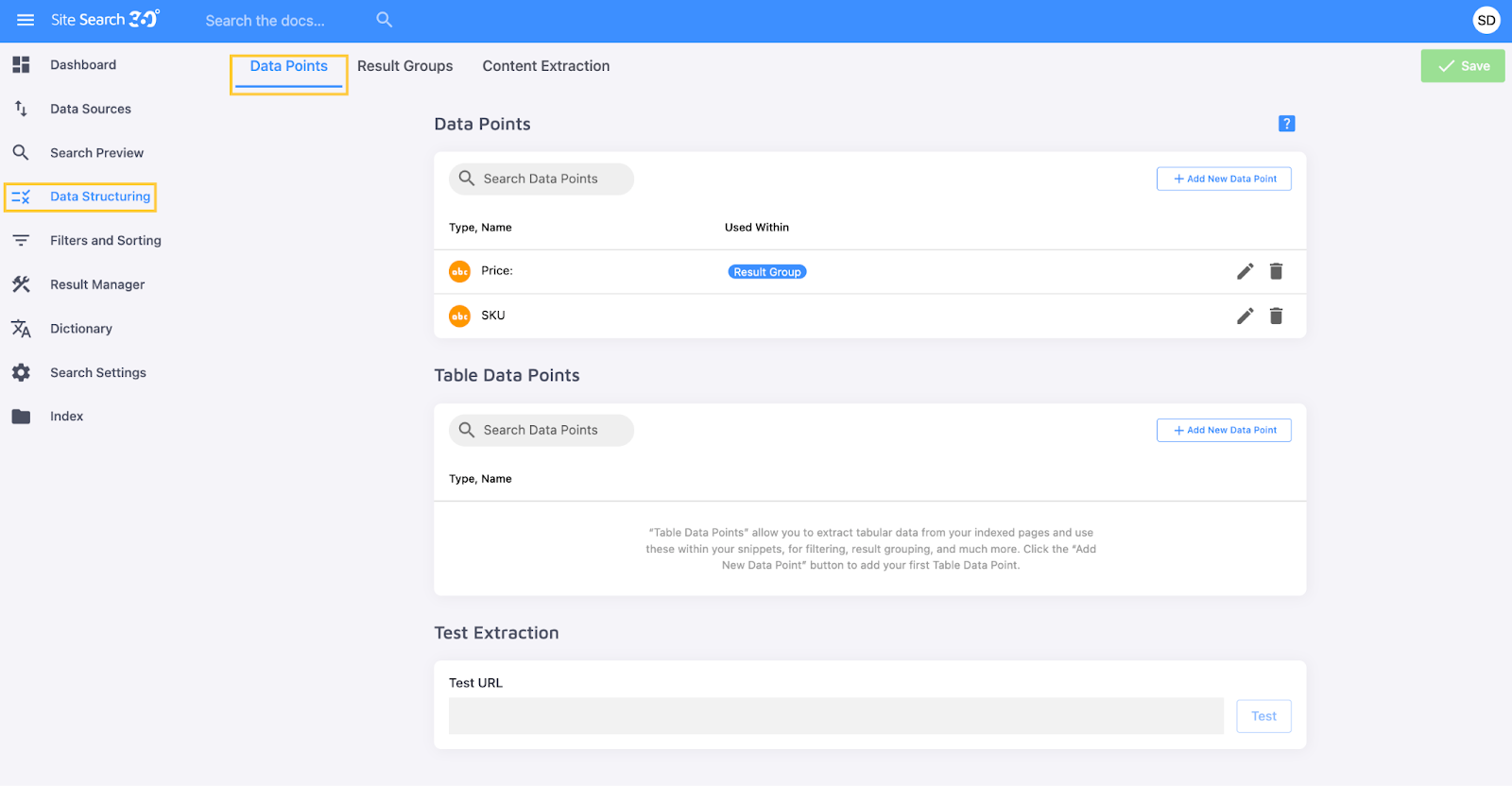
Here's what your settings can look like for a "Price" Data Point:
You can learn more about setting up Data Points in our step-by-step guide on the topic.
"Result Groups" let you categorize the search into separate tabs for different result types — videos, articles, FAQ entries, and more — as long as the pages in a category share a URL pattern or XPath element.
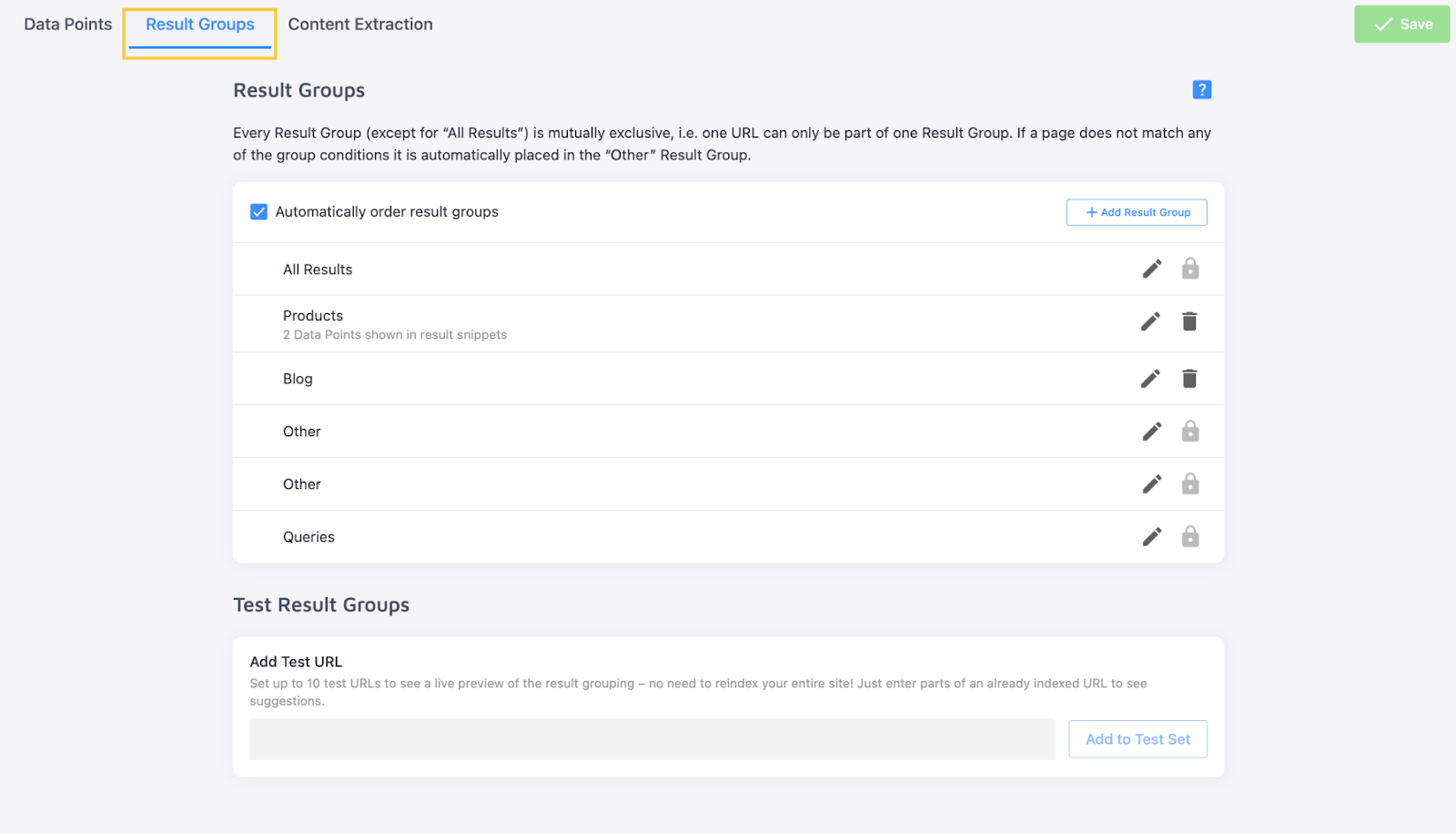
Here's what configuration for an automatically created "Products" Result Group looks like:
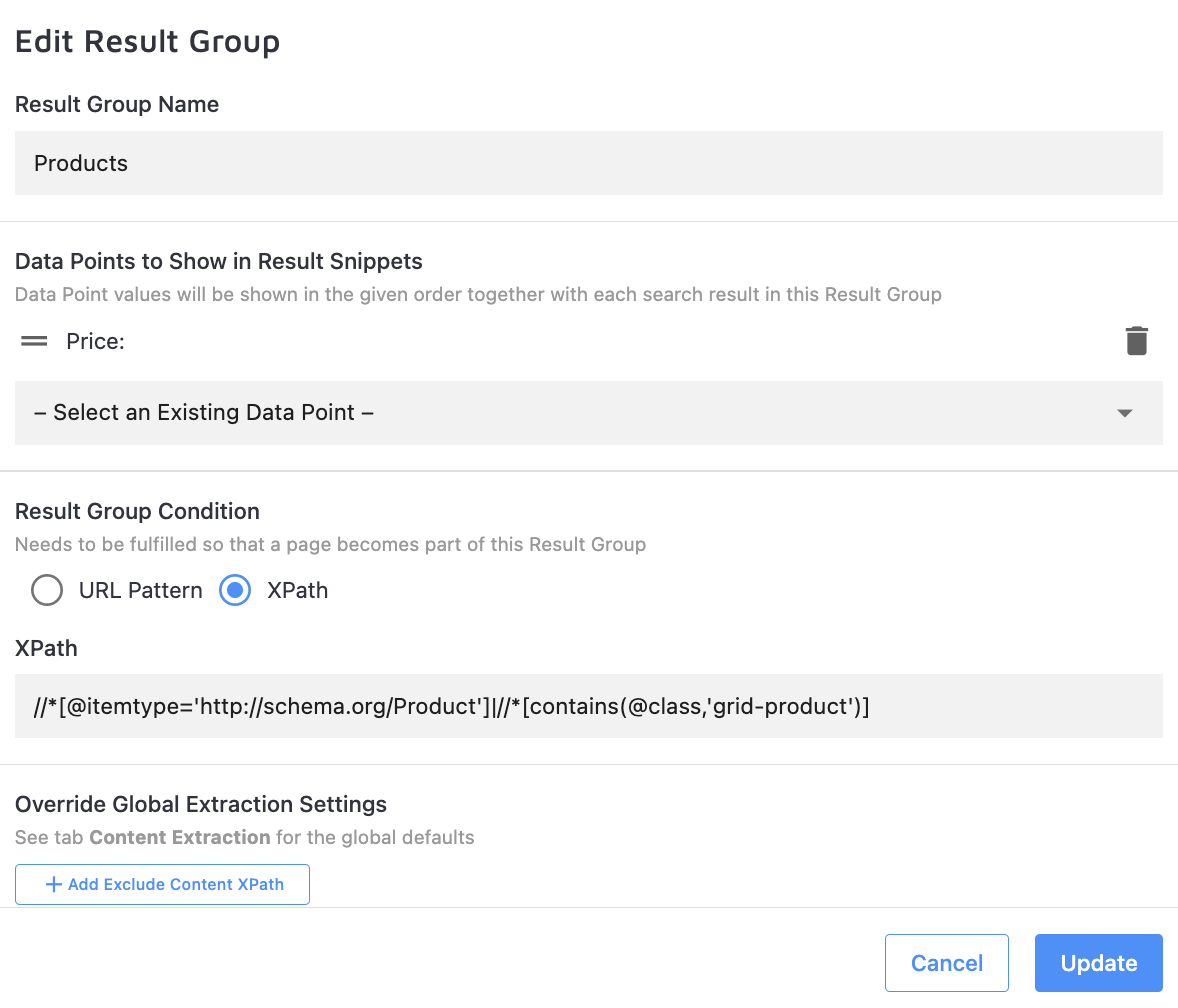
More information about search categorization is available in our article on Result Groups.
Default content extraction strategies are covered under Search Preview. For complex sites that need precise extraction of titles, images, or content across multiple patterns, use the "Content Extraction" tab:
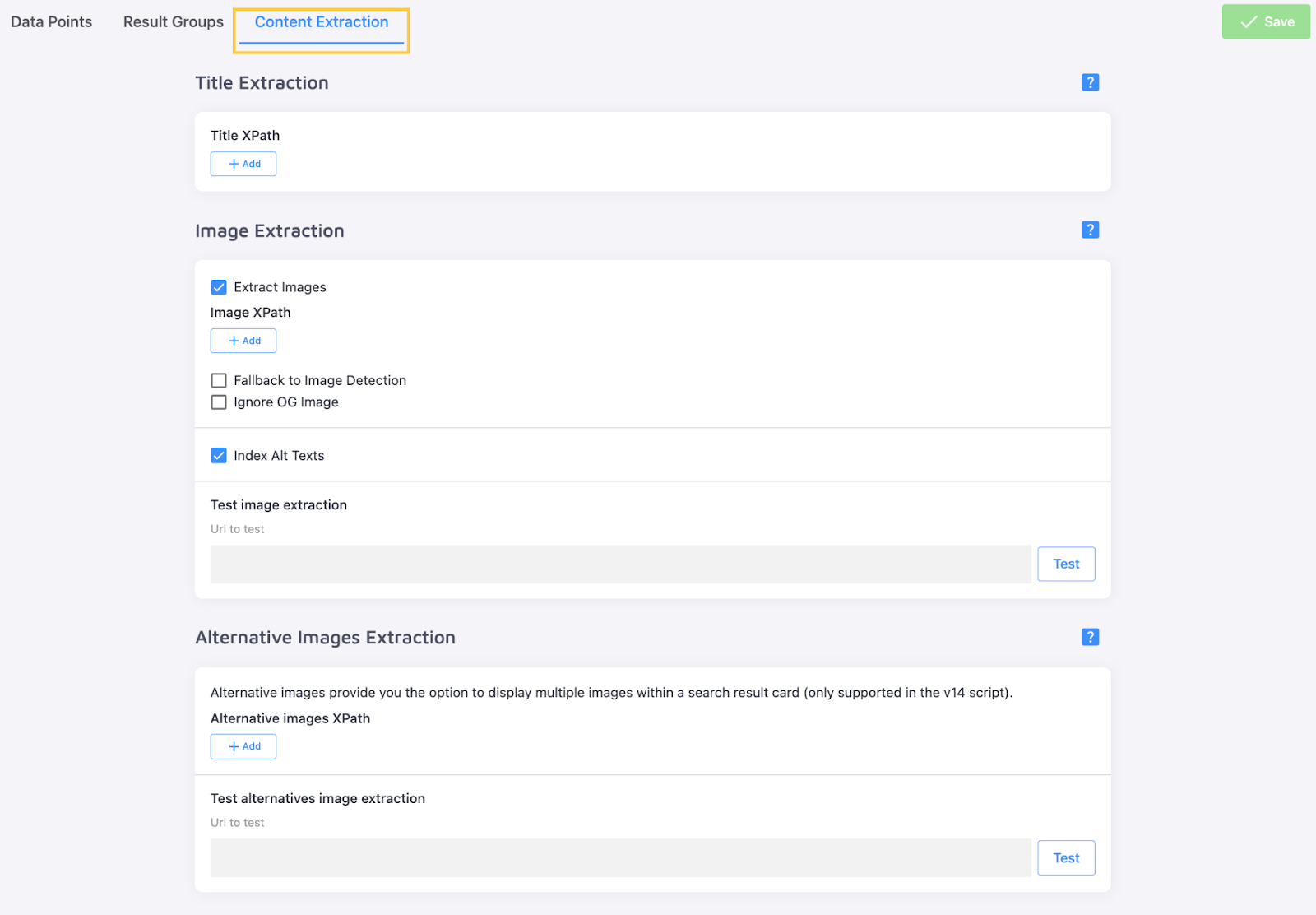
These settings let you choose which parts of a page are searchable — similar to blacklisting and whitelisting, but with XPaths. Headers, footers, navigation menus, and pop-ups are excluded automatically; you control the rest.
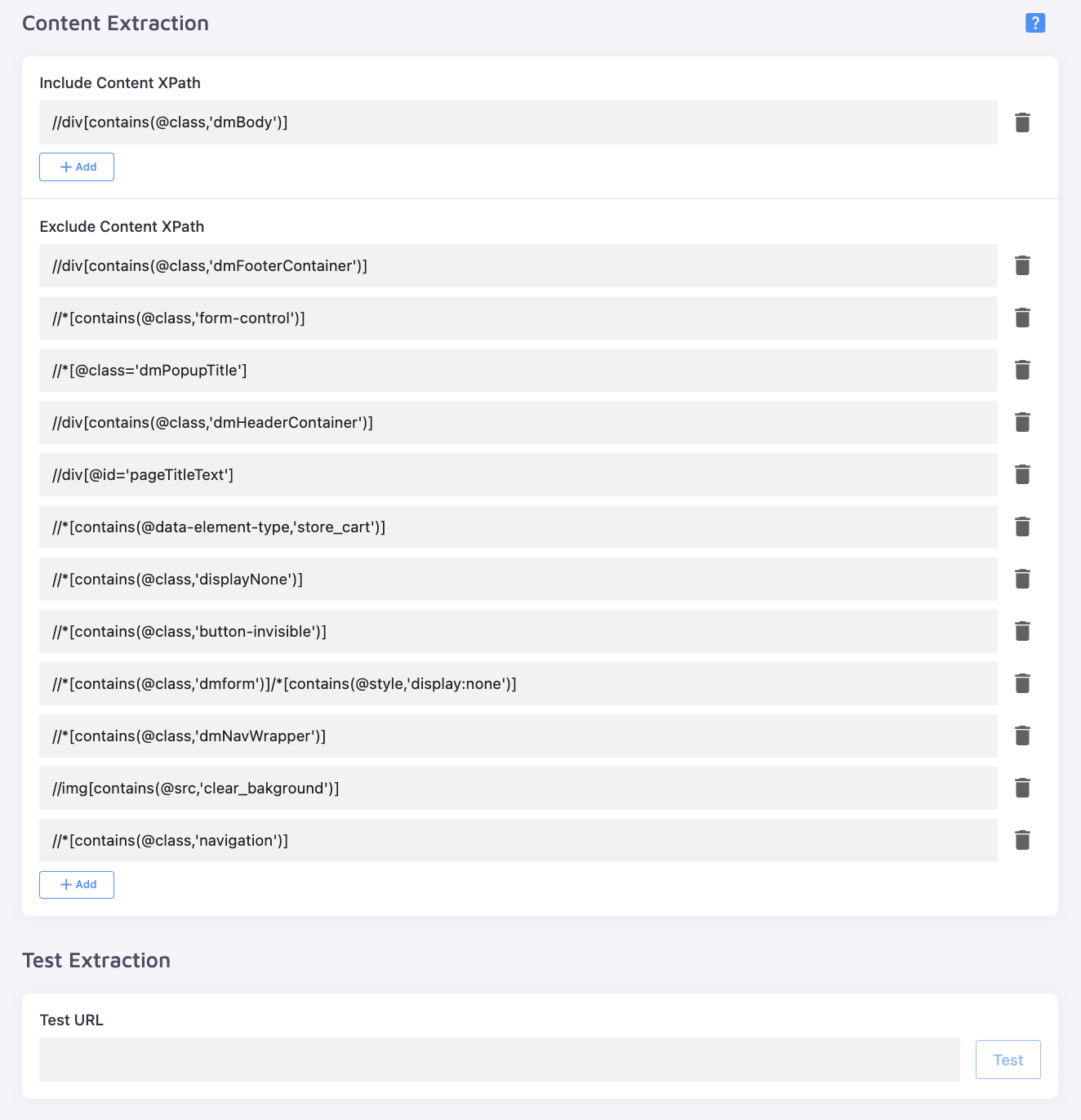
A detailed explanation of these settings' functionality is available in our article on Content Extraction.
Filters and Sorting
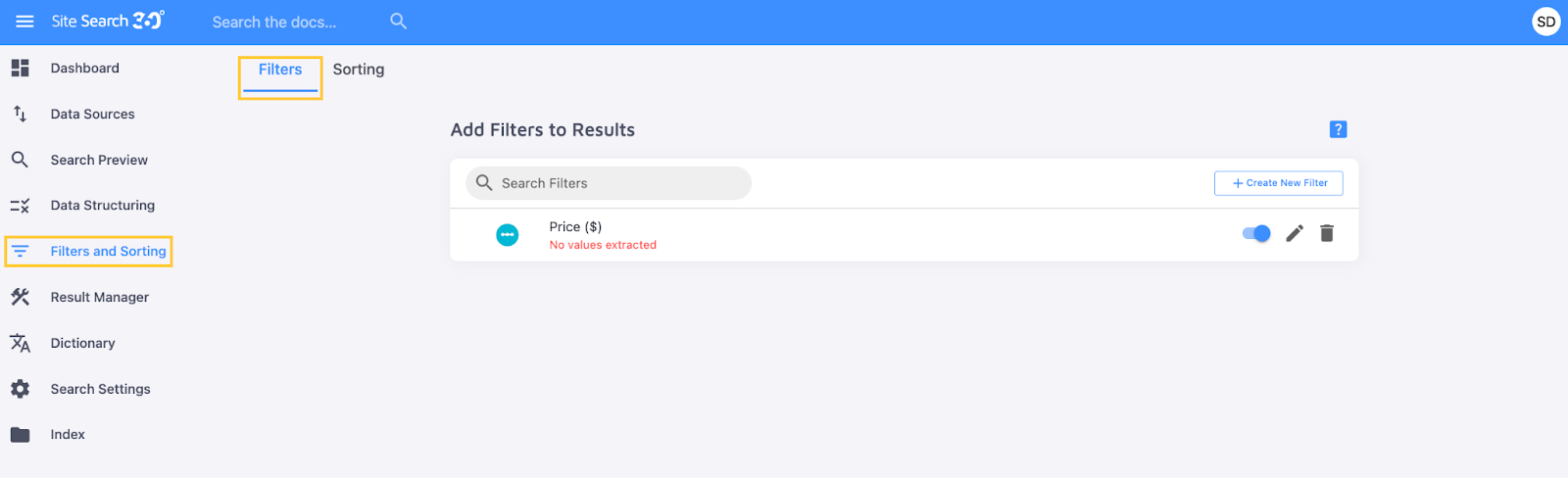
The "Filters and Sorting" section covers how users can refine and order results.
"Filters" segment your search based on specific Data Points — one or several in the same filter:
Here's a filter setup based on the "Price" Data Point:
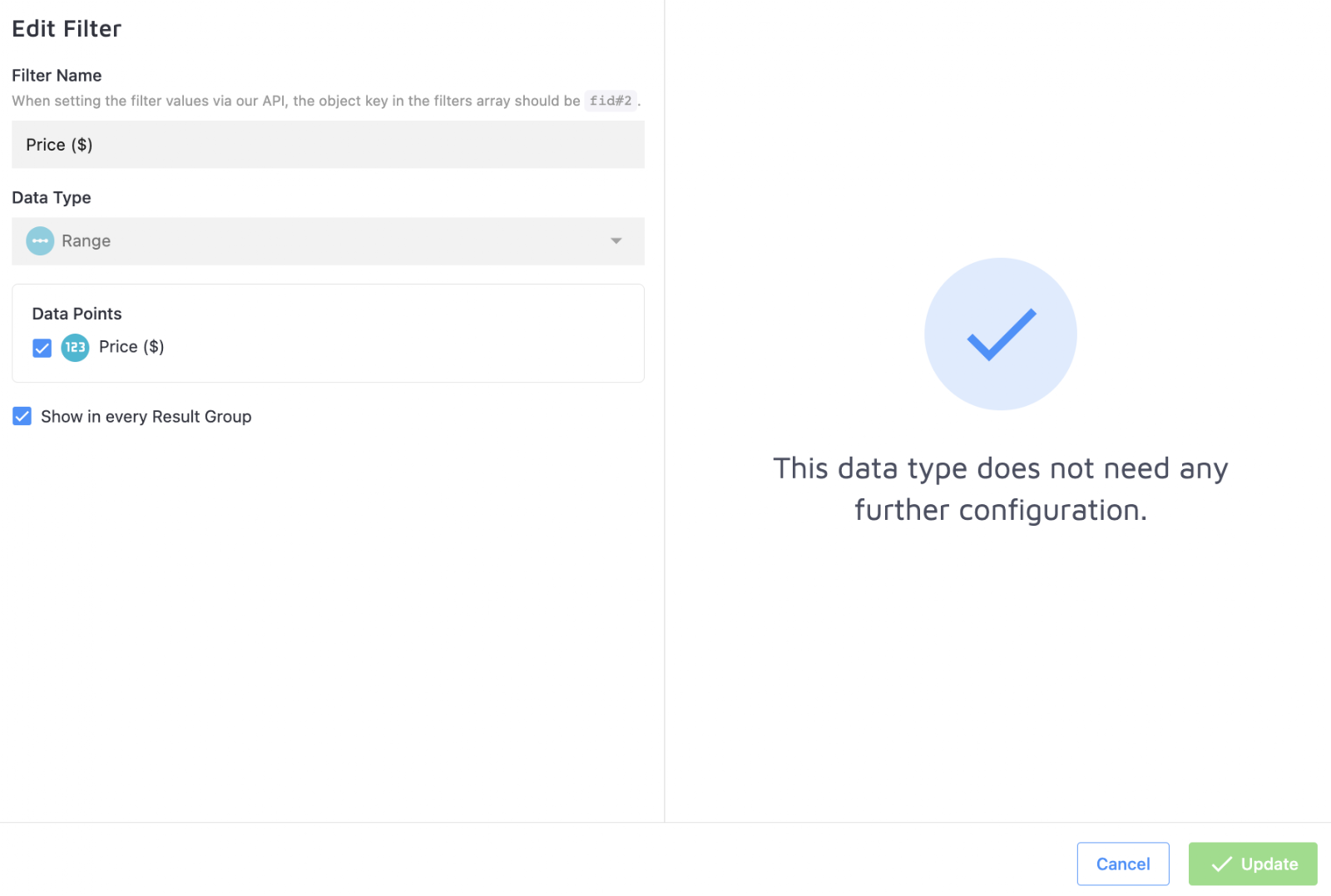
Learn more about filters in our dedicated article or see them in action in this demo.
"Sorting" options order search results based on the Data Points you create. For example, a "Price" sorting option can arrange results from highest to lowest (Descending) or lowest to highest (Ascending, shown below):
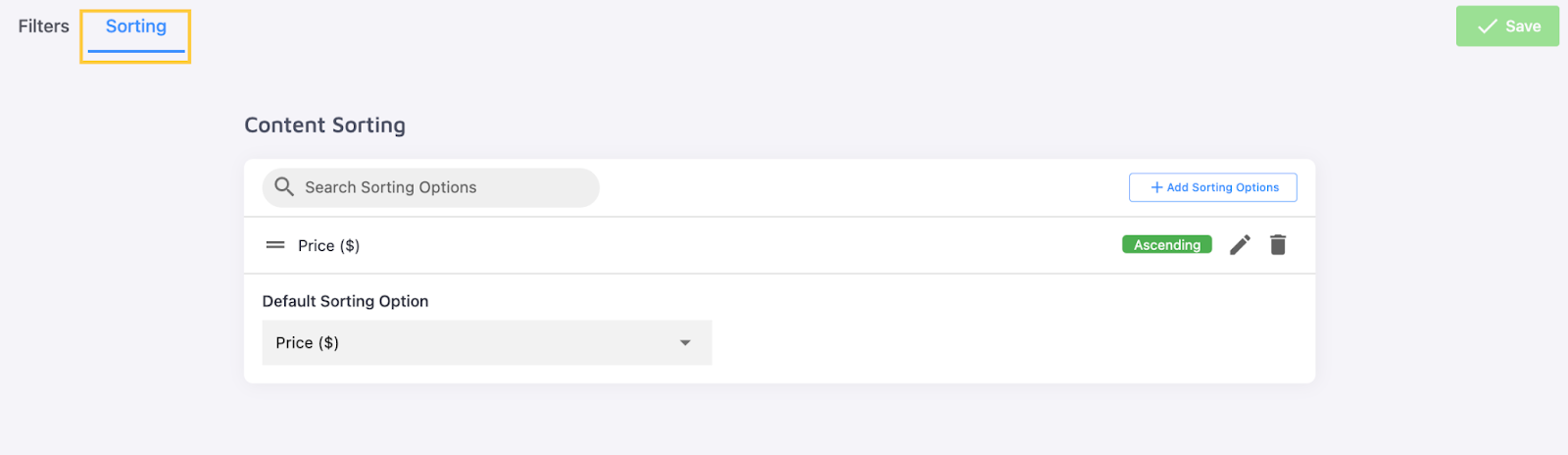
The feature is further explained in our Sorting Options article.
Result Manager
The "Result Manager" section gives you direct control over search results, beyond the look-and-feel settings covered in other sections.
"Result Mappings":
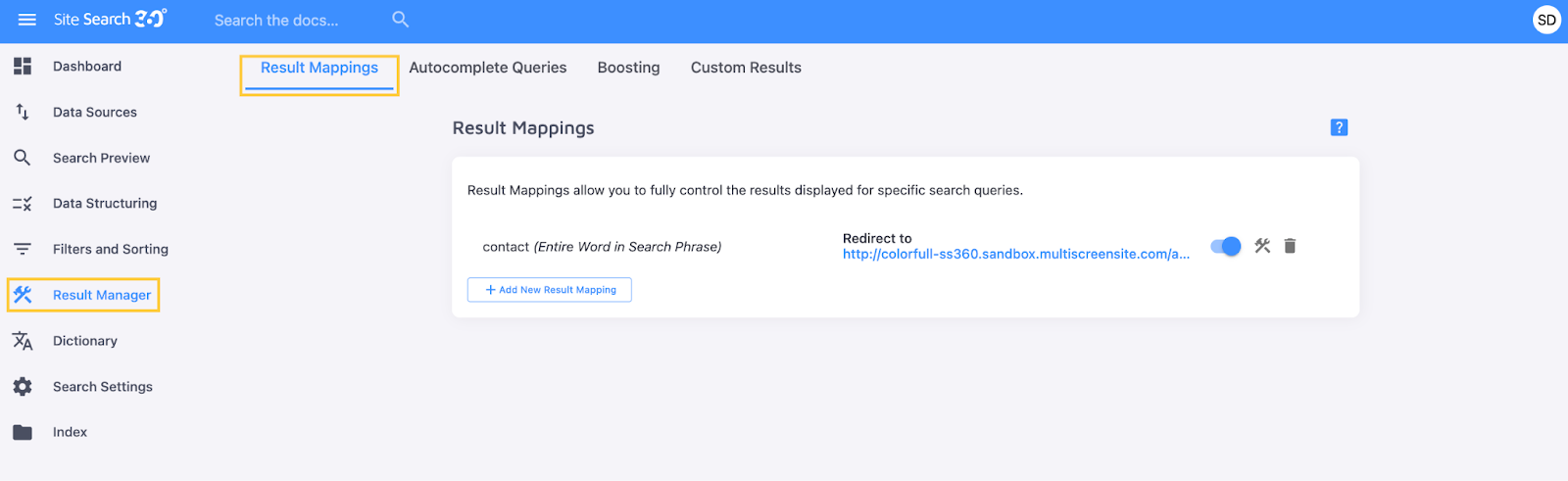
Result Mappings will allow you to:
- Customize a unique set of results for any query, automatically applying specific filters and filter values, and choose a timeframe during which default results are reordered
- Replace search results for one query with pages relevant to another
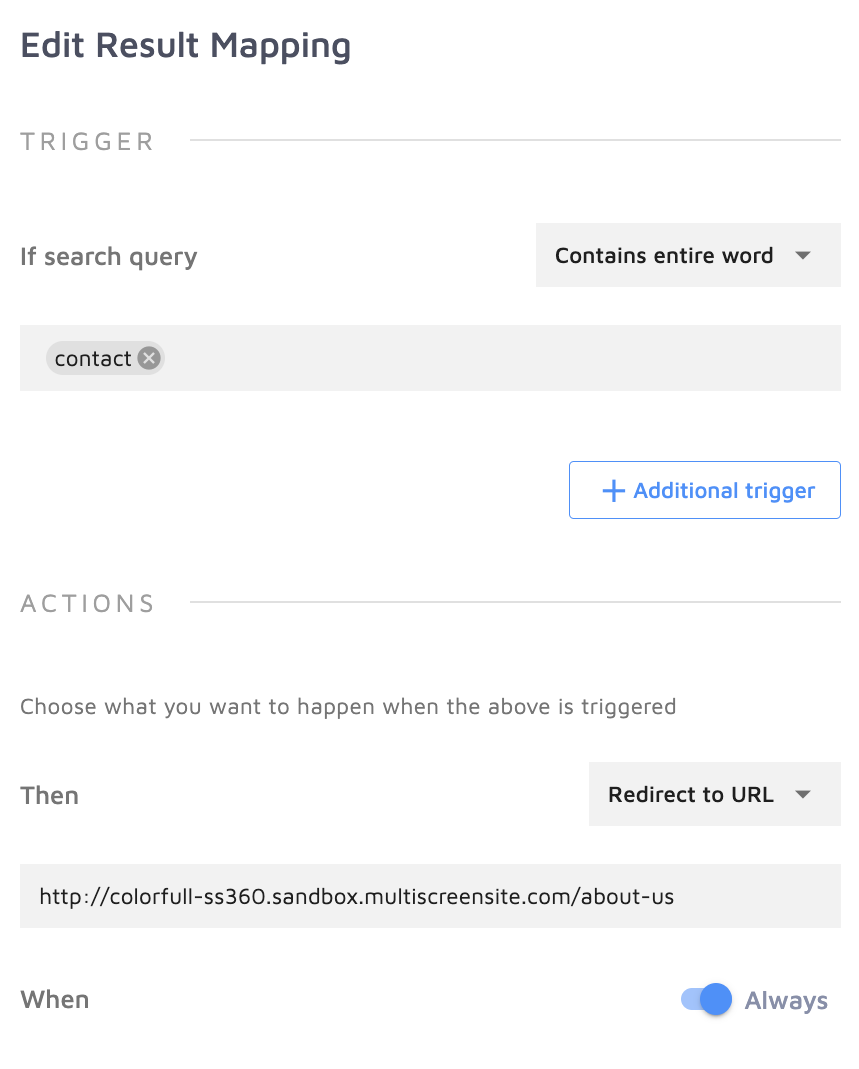
- Redirect a query to a specific page rather than show default search results
Here's an example: a query that would normally return one result instead redirects users directly to that result's page:
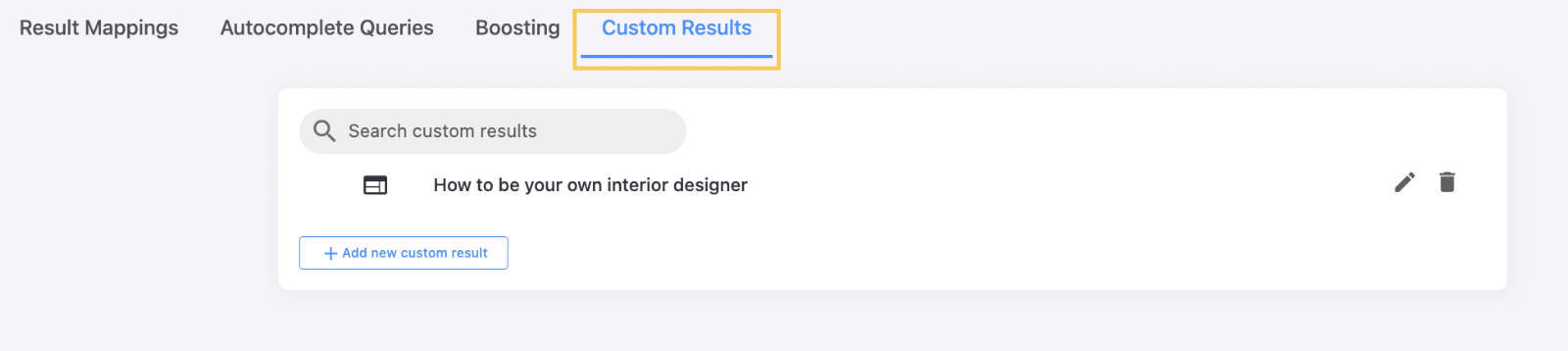
Result Mappings aren't limited to pages from your site — you can add pages from other domains or create entirely new ones. Regular pages and promotional banners created this way appear in the "Custom Results" tab:
This customization also extends to search suggestions, through "Autocomplete Queries":
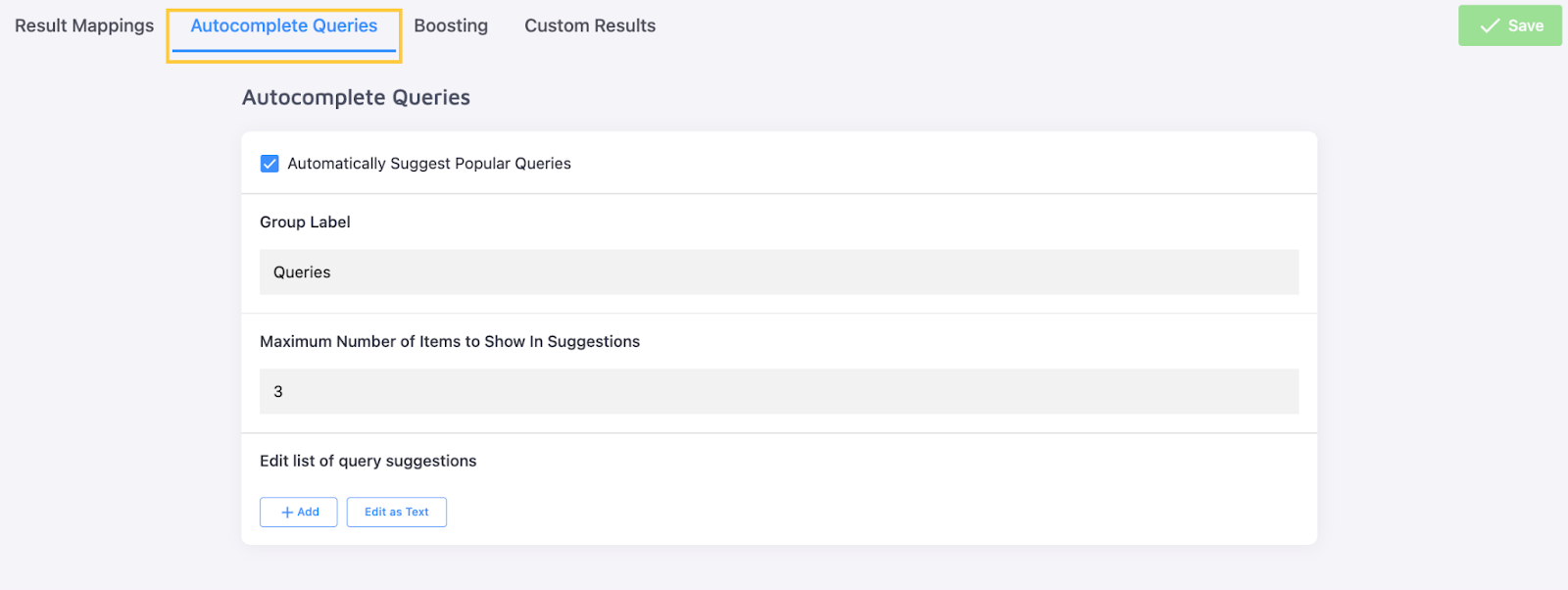
Show queries your users search for most often, automatically, or add custom queries that appear when they match the first few letters typed into the search box.
All three of these customization options are explored in our article on Result Mappings.
Finally, there's the "Boosting" tab:
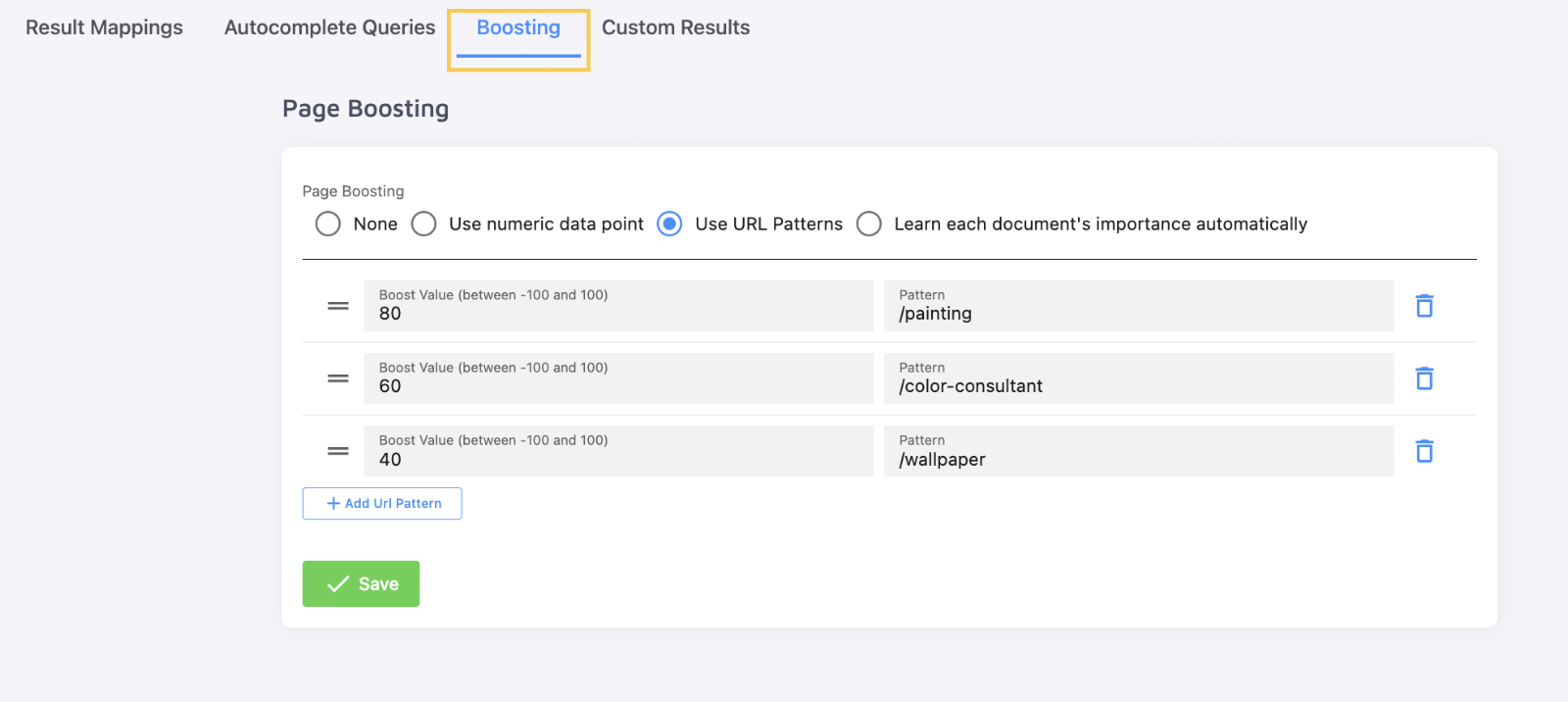
Boosting is also available under Preview Settings. Boosting in this tab applies to URL patterns that group pages, rather than individual page elements. Use "Preview Settings" to rank pages higher based on where a query match appears (title or snippet). Use the "Boosting" tab to rank all pages matching a URL pattern — for example, all /product/ pages above /blog/ entries.
Dictionary
"Dictionary" also customizes search results, though with less range than Result Mappings.
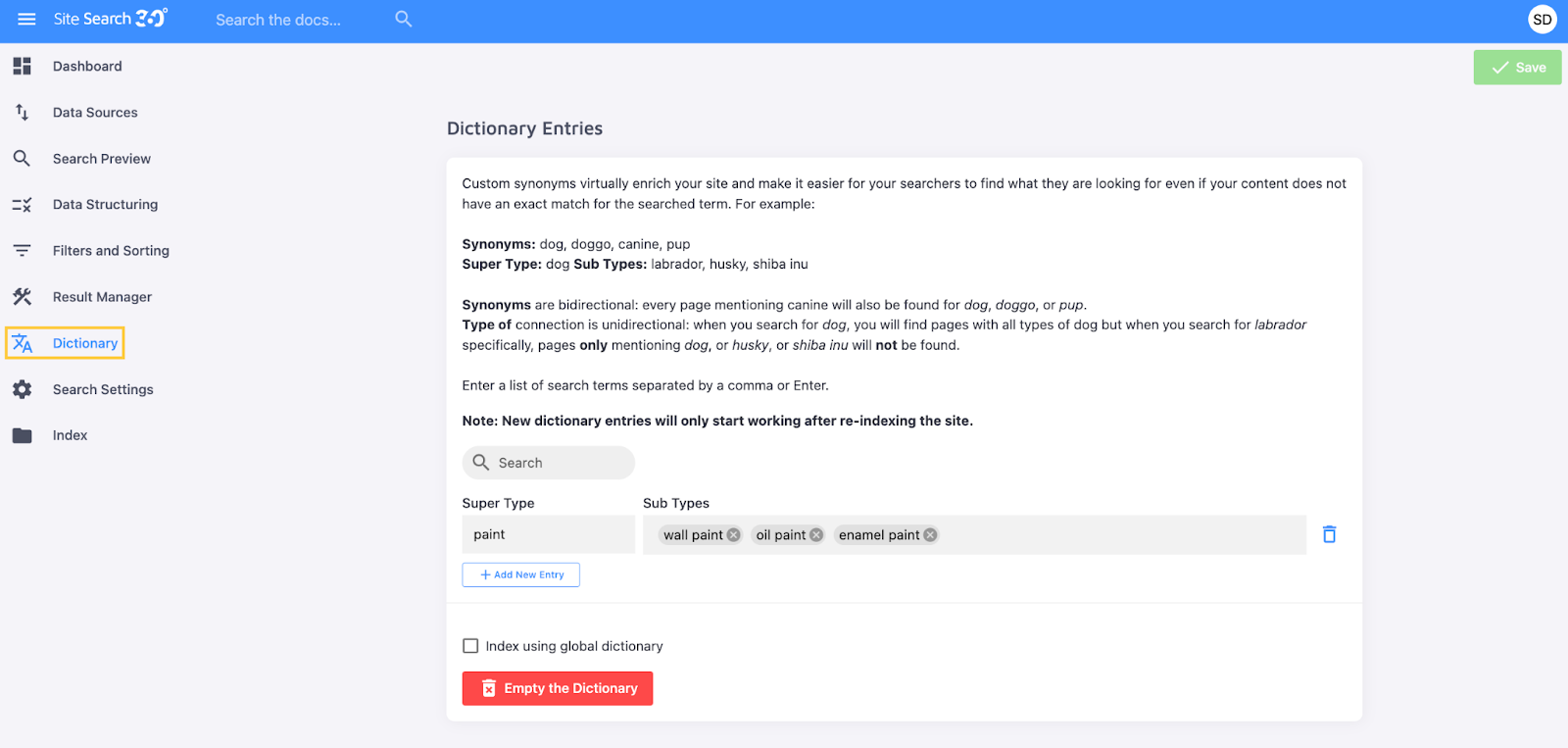
Make search results for one query appear for a different query, and vice versa, by setting the queries as synonyms. Or create a one-directional "type of" connection, so results for "sub type" queries appear when someone searches for the "super type" — but not the other way around.
To find search terms that could enrich your site for SEO, add a link to any page here and see what the system proposes:
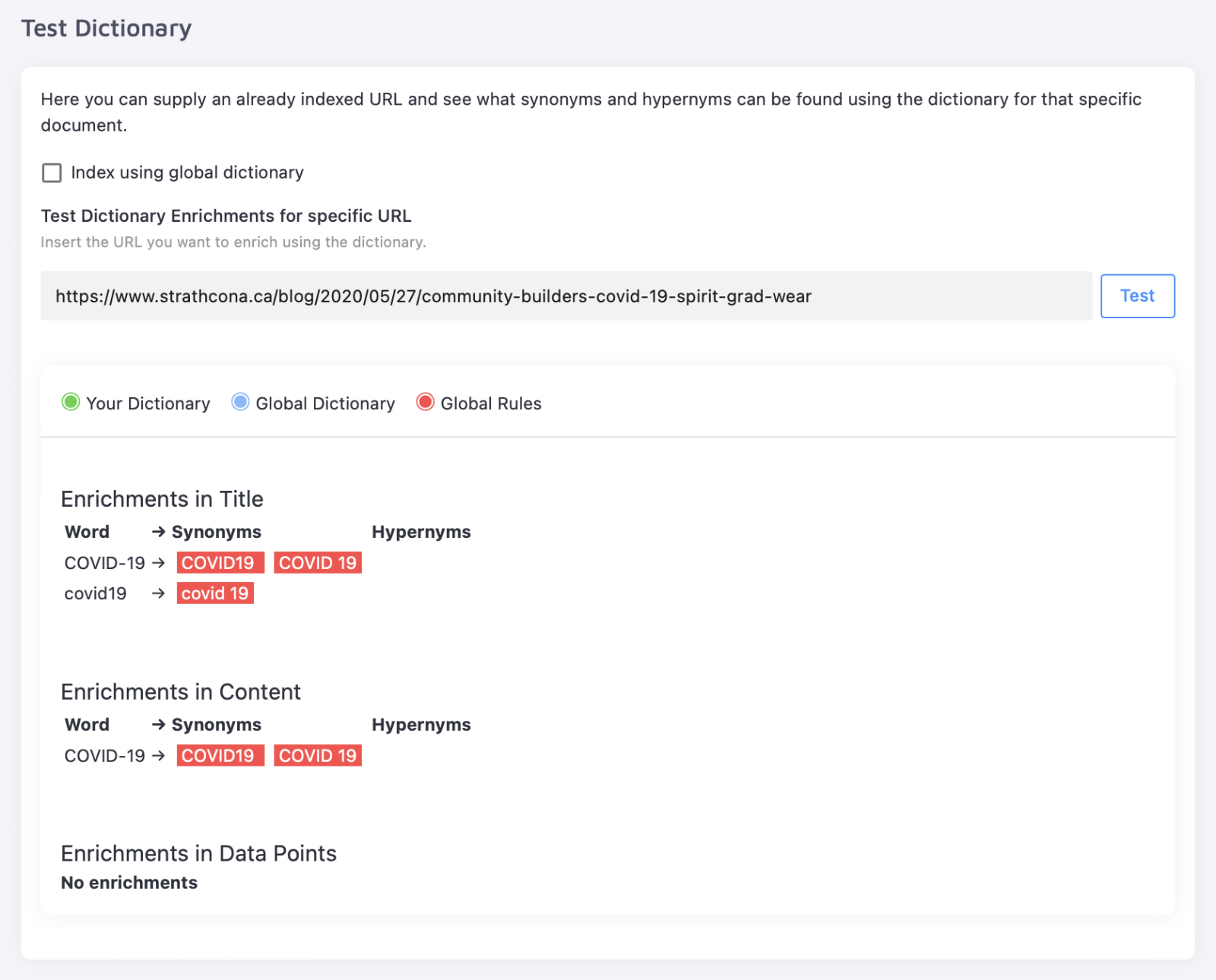
Learn more about what "Dictionary" has to offer in our dedicated article.
Search Settings
"Search Settings" controls the search's general behavior.
The "General" tab covers all the "Preview Settings" described under Search Preview.
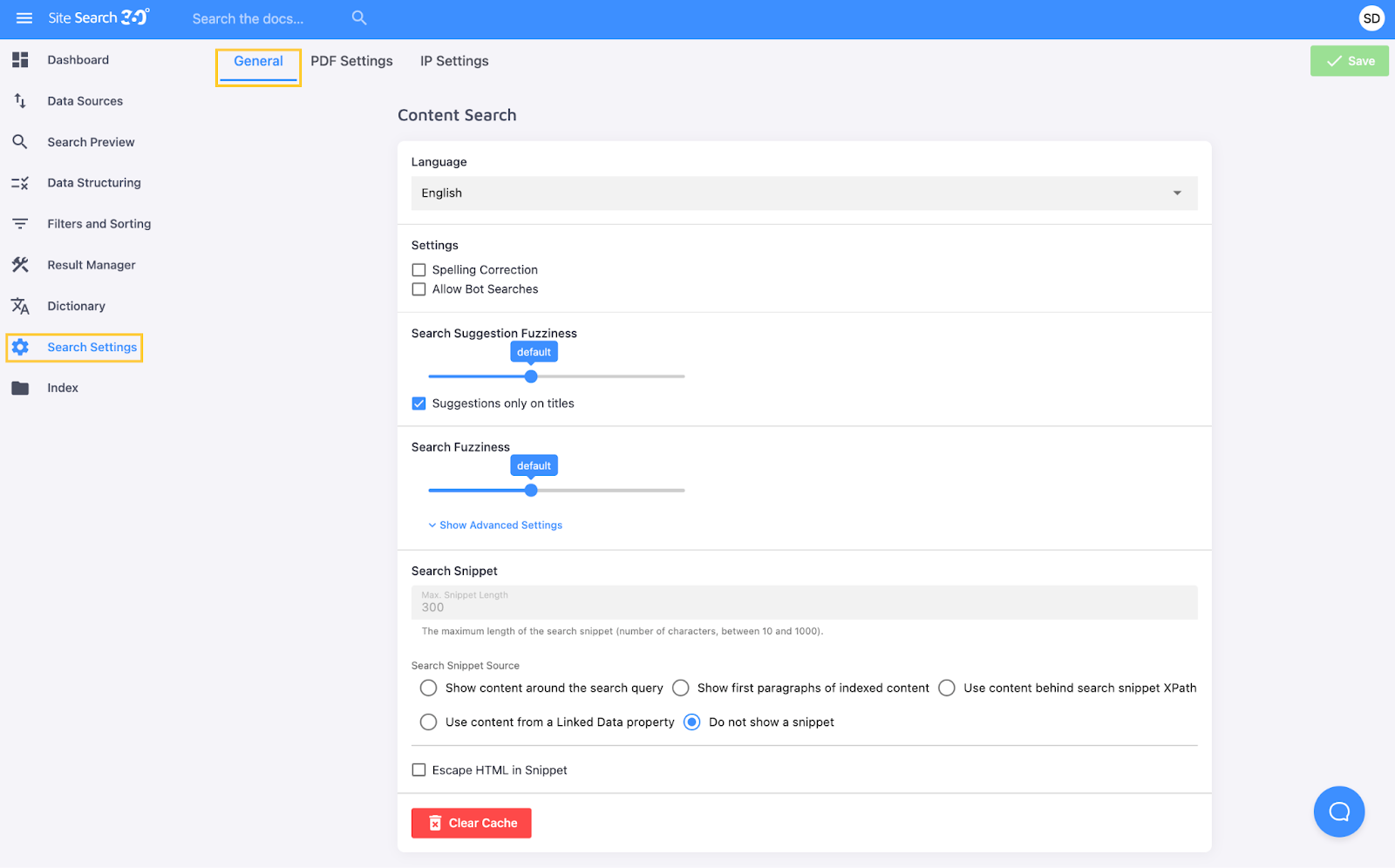
At the bottom of this tab, a button clears your project's cache:

"PDF Settings" correspond with how your PDFs' titles, content and thumbnails are extracted:
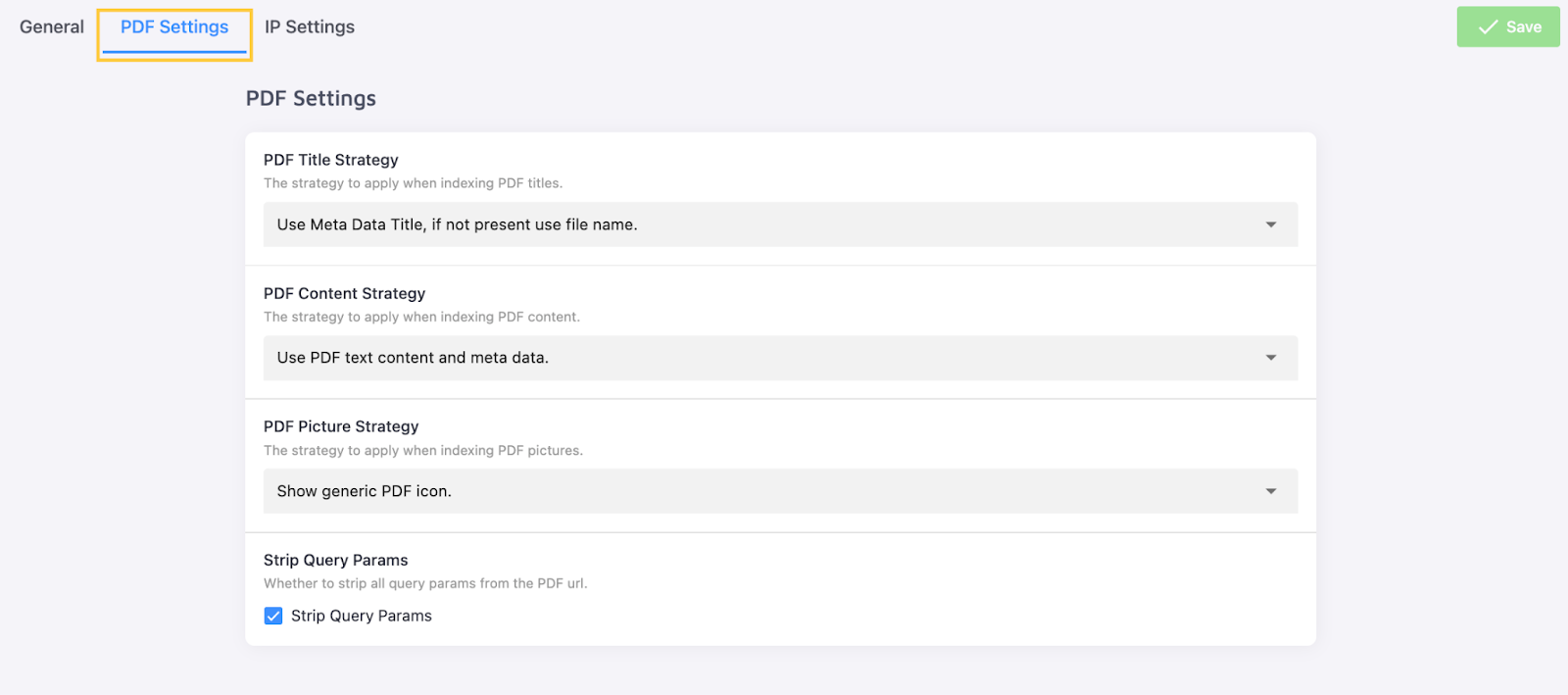
PDF Indexing is available only on the paid "Columbo" and "Holmes" plans, with a 15 MB size limit.
"IP Settings" is about the accessibility of your search:
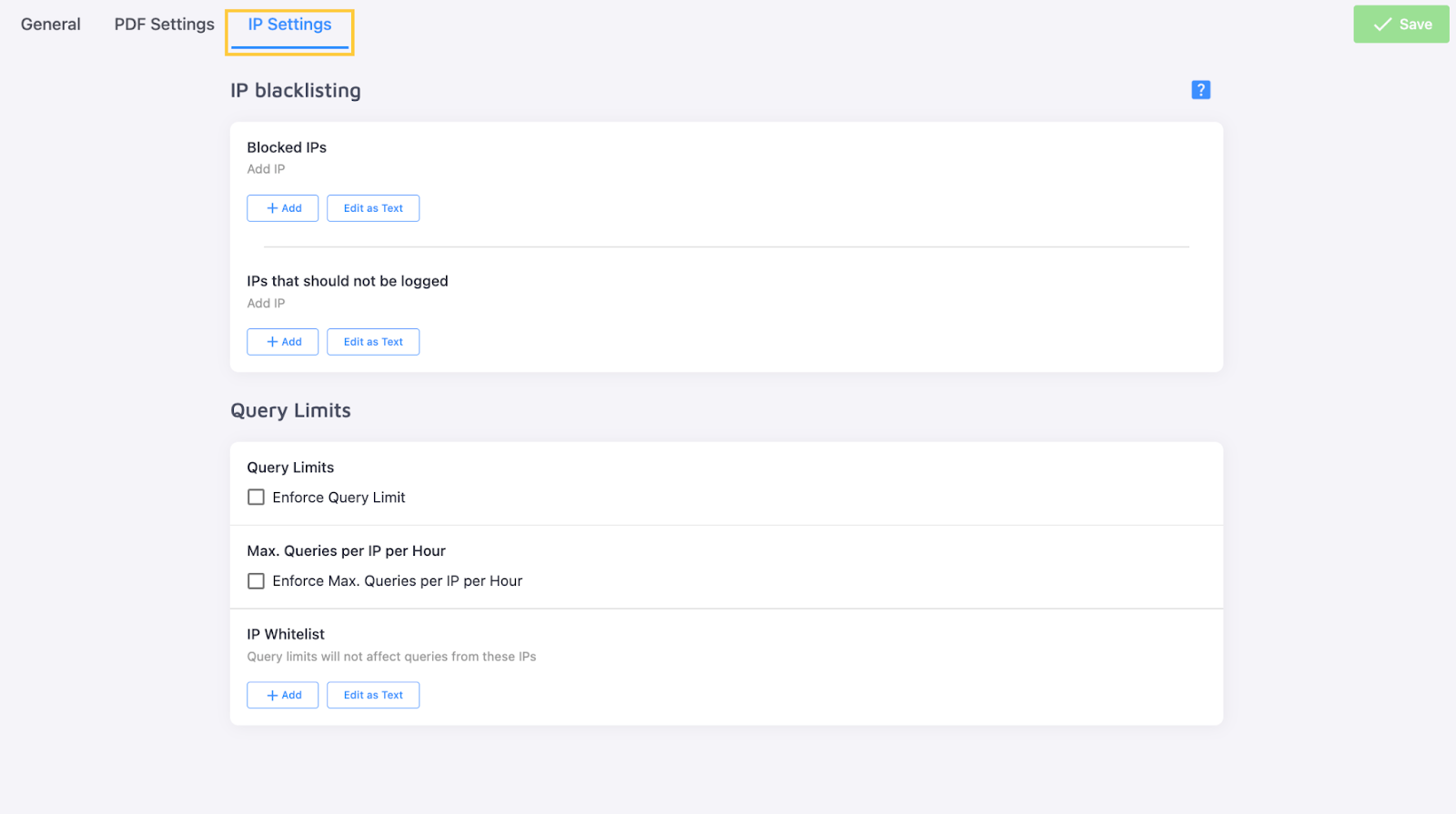
Prevent certain IPs from using the search, or exclude them from your search statistics. This tab also lets you enforce query limits so you're not charged for exceeding your plan.
Our Search Settings article explores all these tabs in great detail.
Index
The "Index" section lists all the pages the crawler has indexed from your "Data Sources":
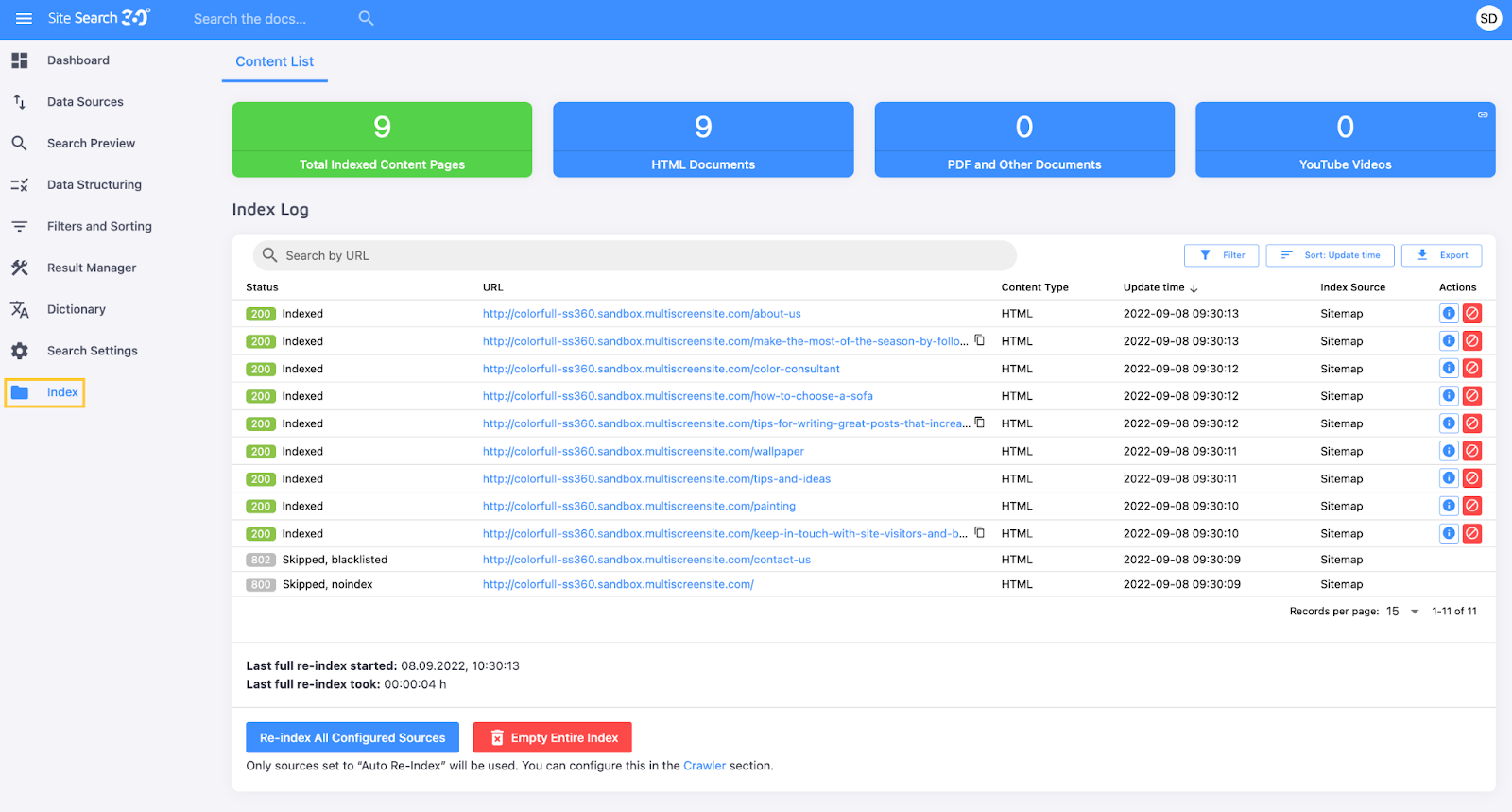
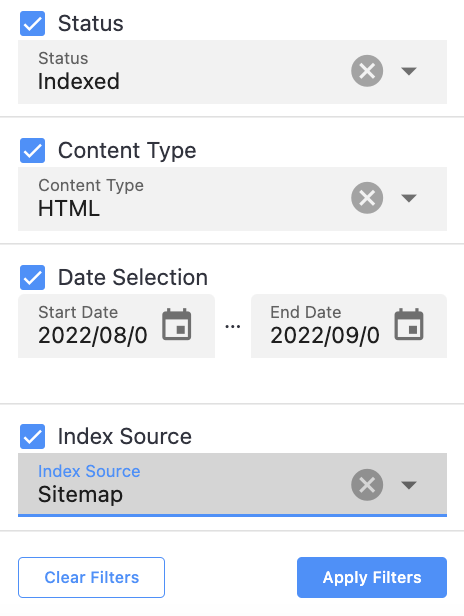
Filter pages:

Sort them by when they were indexed or updated:

Export this data:

Each page has two buttons on the right:
- The "Show Details" button opens a window showing all content the crawler sees on the page and can make searchable, same as in "Search Preview":

- The "Remove" button deletes the page from the Index and your search results:

Below the table are two more buttons: one starts a full recrawl of your Data Sources, updating existing pages and adding new ones; the other clears the Index Log entirely:

This section is also where you can manually add new pages to your Index Log:

or remove them from it:
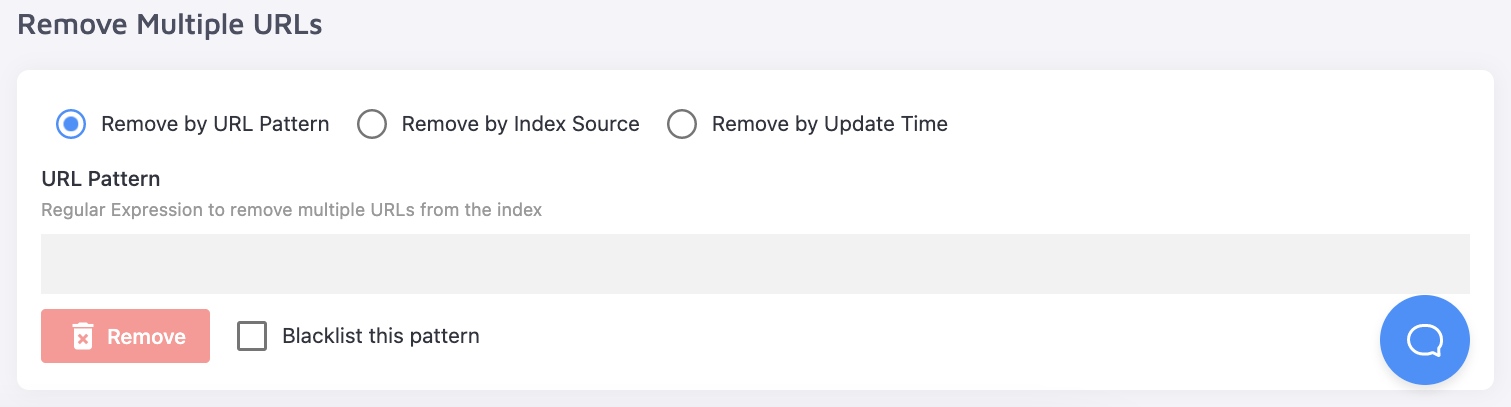
Manually added or removed pages revert after a full re-index, so use this feature for testing rather than as a permanent indexing method.
Once you've configured the search in the site editor and the Control Panel, press the Republish button again to apply the changes to the live site.
Republish the site each time you make configuration changes. This triggers a full re-index, after which the search's functionality updates accordingly.