YouTube Video Indexing
Surface videos from your YouTube channel directly in your search results. Add a channel under the YouTube section of Data Sources.
YouTube video indexing is an add-on feature. Set it up in your custom plan.
To add videos from your YouTube channel to your search results:
- Open the YouTube section from Data Sources.
- Enter your YouTube channel URL — or channel ID — and choose a Result Group for your videos.

- Once your videos have loaded, choose which ones to index (see below), then click Add Videos to Index.
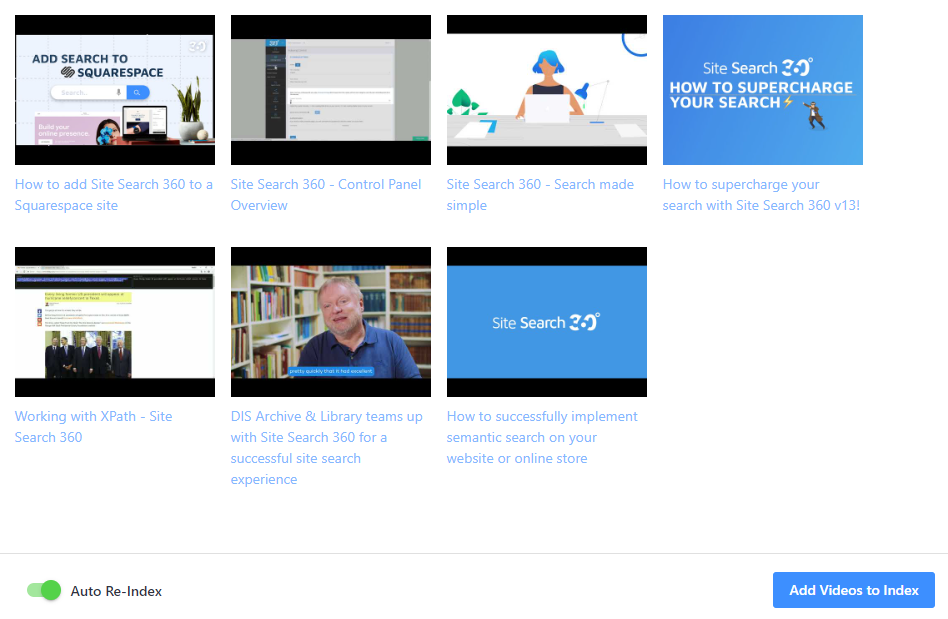
Your YouTube videos will now appear in search results whenever they match a query.
Choose which videos to index
By default, all of your channel's videos are available to index. You can narrow the set in two ways:
- Playlists — the page lists your channel's playlists. Select the ones you want and turn on Only index videos from selected playlists to index just those.
- Filter Videos — click Filter Videos to index only the videos that match:
- a Title Match Pattern — the title must contain the given text;
- a minimum and/or maximum view count;
- a minimum and/or maximum duration, in seconds;
- a maximum age, from 24 hours up to three years.
The number of videos fetched from your channel is limited by your plan's page limit.
Keep your indexed videos up to date
- Reload Videos and Playlists — fetch the latest videos and playlists from your channel. The list is cached, so newly published videos can take a few days to appear automatically; use this to refresh on demand.
- Update Indexed Videos — re-index the videos you have already added.
- Delete All Indexed Videos — remove all of your indexed videos from search results.