Customize the Duda Widget
Customize the Site Search 360 widget's look and behavior directly in Duda's site editor. For search settings that live outside Duda, see Configure Your Duda Search in the Control Panel.
To change the search box's default design or functionality, click it to open a pop-up menu of customization options.
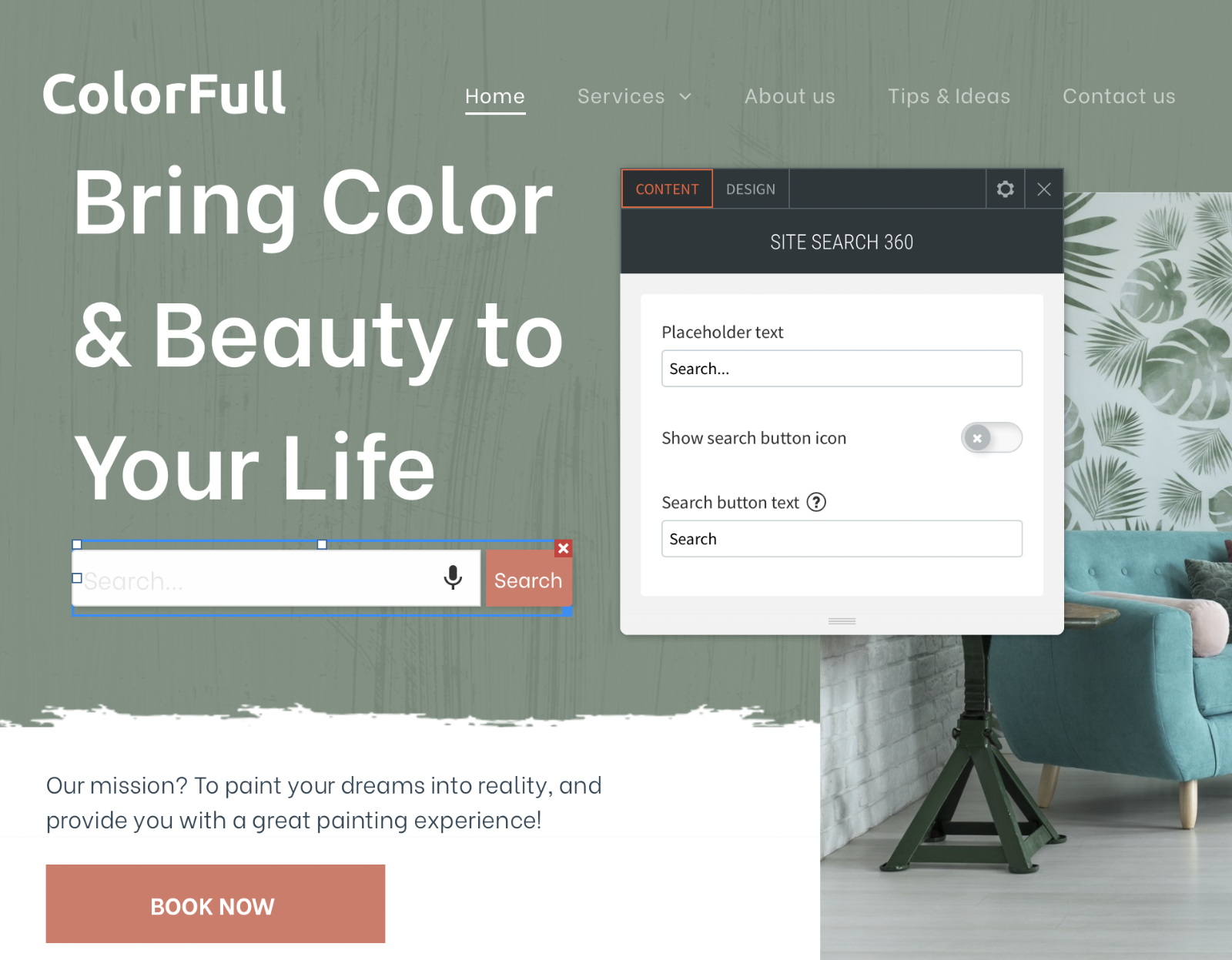
This menu has the same two tabs used elsewhere in Duda: "Content" and "Design".
Content Settings
"Content" settings control how your search box and search results are presented:
- What text (if any) is shown inside the search box and the search button:
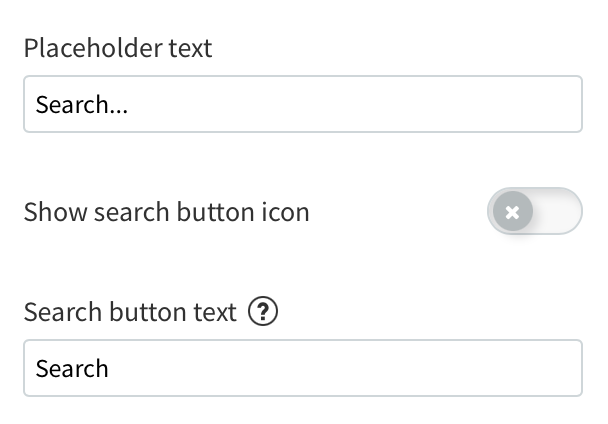
If you don't specify text for the search button, a magnifying glass icon appears instead.
- How your search suggestions are displayed:
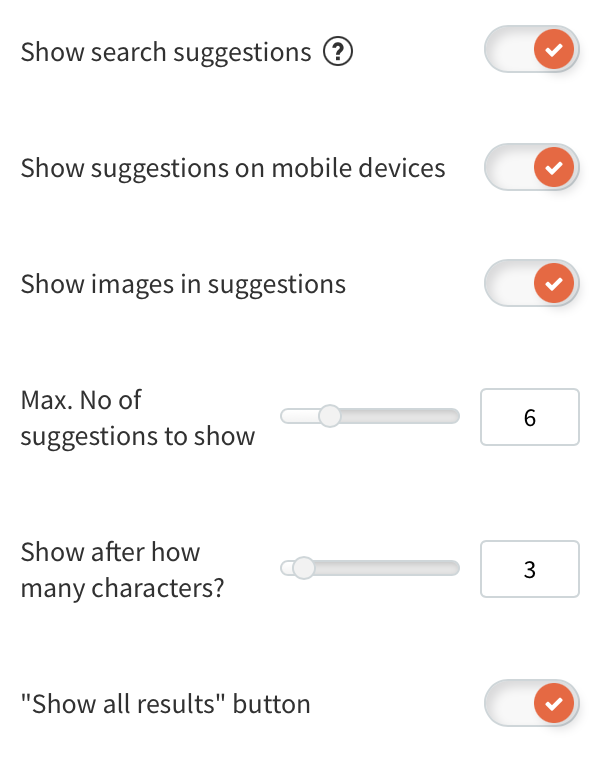
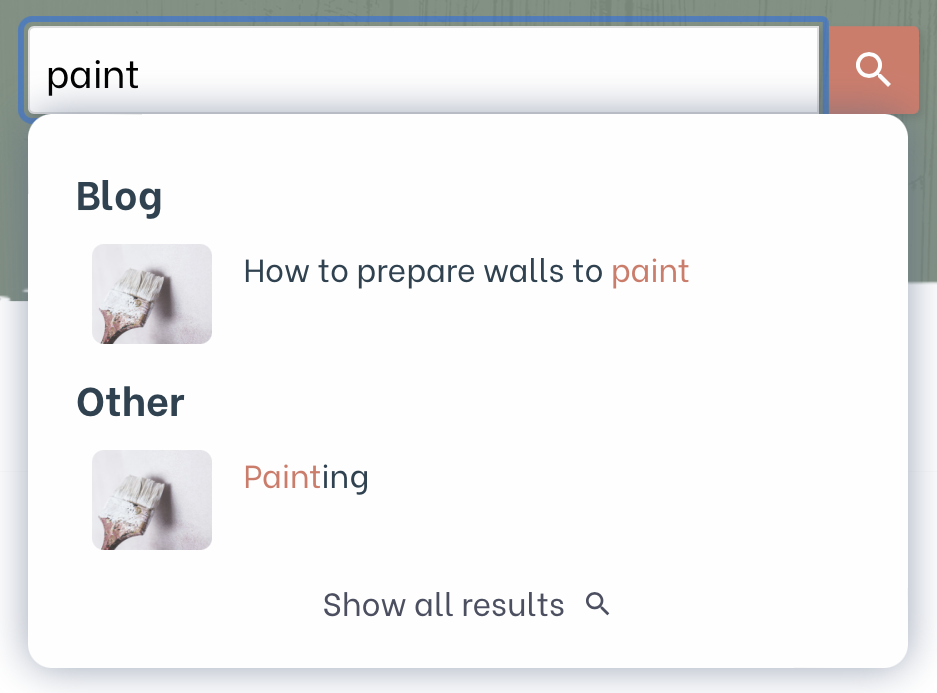
Search suggestions, also known as autocomplete or search-as-you-type results, appear under the search box before the search is initiated. On a live site, they look like this:
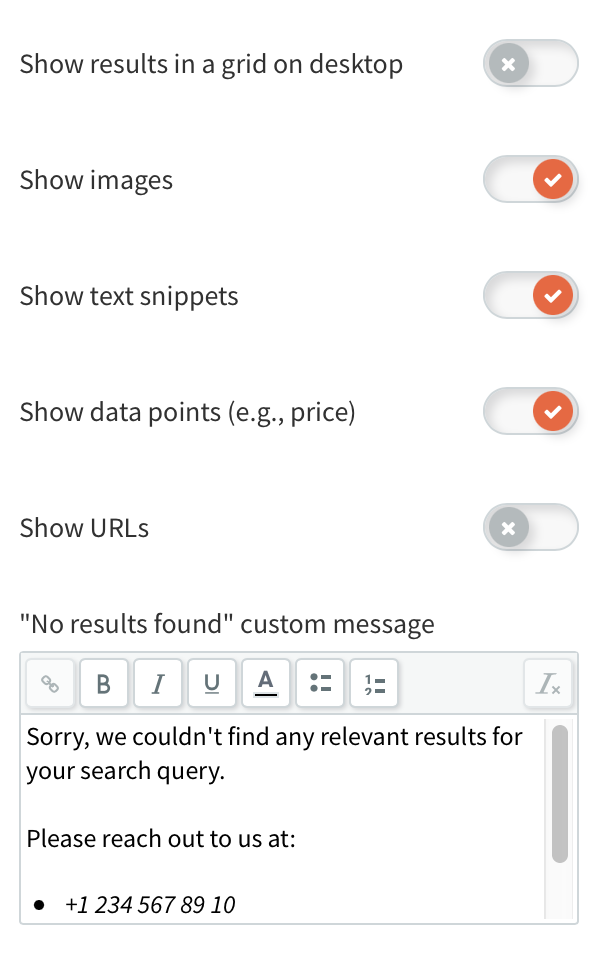
- What your search result layout looks like:
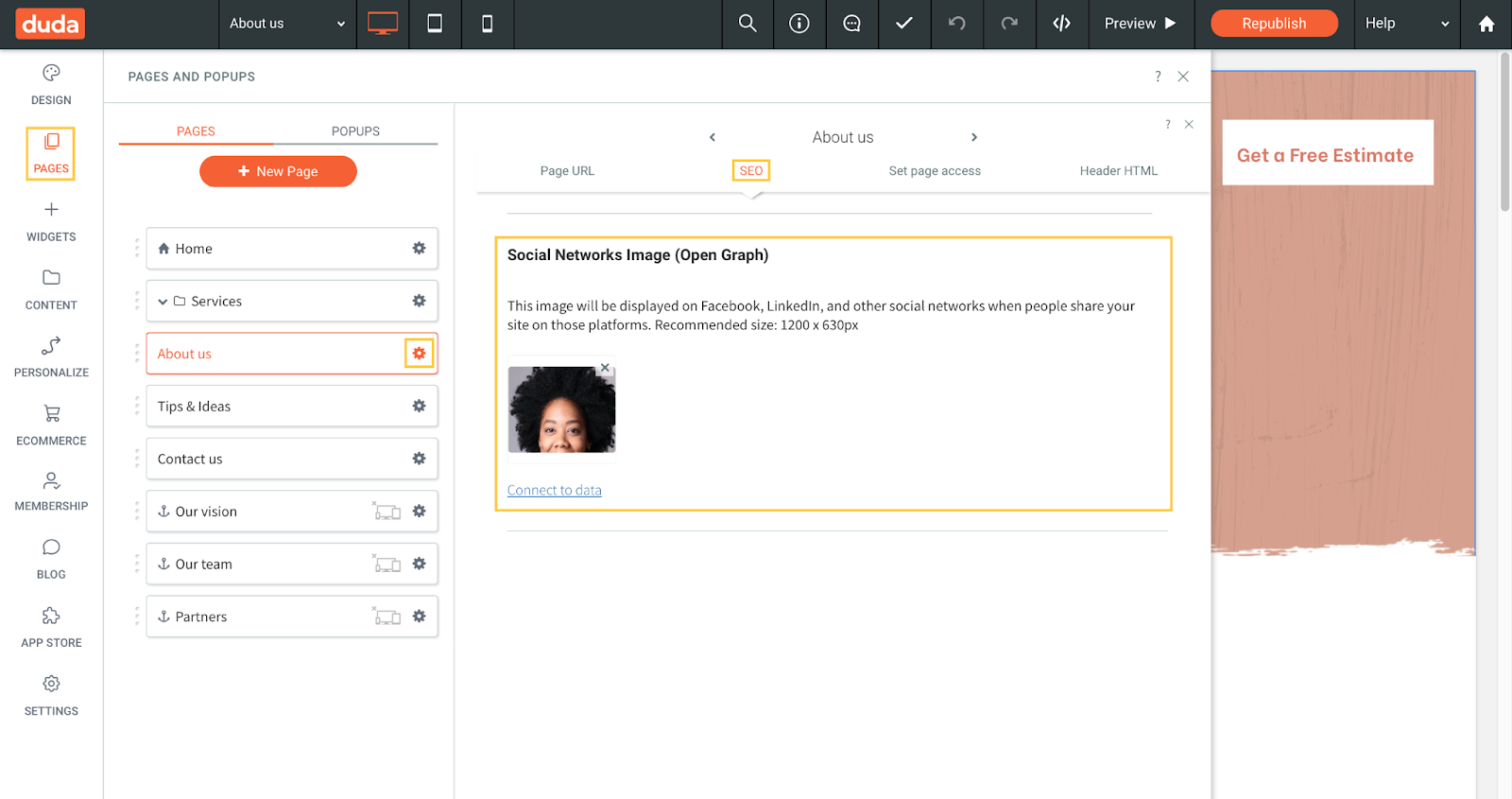
By default, search results (and search suggestions) show images pulled directly from the pages in the results. The crawler identifies images using the Open Graph image tag. To change the extracted image for a page, go to Pages -> Page Settings -> SEO -> Open Graph (or Post Metadata for blog entries). Click the image the crawler extracted and select a new one in Duda's Image Picker — you can choose from Duda's image collection or upload a new image.
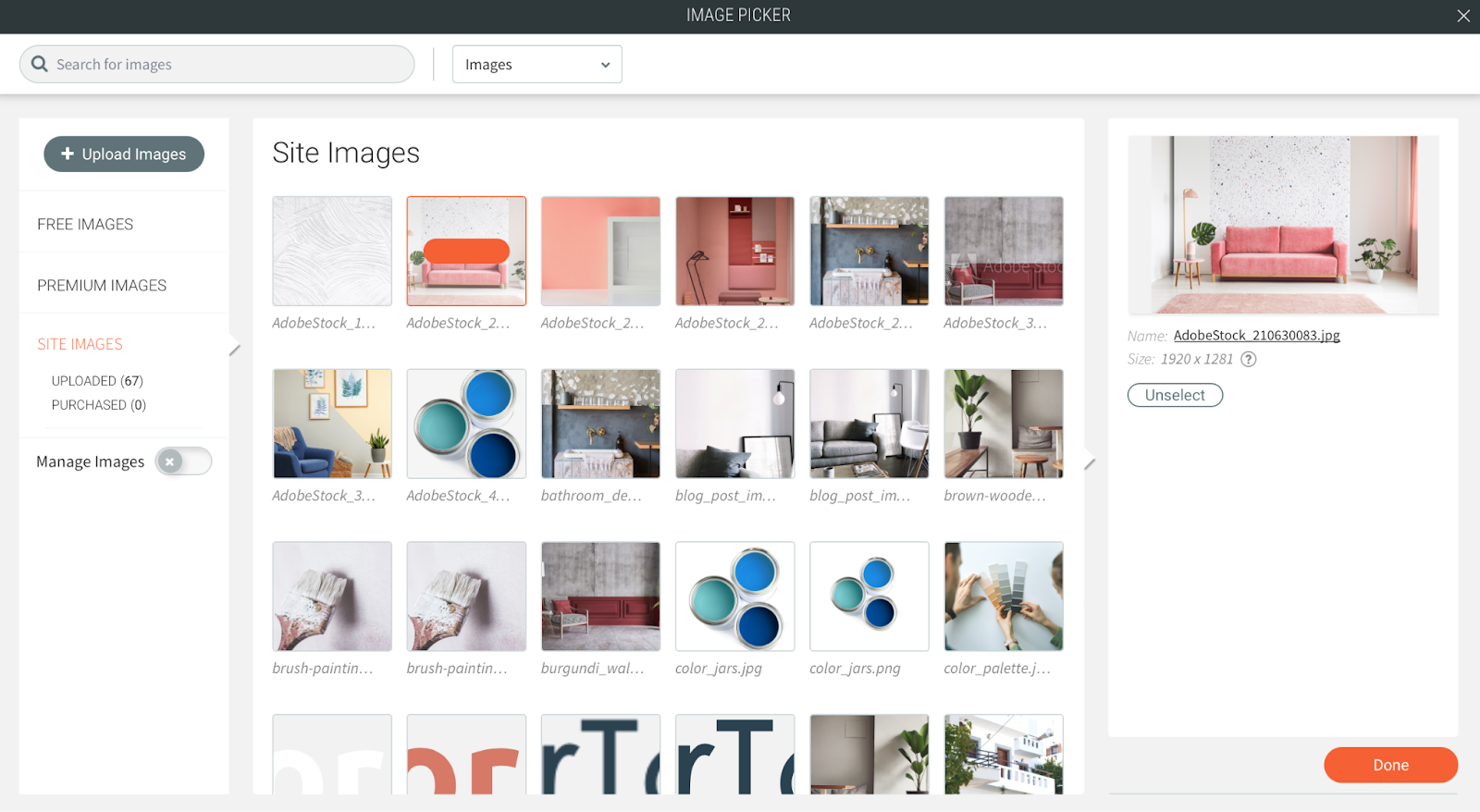
If your site's images don't have Open Graph tags, the site logo appears instead. You can keep the logo or hide images from the search entirely.
A text snippet is a page description that's picked up automatically during indexing. Change it in your site editor under Page Settings -> SEO -> Page Description, or in the "Content Extraction" section of the Site Search 360 Control Panel using custom Include/Exclude XPath rules (see our article on XPaths).
A Data Point is additional information that enriches the description — for example, a product's price or color, or a blog entry's author. Configure Data Points in the Site Search 360 Control Panel — see Data Structuring.
- Which language the search is in:
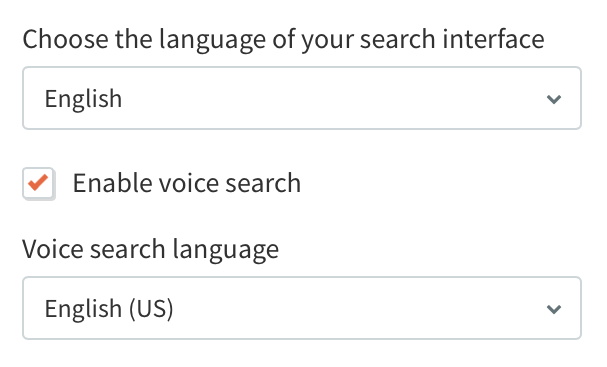
This setting affects your search results and interface elements such as CTA buttons. The search supports nineteen languages by default: English, German, Spanish, Turkish, Italian, Portuguese, Polish, Dutch, French, Danish, Finnish, Swedish, Norwegian, Russian, Czech, Romanian, Latvian, Lithuanian, Hungarian, and Greek.
- Whether the search is connected to Google Analytics:
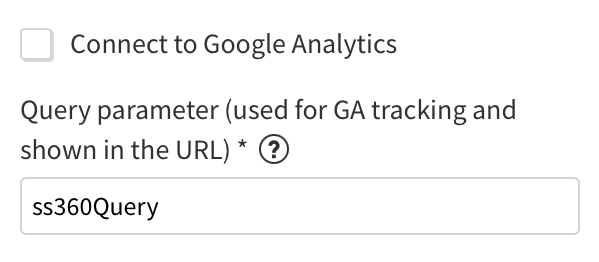
Design Settings
"Design" settings will be familiar if you've used Duda's other editing tools:
- What your search box looks like:
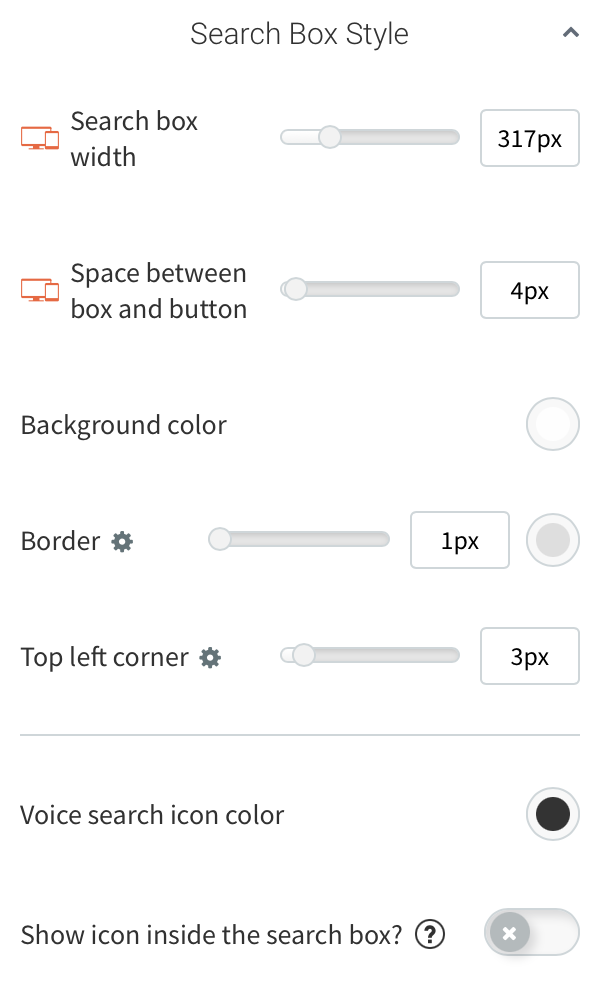
- How text appears in the search interface, results, suggestions, and the search box while a query is being typed:
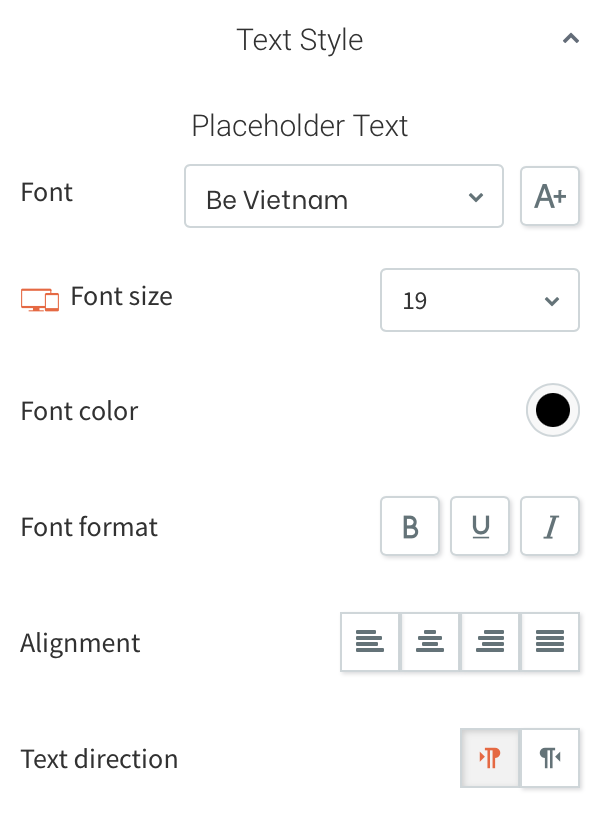
- The look of the search button and its text, if you're not using the magnifying glass icon:
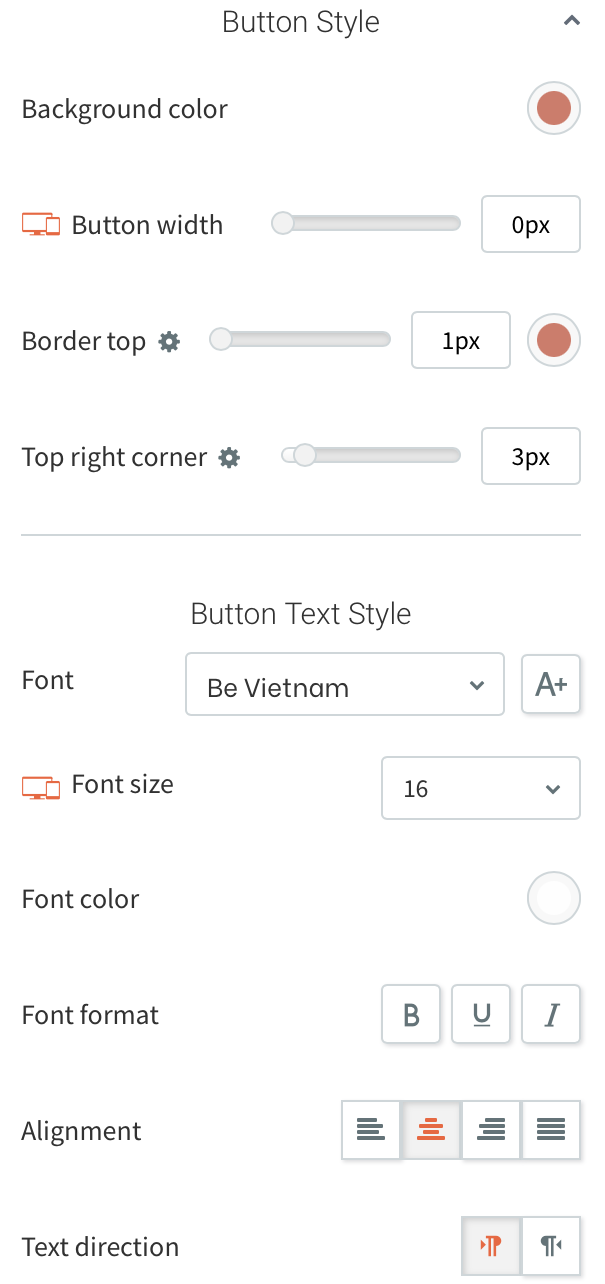
- Whether the search box is animated:
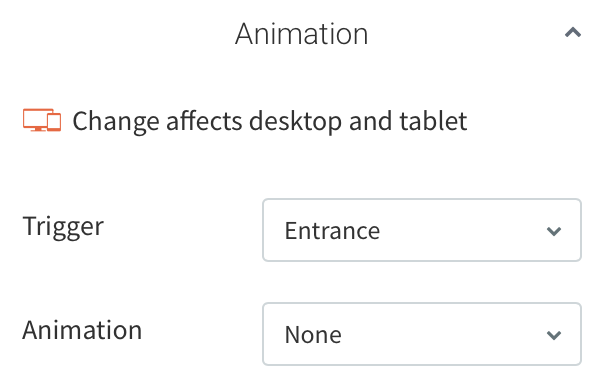
- The spacing between the search box and other layout elements:
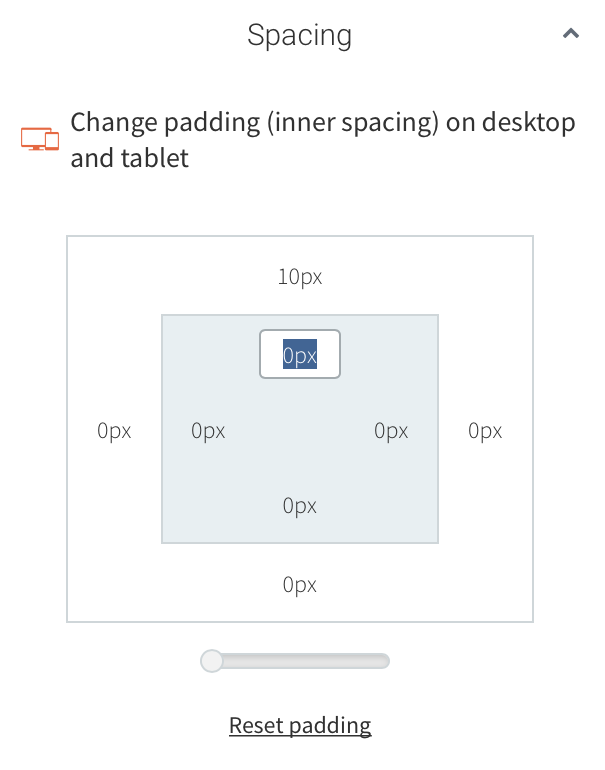
Adding Custom CSS
For design options outside Duda's default functionality, add custom CSS to the project:
- Open "Developer Mode" in your site editor:

- Go to site.css under "Site HTML/CSS":
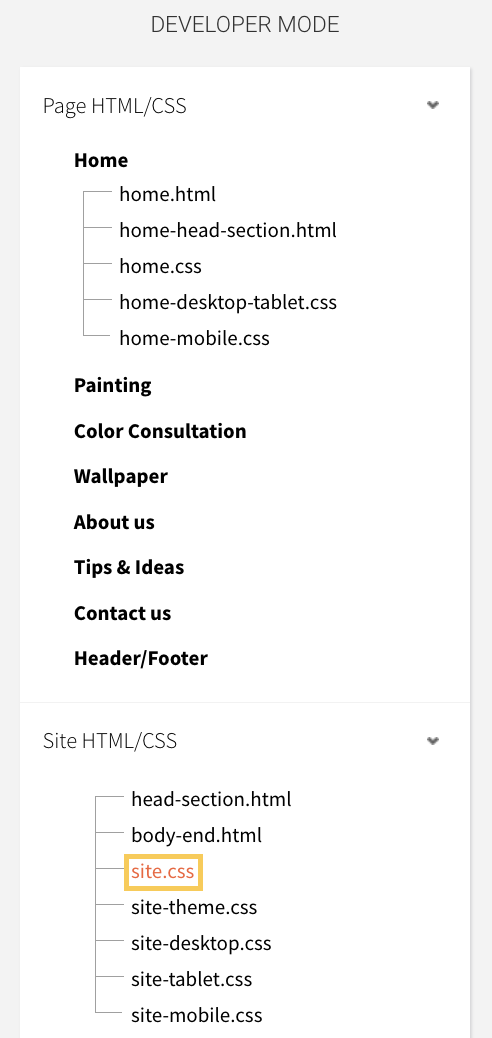
- Enter your CSS in the space on the right side of the screen. In this example, the CSS removes highlighting from the search box:
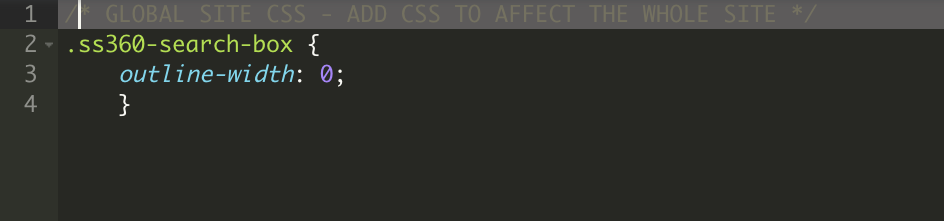
This gives you full control over the search's look, though it requires some coding.
These aren't the only customization options available — the rest are in your Site Search 360 Control Panel. See Configure Your Duda Search in the Control Panel.
If your Duda theme's styles affect the search box, suggestions or results, see Duda Troubleshooting for ready-made CSS fixes.