Setting Up Your Search
Before you install search on your site, use the Control Panel to build your index and shape how results behave. This guide walks through what to configure, and in what order — entirely before touching your site's code.
Data Sources and Index
Start here: nothing else works until the crawler has content to search.
Get Your Content Indexed
Site Search 360 builds your index from one or more data sources. Set them up under Data Sources — use whichever fit your content, on their own or in combination:
- Website Crawling & Sitemap Indexing — the usual starting point. Point the crawler at a root URL, a sitemap, or both, and it discovers and indexes your pages.
- Feeds — upload a product feed to index your catalog directly. Part of the ecommerce search (Content + Product Search) plan.
- URL List — add specific pages manually when the crawler misses them or you only need a handful indexed.
- FAQ Indexing — index FAQ content so users jump straight to the matching answer. Ideal for support, knowledge base, and documentation sites.
- YouTube Video Indexing — surface videos from your YouTube channel in your results. Add-on feature.
- API — push content into your index programmatically, for dynamic content, pages behind a login, or content that needs to update the moment it changes. Requires API access.
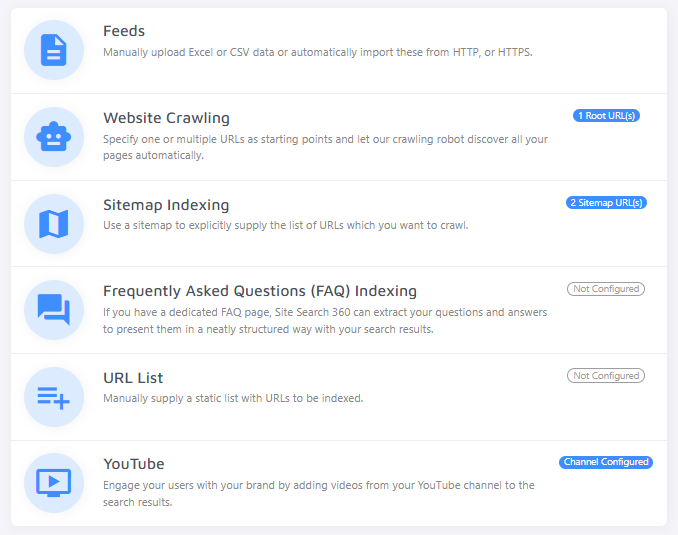
Track indexing progress on the Dashboard — see Dashboard Analytics for what's tracked there.

Refine What Gets Indexed
Once a meaningful number of pages are indexed, remove anything that shouldn't reach your visitors — duplicate pages, unwanted sections, or pages that failed to index. Use Crawler Settings to blacklist, whitelist, or de-duplicate, and Index Troubleshooting to look up individual URLs or fix indexing errors.
Blacklisting and whitelisting have a significant impact on your search index. Use them carefully, and re-index after any change.
Refine Search Results
Once your index is populated, search returns results automatically — the crawler picks up titles, images, and content on its own. The sections below cover common adjustments you may want to make. Most sites need at least some of these, since page structures vary and result quality depends directly on data quality.
Adjust How Results Are Structured
The crawler automatically selects titles, images, and content for your search results. If your site has an unusual structure, the defaults may not pick up the right content. Use these tools to correct that:
- Content Extraction — fix which titles, images, and content the crawler picks up when the defaults get it wrong.
- Data Points — extract structured fields (price, author, brand, date, etc.) from your pages to enrich result snippets and power filters and sorting.
- Result Groups — split results into categories (e.g. menswear, womenswear) so visitors aren't scrolling through everything at once.
Add Filters and Sorting
Let visitors narrow down and reorder results themselves:
- Filters — set up category, multiple choice, and other filter types in the Control Panel, then fine-tune how they look and behave via
ss360Config.
Control Specific Query Results
Take direct control over what specific queries return:
- Result Mappings — pin, reorder, redirect, or substitute results for a specific query.
- Autocomplete Queries — suggest predictive search terms as visitors type.
Configure the Dictionary
Add synonyms and alternate spellings so a search for one term also returns pages that use a different one your visitors might search for instead.
After adding dictionary entries, re-index your site for the changes to take effect.
Test in Search Preview
Once the crawler has made progress and you've made any adjustments above, open Search Preview and run a few real queries. Testing here does not count against your search quota.
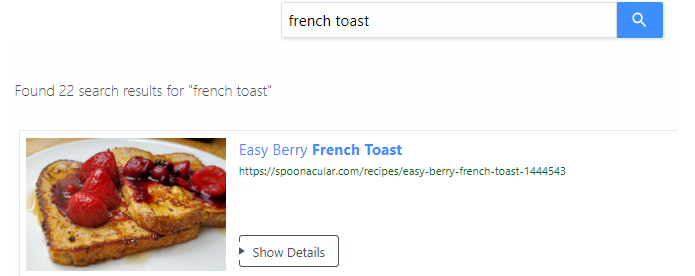
Check that:
- Results are relevant to the query
- Titles, images, and snippets look correct
- Any filters or groups you configured appear as expected
If something is missing or off, revisit the relevant section above, re-index, and test again.
Once you're happy with your results, move on to Going Live to connect your search bar and publish it to your site.