Javascript API
The Site Search 360 Plugin provides a set of methods you can call to trigger specific behavior from outside the plugin or to dynamically update some configuration options at runtime.
Configuration
Update configuration
The changeConfig method allows you to update a configuration parameter at runtime (after SS360 has been initialized).
Parameters
- key:
String- the key of the parameter, equal to the path through thess360Configobject, e.g.suggestions.show - value:
*- the value to be set
Usage example
To update the included result groups you can call the changeConfig method like this:
SS360.changeConfig('contentGroups.include',['Recipes']);
A similar result can be achieved by setting the whole contentGroups object as follows:
SS360.changeConfig('contentGroups',{include:['Recipes'],exclude:undefined});
Update siteId
To update the siteId after the plugin initialization you can call the setSiteId method.
Parameters
- siteId:
String- the siteId to be set
Usage example
SS360.setSiteId('spoonacular.com');
Change base URL
To update the URL from which search results are loaded you can call the setBaseUrl method.
Parameters
- baseUrl:
String- the search URL to be used
Usage example
SS360.setBaseUrl('https://api.sitesearch360.com/sites');
Change suggestion URL
To update the URL from which search suggestions are loaded you can call the setSuggestUrl method.
Parameters
- url:
String- the suggestion URL to be used
Usage example
SS360.setSuggestUrl('https://api.sitesearch360.com/sites/suggest');
Controls
(Re-)Initialize
The Site Search 360 Plugin initializes automatically when the page is loaded. In case you need to trigger the initialization at a later point in time (e.g. you are creating the search field dynamically), you can call the init function to "restart" the plugin.
Usage example
SS360.init();
Show search results
You don't have to rely only on our search field and search button bindings to show search results. You can also call the showResults method from outside the plugin to trigger the search.
Parameters
- query:
String- the search query - sort:
String(optional) - the sorting to apply, default:undefined - pushState:
Boolean(optional) - whether to push state to the window history, default:true - searchButton:
Node(optional) - the search button that triggered the search (for tracking purposes), default:undefined - callback:
Function(optional) - the callback to be executed after the search results have been rendered, default:undefined
Usage example
SS360.showResults('pizza');
Open specific result group (tab)
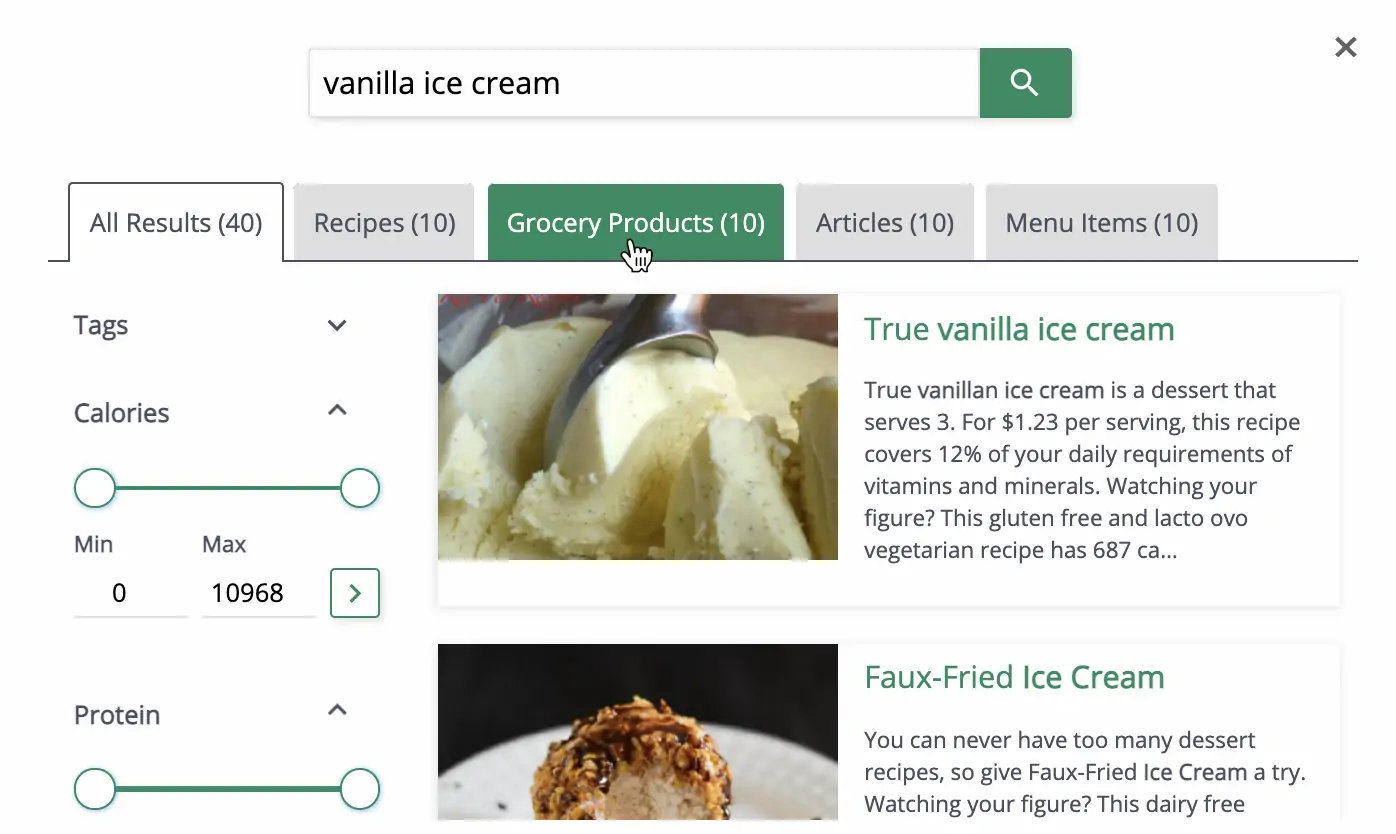
If you're using result grouping, by default the search result page will open with the All results tab. If you want searchers to focus on a different result group instead (e.g. all queries coming from the News page should open the "News" tab first), you can use the openTab('') method.
This is different from scoping your results to a specific result group, which hides all other groups instead of just opening a tab.
To open the "All Results" result group you need to call openTab('ss360_all_results').
Usage example
SS360.openTab('News')
Show fullscreen layer
If you are using the fullscreen search results, you can call the showFullscreenLayer method in order to make it slide down and show.
Usage example
SS360.showFullscreenLayer();
Close search results
By calling the closeLayer method you can make the Search Plugin hide the rendered search result. This method only works for overlay or fullscreen integration.
Usage example
SS360.closeLayer();
Hide search results
By calling the hideSearchResults method you can make the Search Plugin hide the rendered search result. This method is independent of the search result type.
Usage example
SS360.hideSearchResults();
Show/hide loading animation
You can show or hide the (customized) Site Search 360 loader by calling showLoading(); or hideLoading();.
Helpers
Is Initialized?
In order to find out whether the Site Search 360 Plugin has been successfully initialized, you can call the isInitialized method.
A false return value does not have to mean that the search won't work - it only indicates that there was an error while initializing the plugin (e.g. the script is being embedded multiple times).
Returns
- initialized:
Boolean- flag indicating whether the initialization was successful
Usage example
var success=SS360.isInitialized();
Additional Configuration Reference
A few more configuration options that don't map to a JS API method, but come up often when building custom implementations.
Cookies and Local Storage
To disable non-essential cookies (e.g. for consent management), set allowCookies: false in your ss360Config.
Alternatively, you can disable all cookies at once using the toggle found in Design & Publish → General → Tracking.
Cookies (can be disabled):
ss360CGResults— last active content group set viadata-ss360-include/data-ss360-exclude; stored for 1 hourssi--lastInteraction— last search interaction timestamp; stored for 10 minutesssi--sessionId— session ID used to cluster search statistics; stored for 1 yearss360-open-tab— search query and content group to reopen tab on page reload; stored for 1 hourss360-cg--c— active content group for back-button history navigation; stored for 1 hourss360-offset--c— offset of selected result for back-button history navigation; stored for 1 hourss360-query--c— last query for back-button history navigation; stored for 1 hourss360LastQuery— last query; stored for 24 hours
Local storage (cookies as fallback):
uniboxsearchhistory— list of recent queries used to display search historyss360lastquery_result— cached search result object used to speed up reload within a short period
CTA Buttons in Search Results
Call-to-action buttons encourage users to take further action and can increase click-through rate. Use the results.cta parameter to add one:
var ss360Config = {
    results: {
        cta: {
            text: "View Product",
            link: "#RESULT_URL#",
            icon: "/images/some-icon.png"
        }
    }
}
You can also configure different CTA elements per Result Group. See the advanced parameter list.
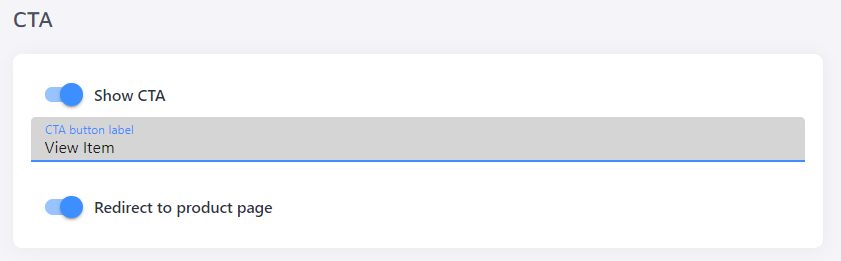
If you use the Lightspeed plugin, you can configure CTA behaviour directly in the Plugin Config section without manual code changes.
Overriding Default CSS
Site Search 360 includes its own stylesheet by default. To disable it, set style.defaultCss to false in your ss360Config.
v13 Configuration Options
The options in this section apply to v13 of the Site Search 360 script. If you are on v14 or later, use the Design & Publish Overview to manage most of these settings without touching your code. We highly recommend upgrading to the latest version.
Overlay vs. Embedded Results
Site Search 360 can display results in an overlay (default) or embedded into your page. To embed results, configure results.embedConfig:
var ss360Config = {
   results: {
      embedConfig: {
         contentBlock: 'CSS-SELECTOR',
         url: '/search'
      }
   }
}
contentBlock is a CSS selector pointing to the DOM element where results should be injected. For example, for <div id="main"></div>:
results: {embedConfig: {contentBlock: '#main'}}
Embedded Results on a Separate Page
To open embedded results on a dedicated search page instead of the current page:
results: {embedConfig: {contentBlock: 'CSS-SELECTOR', url:'/search'}}
Replace /search with the relative path to your search result page.
Pagination and Infinite Scroll
Site Search 360 uses a "See more" button by default. To configure it:
var ss360Config = {
  moreResultsButton: 'See more',
  moreResultsPagingSize: 12
}
moreResultsPagingSize controls how many results are shown per page (max: 24). The total results fetched is controlled by results.num (default: 999999).
For infinite scroll, set results.infiniteScroll to true. This replaces the "Show more" button and requires either no Result Groups or a tabbed navigation layout.
If you need traditional pagination, use the API with offset and limit parameters.
Data Points in Search Suggestions
suggestions.dataPoints is a v13-only parameter and has no effect in v14 or later. Use Design & Publish to configure data points in search suggestions instead.
To show additional information (such as category or price) alongside each suggestion:
- Create the relevant data points.
- Reference them in
suggestions.dataPoints:
suggestions: {
    dataPoints: {
        Category: {
            html: '#Category#',
            position: 1
        },
        Price: {
            html: '#Price#',
            position: 2
        }
    }
}
See how to show data points in search suggestions for more examples.
Colors and Styling
The easiest way to style Site Search 360 is via Design & Publish. For v13, modify accentColor and themeColor in your ss360Config:
var ss360Config = {
    style: {
      accentColor: "#3d8fff",
      themeColor: "#4a4f62"
   }
}
- accentColor — applied to clickable elements: buttons, result titles, hover effects
- themeColor — applied to non-interactive elements
For more specific changes, use style.additionalCss to inject inline CSS.