Index Troubleshooting
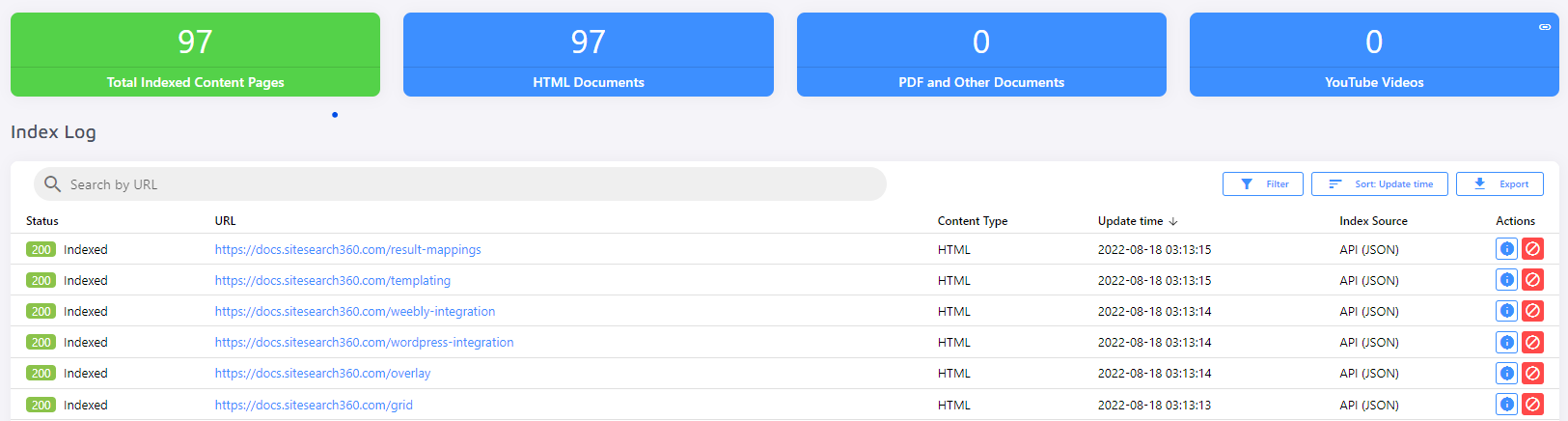
The Index section of the Control Panel shows you all the pages and documents that the crawler has found on your website.
Crawler IP Addresses and User Agents
If your server, firewall, or CDN restricts access by IP or User Agent, whitelist the following values to allow the SS360 crawler to reach your content.
Crawler IP addresses:
- 88.99.218.202
- 88.99.149.30
- 88.99.162.232
- 88.99.29.101
- 149.56.240.229
- 51.79.176.191
- 51.222.153.207
- 139.99.121.235
- 94.130.54.189
- 116.202.85.24
User Agent — standard crawler:
Mozilla/5.0 (compatible; SiteSearch360/1.0; +https://sitesearch360.com/)
User Agent — JavaScript crawler:
Mozilla/5.0 (Windows NT 10.0; Win64; x64) AppleWebKit/537.36 (KHTML, like Gecko) Chrome/61.0.3163.100 Safari/537.36
The User Agent differs between the standard crawler and the JavaScript crawler. Whitelist both if your site uses JavaScript rendering.
Fix Problems with Your Search Index
If search is not working as expected, the issue is often in the index itself. Review your index for missing pages, unwanted pages, and duplicate pages.
Missing pages are covered below. For unwanted or duplicate pages, see Crawler Settings. Also check for status messages that may explain unexpected search behaviour.
Why is a page missing from search results?
If you notice that some search results are missing, the first thing to check is whether the missing URLs are indexed.
The Index section of the Control Panel allows you to look up any URL and check if it was indexed.

If a page is missing from the index and you use Sitemap Indexing, make sure the missing URL is included in your sitemap.
If you are crawling your website, you can try re-indexing the missing page manually.

You may get an error explaining why the page is not indexable. Common causes include:
- The page points to a different domain than your root URL(s).
- A noindex robots meta tag tells the crawler not to index the page.
- Blacklisting, whitelisting, or no-index rules are preventing the URL from being indexed. If the Index shows a gray skipped status for the URL, see Why do my pages get skipped? for the status codes.
Once you have fixed the issue and can index the single URL successfully, recrawl your entire site and check again for the missing page(s).
The crawler skips your root URL(s) by default. For example, if your root URL is domain.com, the homepage will not be indexed. To include it in search results, uncheck Skip Homepage.
The crawler does not follow links to external websites, including Facebook, Twitter, LinkedIn, and similar domains.
Refer to this post for a more in-depth look at missing pages.
Why aren't files hosted on another domain indexed?
The crawler only follows and indexes URLs on your configured root domain(s). If one of your pages links to a file — such as a PDF — hosted on a different domain (for example a separate CDN or file host), the crawler treats that file as external and does not follow it, so it never reaches your index.
To include content hosted on another domain, use one of these approaches:
- Add the hosting domain as an additional root URL. The crawler will then follow and index content on that domain as well.
- Index the files through the URL List. Adding the URLs directly indexes them regardless of which domain they are on. This works best when the URLs are static and known in advance.
Why isn't a page with a noindex robots meta tag indexed?
The noindex robots meta tag is commonly used to prevent search engines from indexing specific pages — for example, during development:
<meta name='robots' content='noindex,follow' />
A page carrying this tag is not indexed. To keep such pages hidden from Google but still index them in SS360, check the Ignore Robots Meta Tag box in the crawler's advanced settings.
To do the opposite — keep a page visible in Google but hidden from your on-site search results — see Unwanted Pages.
Why do my pages get skipped?
Successfully indexed URLs display a green 200 status:

Skipped pages show a gray 800 or 802 status, depending on why the crawler skipped them. In both cases, a rule configured under crawler settings is telling the crawler to exclude those pages. If pages you want searchable are being skipped, remove or update the matching rule.


After updating the rule, index the individual URL to confirm it returns a 200 status.
You may also see red error statuses in your index.

URLs with an error status have not been successfully indexed and will not appear in search results.
Index status code reference
Alongside the green 200 status and the red HTTP error codes (403, 404, 499, 500), the index uses gray codes for pages the crawler intentionally skipped:
- 800 — Skipped: a no-index rule matched the page.
- 801 — Skipped: the page points to a different canonical URL.
- 802 and 803 — Skipped: a blacklist rule matched the page.
- 804 — PDF indexing is not available on your current plan.
For a full list of status codes and their meanings, see Index Status Codes.
How do I fix Client Error 499?
Client Error 499 means the client closed the connection before the server could respond — typically due to a timeout — so the page or document could not be loaded.
Re-indexing the specific URLs or your entire site usually resolves this.
This error can also occur when Cloudflare blocks the SS360 crawler. Whitelist the crawler IPs and User Agents in Cloudflare under Firewall > Tools:

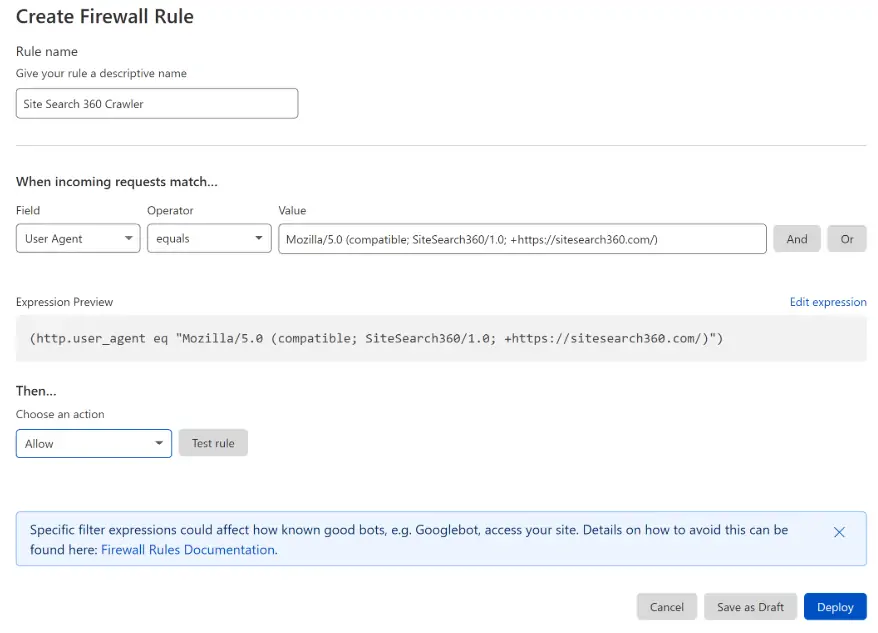
Cloudflare can be configured as part of your CMS (e.g. WordPress, Magento, Drupal). If you are unsure how to proceed, contact your CMS support and ask them to whitelist the Site Search 360 crawler IPs.
How do I fix Client Error 403?
A 403 error means your server is refusing the crawler's request for a specific page or file.
If whitelisting the crawler IP addresses and User Agents has not resolved the issue, check your HTTP method settings. Some CMSs — for example, Magnolia CMS — block HEAD requests by default. Add HEAD to the list of allowed methods so the crawler can reach your documents.
How do I fix Client Error 404?
A 404 error means the page was not found. Open the URL to check whether the page still exists. If it does not:
- Remove it from your sitemap.
- Find any broken links pointing to the missing page and update or remove them.
How do I fix Server Error 500?
A 500 error means your server is experiencing internal problems. The crawler cannot index your site until the server is stable again. Once your site is back up, delete your index and run a clean re-index.
Re-Indexing Your Site
Many changes to your search setup require a re-index before they take effect. Re-indexing triggers a full recrawl of your site, applying any configuration changes made since the last crawl.
Changes that require a re-index include:
- Adding or modifying data points
- Adding or modifying result groups
- Updating whitelist, blacklist, or no-index patterns
If you are unsure whether a re-index is needed, check the notification bar in the upper right corner of the Control Panel — it will prompt you when one is required.

To re-index, click Re-Index Now in the notification, or go to the Index page and click Re-Index All Configured Sources at the bottom.

Re-Index All Configured Sources only re-indexes data sources that have the Auto Re-Index toggle enabled — such as Website Crawling or Sitemap Indexing. If Auto Re-Index is turned off for every configured source, the button is greyed out and cannot be used.

Update Validity Safeguard
By default, SS360 validates incoming updates and blocks any data upload that would reduce your total index count by more than 30%. This prevents accidental large-scale content loss — for example, if an updated sitemap contains significantly fewer URLs than expected.
- This safeguard is enabled by default and is not configurable in the UI.
- To disable it, contact Support.
This safeguard does not affect the Empty Entire Index option. It only applies to new uploads or updates that would remove a large portion of existing indexed content.
Removing URLs from the Sitemap
When a sitemap re-index runs, SS360 checks any URL that was previously indexed but is no longer present in the new sitemap. Before removing it, the crawler sends a request to verify whether the page is still reachable. If the page returns a successful response, SS360 keeps it in the index — even if it has been removed from the sitemap.
This behaviour is by design. It prevents pages from being dropped due to a temporarily incomplete or misconfigured sitemap.
A URL that is still live on your server will not be automatically removed from the index, even after a full sitemap re-index. Removing a URL from your sitemap alone is not enough to remove it from search results.
To remove stale URLs from the index, you have two options:
- Remove URLs manually — go to the Index page, search for the URL, and delete it directly. You can also use bulk removal by URL pattern if multiple URLs share a common path.
- Clear the index and re-index from scratch — go to Data Sources and use Empty Entire Index, then trigger a fresh re-index. This fully rebuilds the index from your current sitemap, so only URLs present in your data sources will be indexed. Plan this for a low-traffic period, as search results will be limited while the index is rebuilding.
Crawler Log Add-On
By default, SS360 does not track which pages lead to broken links (404s). The Crawler Log is a paid add-on that enables this. When active, an Index Source column appears in the Index Control Status Table, showing the referring URL for each indexed entry.

This lets you trace the path from a working URL to a broken one, so you can update or remove the broken link directly.
To enable the Crawler Log, create a custom plan.