Customize Your WordPress Search Design
Style your search in the Search Designer, available from the Site Search 360 WordPress plugin menu. To install the plugin and add a search box first, see WordPress Integration.
If you've manually added a search box to your site and want to customize more than just the theme color, use Custom Integration mode, then go to the Search Designer section from the Site Search 360 WP plugin menu.
Use the designer controls to adjust colors, captions, suggestions, search result layout, and more. Preview the outcome instantly on the right side of the settings.
Some settings are purely visual (General, Suggestions, etc.), while others (Results, Layouts) require additional configuration in the Site Search 360 control panel (use the link from the plugin's Dashboard to access it). If you're familiar with CSS, callbacks, and templating, the "Advanced Configuration" section lets you further customize the look and feel of the search to integrate it into your site.
Implementation options
The default way to implement our search is to display search results in an overlay. The overlay is triggered when the searcher presses Enter or the search button to submit the search query. The Search Engine Results Page (SERP) then appears above your page, so this rarely requires any further changes on your side.
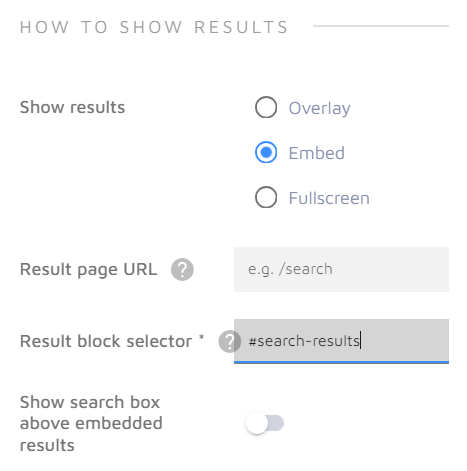
If you want to display results within your site pages, choose the embed option and specify the CSS selector of the target block element. For example, if you have a dedicated search result page with something like <div id="search-results"></div>, use the #search-results selector to tell the crawler to render results within this HTML block.
You can specify the selector directly in the Search Designer > General > How to show results:
After you've made all necessary changes in the Search Designer, don't forget to "Save" them to the live site using the button at the top right corner of the section.

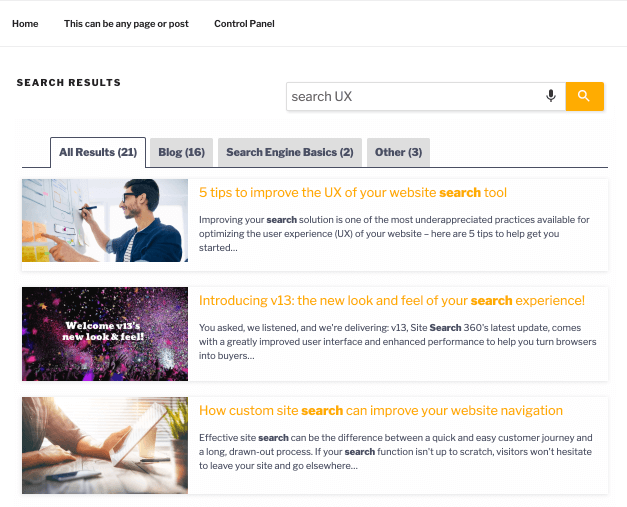
In this screenshot, search results appear as part of the site (and not in an overlay):
For a more detailed introduction to all the styling options, read our Search Designer (Design & Publish) article.