Search Success Tracking
Dashboard Analytics shows you which queries are popular, which return zero results, and which have high or low click-through rates. Search Success Tracking builds on this data to give you a single view of how your search is performing overall.
This feature (for Batman customers, or ecommerce customers with Holmes and above) tracks your search's performance across several metrics over time, so you can fine-tune your search results and improve the user experience.
What information does search success tracking show me?
The first piece of data you see is your Overall Score, which we compute with the following formula:
4 x CTR + 0.2 x Search Session Rate - Zero Result Rate - Abandon Rate + Filter Rate
Improve the positive metrics (CTR, Search Session Rate, Filter Rate) and reduce the negative metrics (Zero Result Rate, Abandon Rate) to raise this score. The most important thing about this number is how it changes — check it regularly to make sure your adjustments are leading to an increase.

The following sections cover the rest of the performance metrics and how to keep them trending in the right direction.
How can I improve my click through rate/CTR?
It's normal for individual queries to have a low CTR — a visitor may be searching for something that doesn't exist on your site or in your shop. When your click-through rate across all queries is low, though, it's worth digging deeper.
Go to your Analytics and scroll down to All Queries. Sort your queries ascending by CTR and filter down to queries with at least 10 unique searches (or more, depending on your search traffic).

Review the list of queries, and keep an eye out for ones where you'd expect highly relevant search results.
For example, this client might know they sell products from the brand teenage engineering, so why is the click-through rate just 33.33%?

There are many possible reasons for this, and finding the cause may take some investigation.
Click the search icon under Actions to preview the results — this takes you to the search preview and shows the search results your visitors are seeing. Are the best-matching results displayed first? If not, adjust your page boosting (or, for ecommerce, your ranking strategy). For a top query, you might also take the time to create a fully customized result set using the result manager. These options let you put your best search results on top to encourage visitors to click.
If you aren't sure which results should be on top, click the information icon under Actions. This opens the full details of the search query, including what your visitors searched for right before and right after this query. This might hint at what visitors are really looking for when they use that query.
Take our query "teenage engineering" again.

We can see that 3 visitors followed that query by searching for specific products. One product was even searched for twice, and this product is near the bottom of their search results.
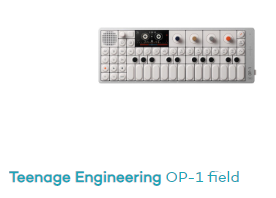
This shop can either adjust their ranking strategy to move this product higher, or create a result mapping and pin this product to the top position. If this product is popular, as the search analytics suggest, moving it higher in the search results could improve the CTR for this query in the future.
The search query details also show popular results, which are search results that were clicked for this query. These are also good candidates to move higher in your search results, especially if they've been clicked several times.
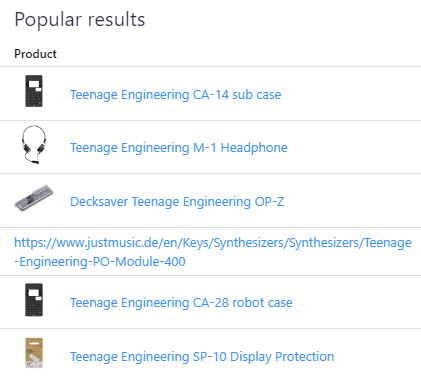
Alternatively, our search collects this data and learns from it over time. Set your page boosting strategy to Learn each document's importance automatically.

For ecommerce customers, you can also use our machine learning algorithms by adding these attributes to your ranking strategy.

If your search results are already strong, your CTR may be skewed by you or your team testing the search without clicking any search results. If you do a lot of search testing, see how to prevent tracking certain users.
How can I improve my Search Session Rate?
Your search session rate is the percentage of visitors to your site who use the search bar. This is unlikely to change from month to month, unless you've changed your site design or run a campaign that encourages visitors to search for certain pages or products.
There are best practices when it comes to positioning and designing your search bar:
- Put your search bar at the very top of the page.
- Make your search bar fairly large so it doesn't blend in too much with your design (consider a contrasting color). The more prominent the search bar, the more attention it gets, and the more likely a visitor is to start a search.
- Show a dedicated search button to trigger the search, instead of relying on pressing Enter alone.
- Use meaningful placeholder text that tells the visitor exactly what they can search for. Instead of "Search here" try "Search for article number, product name, category, or brand."
- For more advice on your search, see our free ebook about custom search engines for websites.
Another way to encourage interaction with your search bar is to use our result manager to create curated search result pages instead of landing pages for sales or other campaigns. Add a banner and select a result set to fit the promotion you're running. This increases awareness for your search and saves you the time and effort of creating dedicated landing pages.
For example, imagine you sell musical instruments and want to send a newsletter promoting the best electric guitars for beginners. Create a result mapping that shows the products of your choice, then use that search query in your link (e.g. yoursite.com/search?s=beginner-electric-guitars) to direct visitors from your newsletter right to this curated result page.

You could even add ongoing promotions to your search suggestions so visitors see them as soon as they click into the search bar.
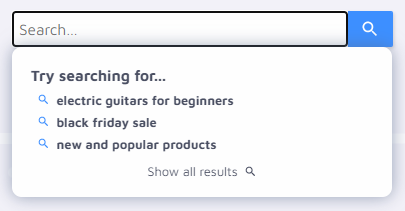
For inspiration on a search redesign, browse our customer gallery for search implementations you like.
How do I reduce my Zero Result Rate?
Your zero result rate shows how often your visitors search and find no results. This can happen when visitors search for something that doesn't exist on your site, but it can also happen when your search requires some fine-tuning.
In your analytics, you'll find a list of zero result queries. Check this periodically to see if any queries come up often that return no results. If so, there are a few ways to fix this issue and improve your user experience.

For example, this music shop had 5 visitors search for "harley benton" and 4 for "microcosm", and neither query returned any results. The reason is the same: the shop doesn't carry products from the brand Harley Benton, nor the specific product called Microcosm.
One option the shop owner has is to use the result manager to create a result set for "Harley Benton" that shows their best-selling guitars as possible alternatives. Similarly, they could show other effects pedals when a visitor searches for "Microcosm", even if they don't sell that exact pedal. When shown similar products, this customer is more likely to find something else they like instead of landing on a zero result page and checking out a competitor's site instead.
Perhaps your zero result queries reveal that your search doesn't recognize a relevant synonym. For example, your blog has many barbecue recipes, but a visitor searched for "bbq" and found nothing. You can add these synonyms to the dictionary to make sure you surface all your relevant results for both queries in the future.
How do I reduce my Abandon Rate?
Abandon rate in the Search Success Tracking view refers to executed searches where the searcher left the results page without clicking on a single result. Increasing your click through rate will reduce your abandon rate.
Keep in mind that your search results can be thorough enough that visitors find the information they're looking for without needing to click a result. For example, if you show the date and location of events in your search snippets, someone searching for an event to find out the time and place wouldn't necessarily need to click the result. In cases like this, your abandon rate is nothing to worry about.
What is Filter Rate and how do I improve it?
Filter rate shows how often your visitors use your search filters. Similar to abandon rate, if your search results are precise enough, there may be no need for someone to use filters to find the result they want. Still, it's a good idea to check your analytics and look for generic queries to see how visitors are engaging with your filters (or not). For example, an online shop should look out for product category queries, such as "headphones" or "guitar", while a blog might look for unspecific queries like "recipes" or "travel."
If you find queries with 20, 50, or 100+ results and your visitors are still not using filters, it's worth asking yourself a few questions:
How useful are your filter options?
For ecommerce, filters like brand and price are crucial. For content search, consider offering publication date, topics, or tags.
How are your filters ordered?
If they're currently ordered alphanumerically, consider ordering them by usage instead. For ecommerce customers, you can select this as a setting under Filters and Ranking.
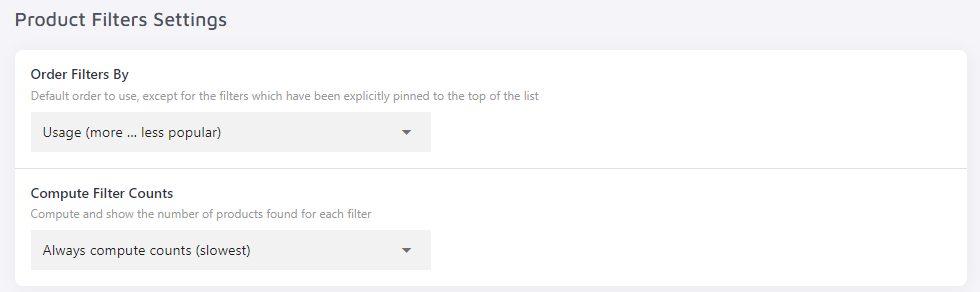
For content search customers, you can monitor your top used filters to make sure the ones that get clicked the most are positioned higher in your filter list than less frequently used filters.

Where are your filters positioned?
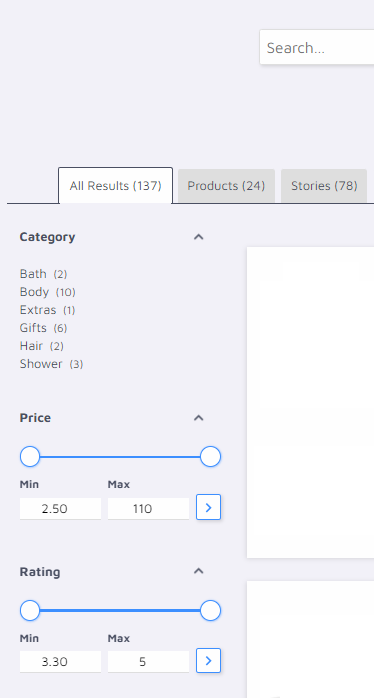
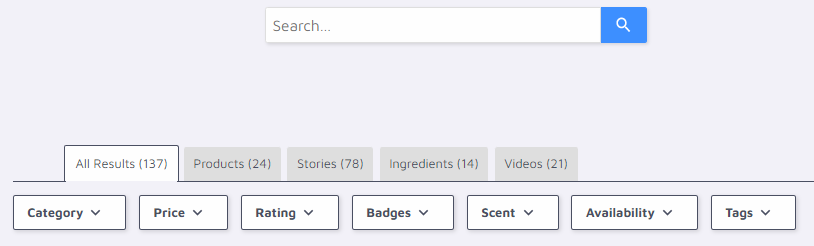
With our search designer, you can choose between "left" and "top" positioned filters. Which is right for you depends on your site design and your filter options, so test out both and see which looks and functions best for your needs.
Left filters:
Top filters:
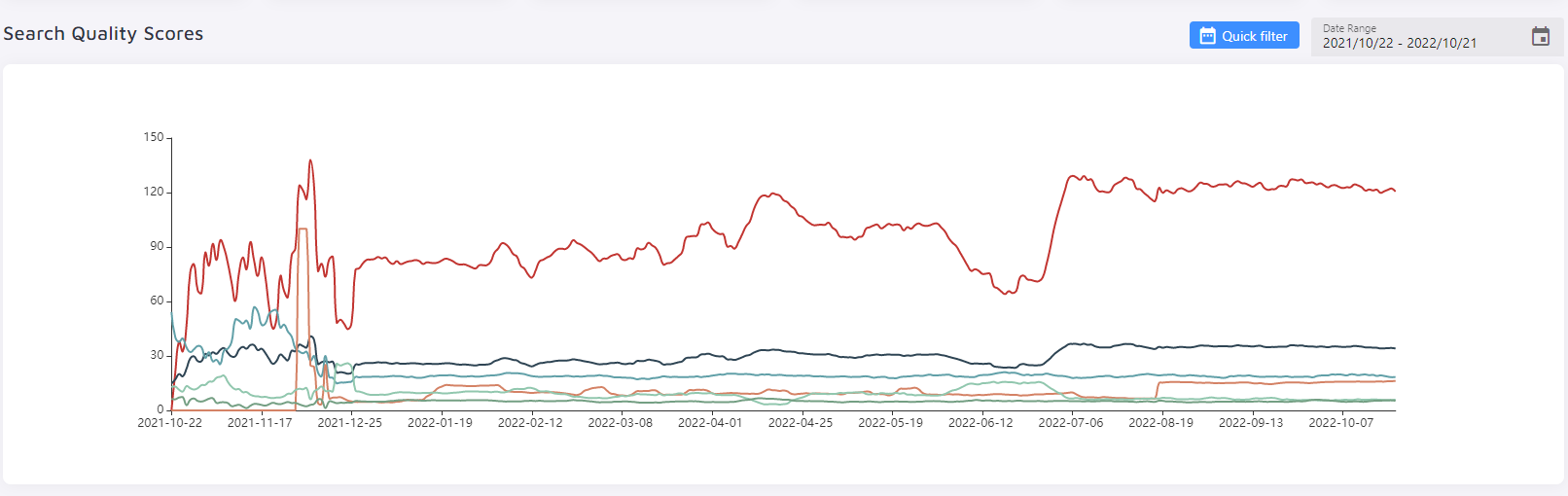
You now have several ideas to try to improve your search experience, from adjusting your boosting/ranking to making curated result sets and dictionary entries, to changing the location and design of your search bar. Trying even one strategy can increase your search quality score and help make sure you and your visitors get the most value out of your search.
If you have any questions or need more personalized advice, reach out to us.
AI Optimization
AI Optimization is an optional, paid add-on (for Batman customers, or ecommerce customers with Holmes and above) that improves relevance based on how visitors interact with your search results.
When people search and see results, Site Search 360 can use tracking data (for example, what gets clicked) to feed an algorithm that assigns priority tags. Those tags are then used to boost certain results so that future searches are more likely to show the most useful items higher up.
You can monitor the effect over time in your Search Insights reports.
AI Optimization only works for searches that return results. If a query returns zero results, AI Optimization will not fix that. For zero-results cases, you still need tools like your result manager (show alternatives) or dictionary/synonyms (fix missing terms).